
Ubiquiti’s UNAS Pro 4 (model UNAS-Pro-4) is the final server in the Next-Gen UniFi Storage series, which includes four servers unveiled by Ubiquiti last year. It becomes available for purchase today.
As a four-bay network-attached storage server, it’s similar to the UNAS 4 in terms of capacities. However, there are significant differences between the two. This quick take will highlight the differences to help you decide which one to bring home.
Ubiquiti UNAS Pro 4's PRELIMINARY Assessment
Pros
Rackmount design with dual SFP+ ports to deliver fast performance, comparatively affordable
Four drive bay with advanced RAID support and optional NVMe SSD cache
Standard user management with Active Directory/LDAP integration and other advanced storage-related features
Cons
No high-level NAS-based applications, such as media streaming, PC-less downloads, or virtual machines
A UI account is required for advanced features
No NVMe storage volume
Ubiquiti UNAS Pro 4: A serious four-bay storage-first NAS server
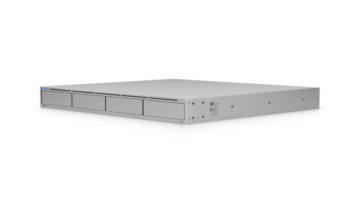
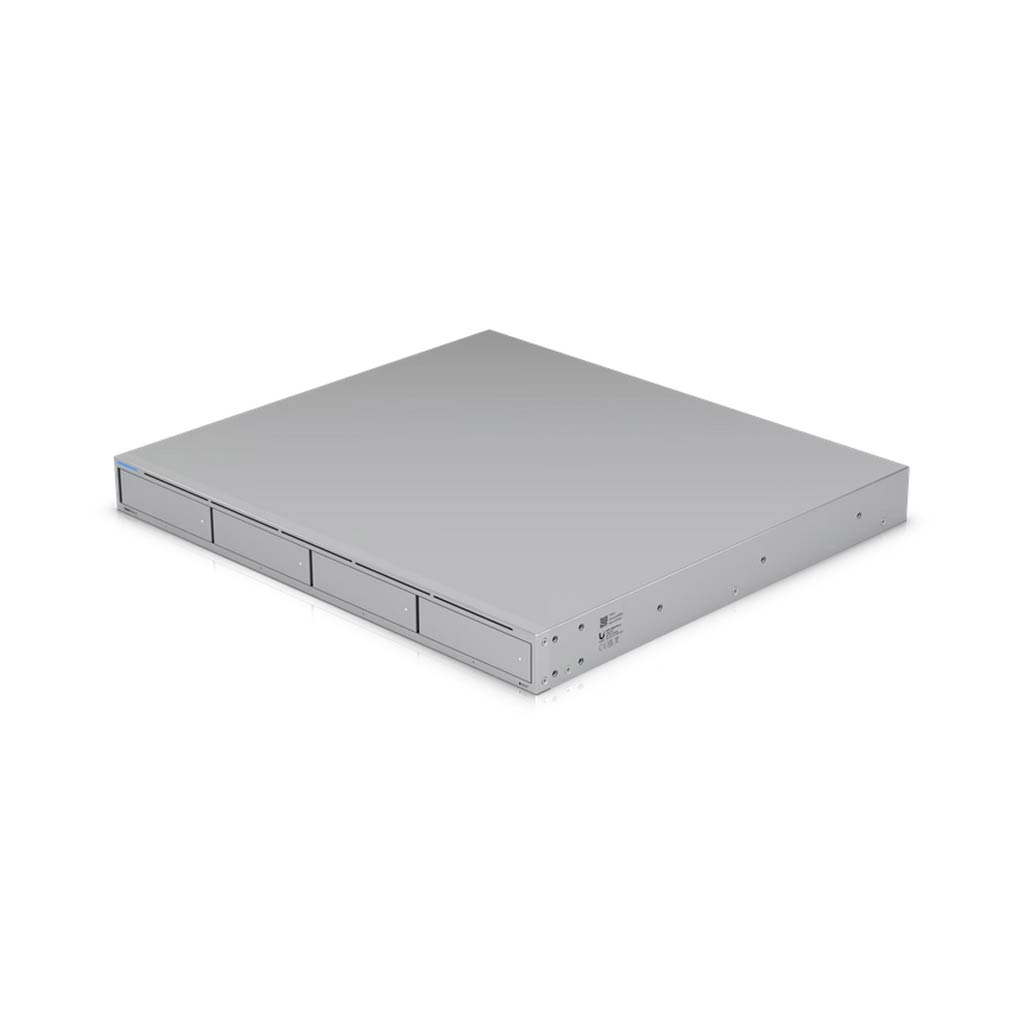
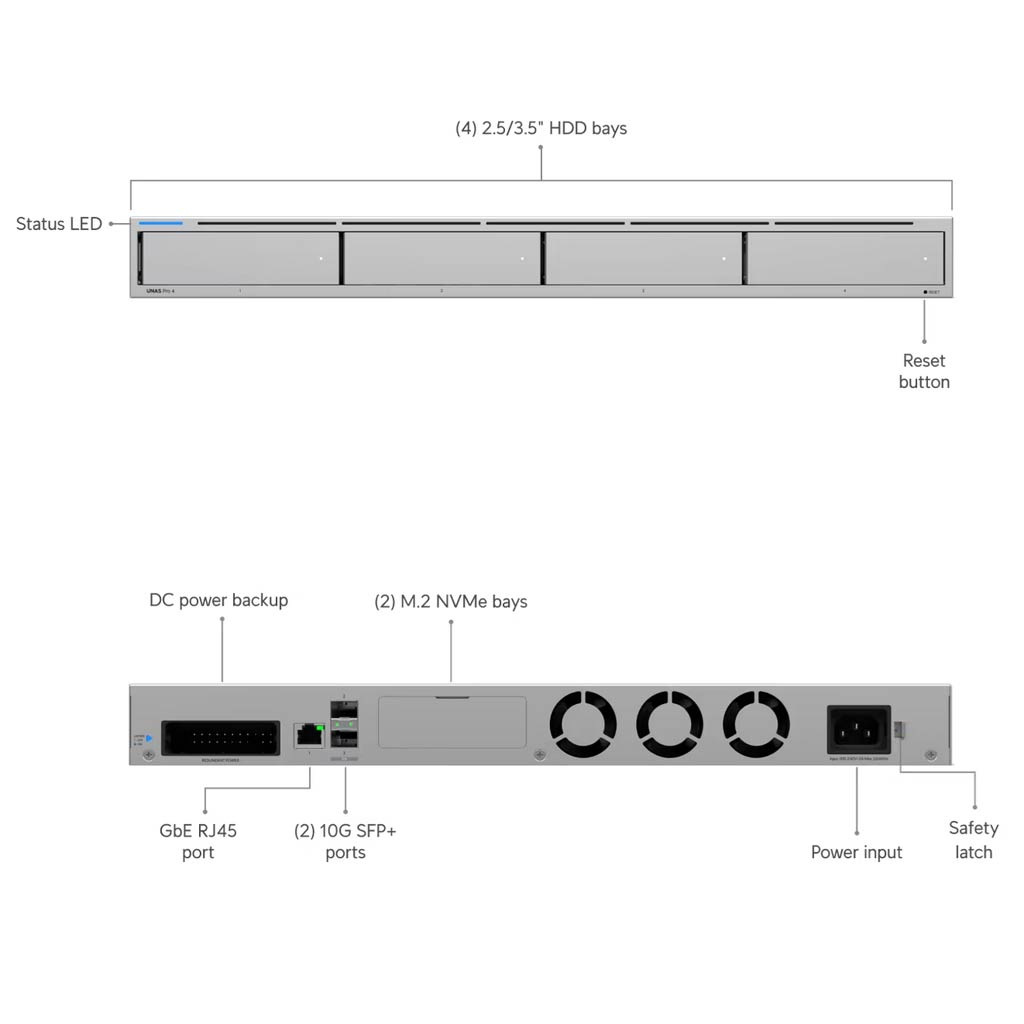
In a way, the UNAS Pro 4 is the rackmount version of the desktop UNAS 4. Though you can place it on a surface and use it that way, it’s designed to be mounted on a rack. In this case, the server is compact, occupying only 1U of rack space, with front-facing drive bays for easy storage management.
On the back, the NAS server has two SFP+ ports that can be used simultaneously for failover redundancy. If you don’t have an SFP+-ready switch, you can use a transriber to convert these into 10GBASE-T ports. Additionally, the server has two M.2 slots to host NVMe SSDs up to 4TB each, as an option for cache. As with the UNAS 4, there’s currently no way to turn these super-fast drives into a storage volume.
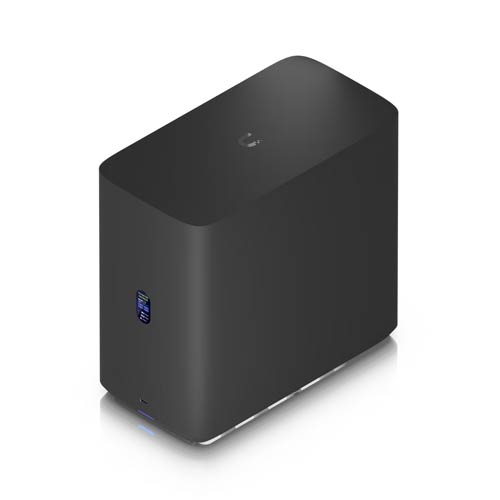
Overall, in terms of physical appearance, the UNAS Pro 4 is completely different from the UNAS 4. The table below compares the hardware specs of the two.
Ubiquiti UNAS Pro 4 vs. UNAS 4: Hardware specifications
|  | |
|---|---|---|
| Model | UNAS Pro 4 | UNAS 4 |
| Color Options | Gray | Black: UNAS-4-B White: UNAS-4-W |
| CPU | Quad-Core ARM Cortex-A57 at 2.0 GHz | Quad-Core ARM Cortex-A55 at 1.7 GHz |
| Memory | 8GB | 4 GB |
| Display | None | 1.47″ color LCM |
| Dimensions | 442.4 x 400 x 43.7 mm (17.4 × 15.7 × 1.7″) | 246 x 129 x 224.5 mm (9.7 x 5.1 x 8.8″) |
| Weight | 6.7 kg (14.8 lb) | 2.6 kg (5.7 lb) |
| Storage Capacity | 4x 2.5″/3.5″ drive bays (supporting all SATA drives) 2x M.2 NVMe bays (4TB max, caching only) | 4x 2.5″/3.5″ drive bays (supporting all SATA drives) 2x M.2 NVMe bays (2TB max, caching only) |
| Network Port | 2x 10G SFP+ (10G only), 1x GbE RJ45 | 1x 2.5 GbE RJ45 Multi-Gig PoE+++ |
| Expansion Port | None | 1x USB-C (USB 3.2 Gen 1) |
| Power Redundancy | 1x Universal AC input, 100–240V AC, 3A Max., 50/60 Hz 1x USP-RPS DC input, 11.5V DC, 13.91A | No |
| Design | 1U Rack | Desktop |
| Max. Power Budget for Drives | 125W | 80W (4.5W max for USB-C) |
| Max. Power Consumption | 150W | 90W |
| Power Method | Standard 3-prong power cable | PoE+++ |
| Power Supply | AC/DC, internal, 150W | 90W PoE+++ injector (Included) |
| Ambient Operating Temperature | -5 to 40° C (23 to 104° F) | |
| Release Date | February 18, 2026 | Q1 2026 |
| Ambient Operating Humidity | 5 to 95% noncondensing | 10 to 90% noncondensing |
| Warranty | 2 years | |
| US Launch Price (Compare at UI store!) | $499 | $379 |
Ubiquiti UNAS Pro 4: A powerful UniFi console
The UNAS Pro 4 is a UniFi console designed to run only the UniFi Drive application, the latest app in Ubiquiti’s UniFi ecosystem. That said, it shares the same web user interface, settings, and management as any other UniFi console.
UniFi console in a nutshell
A UniFi console always runs UniFi OS plus one or more UniFi applications, with Network being the most significant—the primary app.
However, not every UniFi console is equipped with this app. Network-enabled UniFi consoles are called “UniFi Cloud Gateways” (UCGs) and include the UniFi Dream series, such as Dream Machine (UDM) or Dream Wall (UDW)—all of which are UniFi “routers” if you prefer to call them that way.
A few UCGs have just this Network app—they are Network-only UniFi consoles. Most UCGs can host additional applications to qualify as a multi-app, Network UniFi consoles.
All UniFi Cloud Gateways (a.k.a. Network-enabled UniFi consoles) share the same basic features and settings. However, their capacities—specifically the number, breadth, and depth of UniFi applications they can handle simultaneously—vary depending on the hardware specifications.
The following are the current UniFi applications, with the first six belonging to the original UniFi Application Suite:
- Network (primary): This application enables the hardware to function as an advanced router, thereby qualifying it as a “UniFi Cloud Gateway” (UCG). This app handles all network-related aspects, including security, firewalls, access points, Wi-Fi system management, and more. On a UCG, the Network app is the default and can’t be uninstalled.
- Protect: The support for IP cameras as an advanced surveillance system, including a built-in UniFi Network Video Recorder (UNVR) of a UniFi console. Protect is the default app of a standalone UNVR. Generally, a standalone UNVR is a multi-app, non-Network console that can also host the Access and InnerSpace applications, but it’s often classified as a “Protect-only UniFi console”.
- Talk: A locally hosted Voice-over-IP system.
- Access: A “platform designed for Access Control Systems”—per Ubiquiti. Examples include door-related security IoT devices such as doorbells, key fobs, and locks.
- Connect: Application that manages digital signage and EV Stations
- InnerSpace: A visualization tool that allows users to map out their UniFi network by uploading floor plans, drawing walls, etc., for the deployment of UniFi devices.
- Drive: The latest app that turns a UniFi console into a UniFi network-attached storage (NAS) server, known as a UNAS. Generally, a UNAS server is a single-app non-Network UniFi console—it’s a “Drive-only UniFi console”.
Each of these applications is a world in itself, with various in-depth customizations, and some require UniFi devices to function as intended.
Ubiquiti recently released version 4 of the UniFi Drive application, which includes more features and improvements. Still, it’s a single app that focuses solely on network-based storage. As a result, the UNAS Pro 4, like all other UNAS servers, doesn’t support high-level applications, such as PC-less downloads and streaming servers, that are common in other NAS servers.
I detailed what you can do with the UniFi Drive application in this post, but at the gist of it, the following are what you can expect from the UNAS Pro 4:
- Simple setup process, which is similar to that of any UniFi console:
- Install the SATA drives into the trays, then attach the trays to the server’s drive bay on its underside. You need at least one drive to start, though it’s best to use all four drives of the same capacity and type (SSDs vs. HDDs).
- Connect the server to the existing network via the included PoE injector. Or if you have a PoE+++ switch, you can use any port that delivers 90W.
- Proceed with the initial setup process:
- Via a web user interface: From a connected computer, open a browser and enter the server’s IP address (provided by the router).
- Via the UniFi mobile app: Run the app on your phone, stand next to the server, and the app will detect the server almost instantly, just like any other UniFi device.
- Complete with creating a storage volume using one of the supported RAID configurations.
- Proceed with creating shared folders, user accounts, and configuration of other features. The server supports standard network shared drives and features remote data sharing over the Internet via share links for those with a UniFi Identity account.
- A handful of storage-based features:
- Snapshot: You can store versions, called “snapshots” of each shared folder (or “drive”) to protect data against unexpected changes. This feature is similar to Synology’s Snapshot and Replication.
- Backup: The system can back up data of shared drives to another UNAS server, a standard SMB server, or a cloud service (Google Drive, OneDrive, Dropbox, Amazon S3, Backblaze B2, Wasabi).
- Support for Time Machine backup: You add File Services & Time Machine Credentials to a user account, allowing them to use the shared drives on the UNAS for Time Machine backups on their Mac when it’s connected to the same network.
- Directory services, such as Active Directory or LDAP, integration: You can integrate UNAS 2 with an AD/LDAP server, letting the domain controller handle access to shared drives seamlessly.
- No integration with an existing UniFi Cloud Gateway: As a single-app UniFi console, the UNAS 4 works the same way on a network hosted by a third-party router or by a UniFi Cloud Gateway. In the latter case, the two don’t integrate. For example, there’s no way to make it host the storage of the UniFi Protect app or any other app within the UniFi suite.
Other than that, you can expect the UNAS Pro 4 to deliver top performance among all UNAS servers thanks to its 10Gbps ports.
The takeaway
If you have a network rack and an existing switch or a UniFi Cloud Gateway with an available SFP+ port, the UNAS Pro 4 is an excellent way to add high-performing network-based storage to the system. On the other hand, casual home users will find the UNAS 4 or UNAS 2 a much better option thanks to their PoE power, which gives them the flexibility to place the hardware wherever a network cable can reach. Consider these servers today!




Hey Dong,
I have been considering and waiting for this unit, but after your “Best NAS Servers for the Home” I am thinking I should reconsider and go for the Synology DS1525+. My current needs are for storage, but would like to get into some of the other available applications the DS1525+ offers. I love Ubiquiti because everything just works and works together. In your opinion, do you see Ubiquiti ever having the UNAS Pro 4 go beyond storage?
Thanks so much, Steve
I don’t, Steven. Considering Drive is just an app, as mentioned. If you need more than the applications within the current UniFi ecosystem, definitely go with the Synology.