
You might never have heard of the file system, but when you use a computer or any device that stores data, you have to deal with one. The same can be said about a partition.
This post explains all that in simple terms and shows how to create or format a partition on a storage device using an appropriate file system on a Mac or Windows computer.
Dong’s note: I first published part of this post on March 20, 2018, and updated it on December 22, 2025, with the latest information.

What is a partition?
To state the obvious, we’re talking about digital storage here.
A partition is a portion or region of a storage device that users can manage independently. Once formatted using a file system—more below—a partition is now available to the operating system as a volume.
For example, in a Windows computer, each drive letter you see (like C: or D:) represents a volume (partition).

Partition vs. volume vs. drive vs. disc vs. disk
It’s a bit of a mess regarding digital storage terminologies. That said, here’s the breakdown:
First and foremost, we have a physical storage device, often referred to as a drive, such as a hard drive (HDD) or a solid-state drive (SSD). But this device can also be called a disc, or a disk.
That said, “disk” and “disc” refer to the same thing: the physical device that holds your data. “Drive,” on the other hand, is a bit more complicated. Hold that thought!
A disc comes with unallocated space, or raw storage, that can be turned into one or more partitions. In the raw state, a partition is sometimes called a volume.
Once formatted (no longer “raw”), the partition can be referred to as a drive, as in Windows drive letters mentioned above.
Volume vs. partition: Both volume and partition are raw storage units that hold a drive, as in a formatted storage unit. One volume or partition can be turned into a single drive. The difference between volume and partition is that the former can represent multiple physical disks—applicable to enterprise applications—while the latter applies only to a single physical disk.
Volume vs. storage pool: A storage pool, often used in a storage server (such as NAS), generally consists of one or multiple disks in a RAID configuration. It’s a raw storage unit where users can create one or more volumes that hold network shared folders.
So, again, “drive” is where it gets confusing. That’s because the term is used to refer to both a formatted volume—a familiar yet intangible concept—and a physical storage device you can hold in your hand. Here’s a recap:
- A tangible physical storage device is called a drive, a disk, or a disc.
- An intangible (logical) storage unit on a computer is called a drive, a volume, or a partition.
So far, the main takeaway is this: on a physical disk, you can create one or more logical partitions.

To make it a bit easier to grasp, a partition to a disk is like a storage zone to a warehouse. You can use a warehouse as a single large storage zone or divide it into multiple smaller ones.
Similarly, on a physical disk, you can use software to create one or more partitions, in a process called partitioning. And that brings us to partition types.
Popular partition types
Again, a brand-new disc generally comes with unallocated space. You first need to partition it using one of the two popular partition types: GUID Partition Table (GPT) and Master Book Record (MBR).
Both are how an operating system organizes information on a storage device.
GUID Partition Table (GPT)
GPT is a modern partition scheme that has become popular since 2010 and has since slowly replaced MBR entirely. It uses globally unique identifiers (GUIDs) to map out the partition tables on a storage device.
If you buy a computer released in the past decade, it uses the GPT partition type. MBR is nowadays known only as a reference in the evolution of partitioning.
The GPT type can support up to 128 partitions per disk. Each GPT partition can hold up to 9.4 zettabytes of data, that’s 9.4 billion TB.
All macOS versions use GPT, and since Windows 8, Microsoft has supported GPT as the boot partition type.
Note: To use a GPT partition as a boot volume, the computer’s motherboard must use a modern pre-OS low-level system called “Unified Extensible Firmware Interface” (UEFI). Additionally, it must use a 64-bit operating system. A 32-bit OS can address only slightly less than 2.2 TB in a single storage volume (partition).
Master Boot Record (MBR)
MBR is an old partition scheme first available in MS-DOS. It’s still compatible with modern computers, including the latest version of Windows.
Almost all existing computer platforms can read and write MBR partition types, but only Windows can use them as a boot volume. In other words, you can’t install macOS on an MBR partition.
Note: To use an MBR disc as a boot drive, the computer’s motherboard must support the older Basic Input/Output System (BIOS). Most new UEFI-ready motherboards support this system for backward compatibility and refer to it as the “Legacy” boot type. That’s all you need to remember.
MBR’s major shortcomings
Quite ancient, the MBR partition type has many limitations compared to GPT. The deal-breaker is that MBR can handle a maximum partition size slightly shy of 2.2 terabytes (TB), or 4.7 billion times less than GPT.
So if you use MBR on a storage device larger than 2.2 TB—most hard drives and SSDs have higher capacities these days—you’ll need to create multiple partitions.
The Master Boot Record is so old that you might not run into it. Still, if you happen to have a computer using MBR, which can be the case if you have been upgrading your computer by cloning an old system over the years, the extra information in the cabinet below can come in handy.
Extra on MBR
MBR: Primary partition vs. extended partition
MBR supports two partition types: Primary and Extended. Both can store data, but only the former can boot an operating system.
The MBR partition type supports up to four primary partitions or three primary partitions and one extended partition. The only good thing about an extended partition is that you can subdivide it into multiple volumes (drives).
On a Windows computer, the extended partition on a disk will appear in a different color from the primary partition. Nowadays, other than backward compatibility, there’s no need for extended partitions.
Active partition and MBR drive cloning
When you use an MBR drive with multiple primary partitions, the partition that holds the boot information must be marked as “Active” before the drive can boot.

It’s important to note that this partition may not be the one that holds the operating system, or even the one categorized as “boot.” Instead, it’s the one classified as a “system.”
Making a drive bootable (such as when installing an operating system) includes marking the relevant partition active. However, if you clone an MBR drive, you might need to manually figure out the correct partition and mark it as active on the replacement drive before it can boot.
With that, let’s move on to the file system, which is an independent concept from partition types.
What is a file system?
A file system (FS) is the way data that resides on a storage device is organized. Without an FS, your computer won’t know where a document or picture is on a drive to open it up per the user’s request.
If the partition is a section of a warehouse, the file system is how the merchandise is stored and inventoried.

Generally, you must create a partition and format a new storage device (HDD or SSD) before you can use it. However, many portable drives come with a ready-to-use partition right out of the box. In that case, you can use it that way or change its file system, if needed, via a process called formatting.
Knowing how to format a disc into a particular FS can come in handy. For example, you can format a Windows drive for a Mac and vice versa.
File systems generally apply to a particular platform, such as Windows vs. macOS. They don’t change the data they hold.
Specifically, moving a document (such as a PDF file) from a Windows computer to a Mac won’t alter it in any way. Over a network, a shared folder hosted on any platform is accessible to all parties that support the sharing host’s network protocol.
Before formatting, it’s a good idea to determine which file system best suits your needs.
Popular file systems: NTFS vs. HFS+ vs. exFAT vs. others
There are many different file systems, and I mention here only those relevant to the Windows and Mac platforms. If you use any other platforms, such as Linux, you’re likely an advanced user who needs no explanation.
Mac-only file systems
These are file systems that only macOS can read and write. They can also apply to the boot drive that holds the operating system on specific macOS versions.
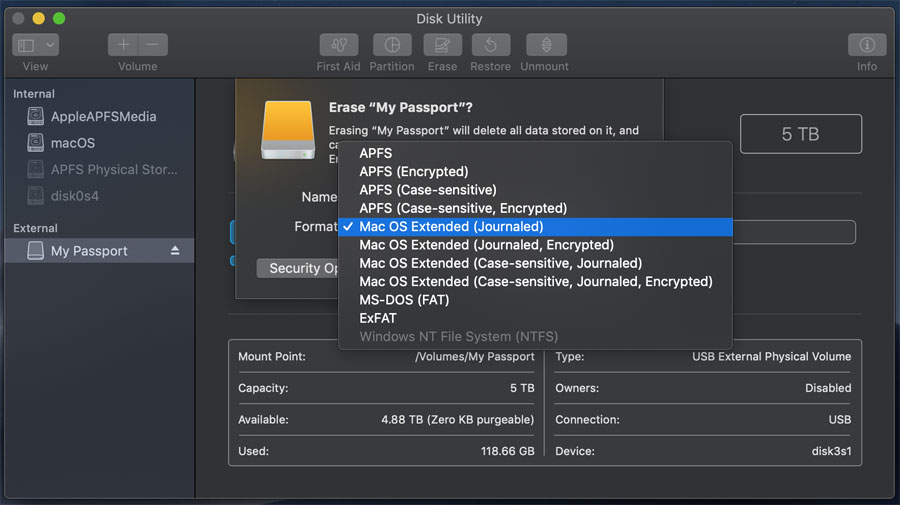
- APFS—or Apple File System—is the default FS for macOS High Sierra (10.13) and later. Legacy macOS versions (10.11 and earlier) cannot read APFS. Only macOS Sierra (10.12) can read APFS, though it uses HFS+.
- Mac OS Extended (Journaled) (a.k.a HFS+) is the default FS of macOS versions 10.12 and earlier. While newer macOS versions (10.13 and later) can read HFS+, you can’t use HFS+ on the boot drive to hold the operating system.
Mac file systems have two attributes:
- Case sensitivity allows you to name files with the same name but different letter cases (i.e., MyFile.txt vs. myfile.txt).
- Encrypted means the data stored on the drive is encrypted; use this if you intend to store sensitive data.
So, for example, if you want to use the HFS+ file system with case-sensitive and encrypted support, then format your drive using Mac OS Extended (Case-sensitive, Journaled, Encrypted).
Platform-agnostic file systems
The following are neutral file systems that work on both Windows and macOS. Specifically, if you have a drive formatted using one of these, you can connect it to a Windows or Mac computer to view and edit its content.
In most cases, these FSes are not suitable for the boot drive. Initially, these file systems were used in older versions of Microsoft’s operating systems (MS-DOS and Windows). Later, they were supported on other platforms for data exchange.
- FAT—or File Allocation Table—is an ancient file system that was first introduced in MS-DOS (pre-Windows). FAT has a file size limit of about 2GB.
- FAT32 is an improved version of FAT and has a max file size of about 4GB.
- exFAT is an enhanced version of FAT32 with a much larger maximum file size. This FS is an excellent choice if you use the drive to transfer data between Windows and Mac.
NTFS: Windows’ default file system
Modern Windows operating systems use a single file system, NTFS. Short for New Technology File System, NTFS was first introduced with Windows NT in 1993 and has been the default FS for all NT-based Windows versions from Windows 2000 to Windows 11.
NTFS has improved over the years, with each new version backward compatible with older ones. This article does a great job of showing how Microsoft’s file systems differ.
Now that we’re on the same page about file systems and partitions, let’s put that into use.
How to format a drive
To use a storage device—often a hard drive or an SSD, internal or external—we first need to create a partition or partitions on it.
By default, formatting creates a single partition that uses all available continuous unallocated space, and generally, that’s the recommended way to use a storage device.
However, you can manually create multiple partitions on a disk before formatting. Conversely, you can shrink an existing volume to create unallocated space, out of which you can make another partition.
Things to keep in mind before formatting a drive
Before doing the drive format, though, let’s recap which file system to use.
If the drive you’re about to format will hold an operating system, make sure you apply the OS’s default FS. Specifically:
- For Windows, pick NTFS
- If you use macOS 10.2 or earlier, use Mac OS Extended (HFS+)
- For macOS 10.13 or later, choose APFS.
In most cases, you probably format a disc used only to store data, like a secondary internal drive, a thumb drive, or a portable drive. If so, the following are the available file systems of choice:
- If you use only Mac computers, then pick Mac OS Extended
- For Windows-only use, choose NTFS
- In a mixed Windows and Mac environment, exFAT is the best option.
Note: Though exFAT works with Macs, it does not support Time Machine backup. Formatting a drive erases all its content permanently.
How to format a drive on a Windows computer: The Disk Management tool
There are many ways to format a drive in Windows 10, but the easiest way is to use the OS’s built-in Disk Management tool.
But first, make sure you connect the drive to the computer. Use the SATA connection or an M.2 slot if it’s an internal drive. If it’s an external one, use a USB or Thunderbolt port.
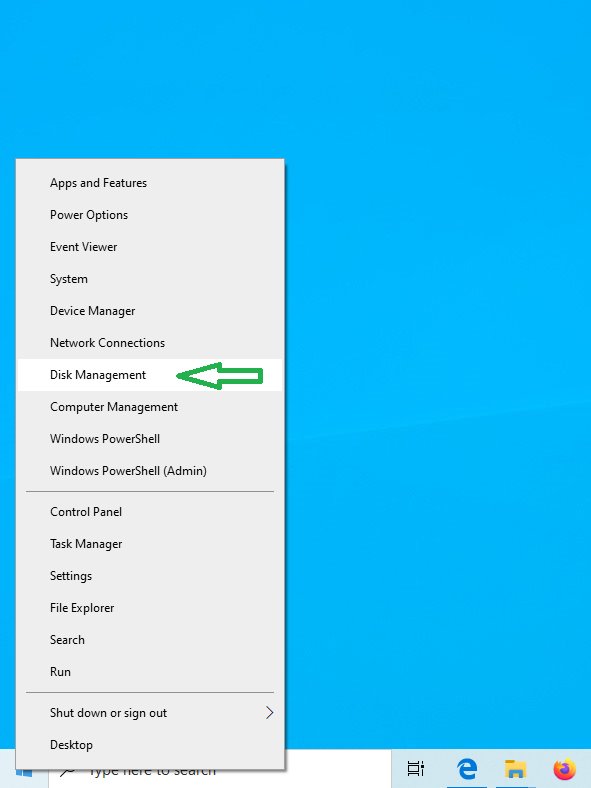
1. Right-click on the Start button to open the Windows X menu. (Alternatively, you can use the Windows + X keyboard shortcut.)

2. On the menu that pops up, click on Disk Management.
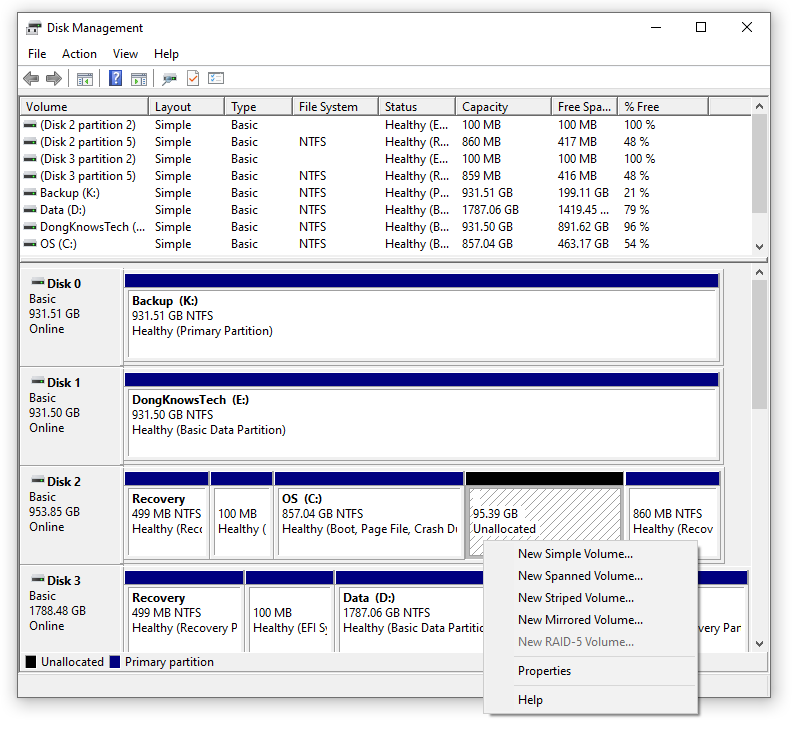
The tool launches and displays all available discs of your computer. They appear as horizontal bars, each representing a physical disc. Within each bar, you’ll see different sections; each represents a volume—if you notice a letter (like C: or D:) within a bar, it is the drive letter you’ll see in Windows Explorer.
3. Pick the bar of the disc you want to work with and right-click on it to bring up a context-based menu that, among other things, allows you to manage the volumes however you like.
Windows 10’s relevant commands to handle storage devices
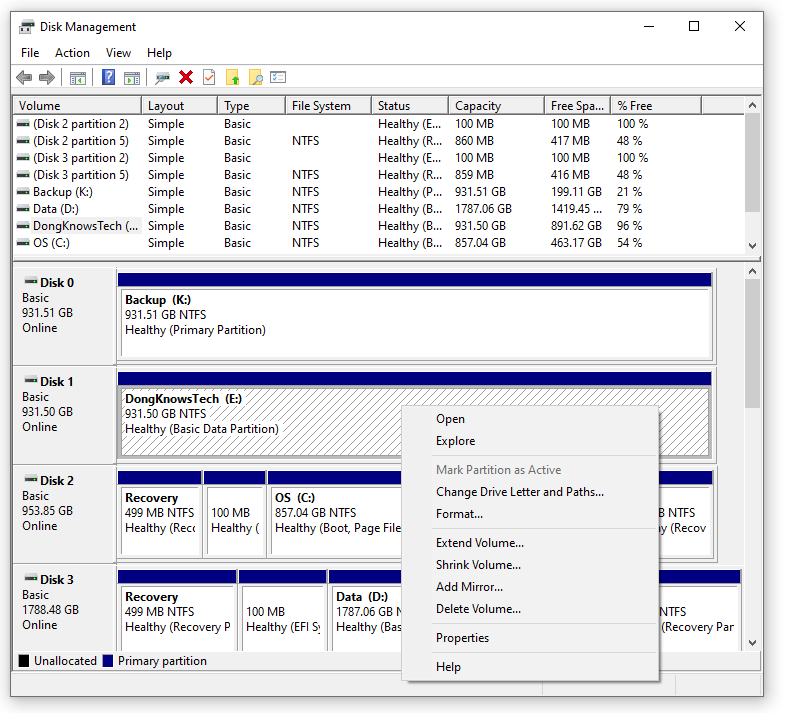
These commands are items on the context-based menu that pops up when you right-click on a drive.
Commands for an unallocated space
- Create a New Simple Volume: This is how you create a new (simple) partition. You can pick the partition size or accept the default value, which is the entire unallocated space.
- Create Spanned/Striped/Mirrored Volume: This allows you to use multiple disks as a single volume in a RAID setup.
Commands for an existing volume
- Extend Volume…: Make the existing volume take over the unallocated space next to it.
- Shrink Volume…: Resize an existing volume to make it smaller so that you’ll have some unallocated space on the right of it, which you can turn into another volume.
- Delete Volume..: Turn the existing volume into unallocated space.
- Format…: This allows you to pick the file system to use after the formatting process. You’ll also be able to choose a label (a name) for the volume.
- Change Drive Letter and Path: This allows you to remove a drive letter from a volume, effectively causing it to disappear from Windows Explorer or pick a new letter for it.
There are more things you can do with Disk Management, and they are all self-explanatory.
How to format a drive on a Mac computer: The Disk Utility tool
The Disk Utility tool is the Mac equivalent of the Disk Management tool in Windows. It’s a lot more straightforward. That said, here is how you handle a disk on a Mac.

1. Connect the drive to your Mac.
2. Run Disk Utility (search for “Disk Utility” using Spotlight located at the top-right corner)
3a. To create a single partition: Click on the disk you want to format, then on Erase.

Pick the Name and the Format (file system) of your liking, and click on Erase. Wait a few seconds for the process to complete, and that’s it!
3b. To create multiple partitions, click on the disk you want to work with, then on Partition.
Click on the Plus (+) sign to create as many partitions as you wish. Or use the Minus (-) to reduce the number.
Select the Name and Format (file system) for each partition, then click Apply. Mission accomplished.

Note that I used macOS Mojave (10.14) for the screenshots. If you operate a different version of the Mac OS, the steps and the interface might be slightly different, but the process is essentially the same.
The takeaway
File systems, volumes, drives, discs, etc., are low-level hardware and software—they are the nuts and bolts under a car’s hood.
You don’t usually need to know them, but having a good understanding of these concepts is required if you want to get the most out of your system, including building or fixing one.



Hi Dong!
“Create a New Simple Volume: This is how you create a new (simple) partition. You can pick the partition size, or accept the default value which is the entire unallocated space.”
So if you want to create 3 partitions of 30Gb each on say a 90Gb disk, you would do this step 3 times – each time pointing at an unallocated remaining portion of that disk?
Yes, and pick an appropriate size for each volume.