
There’s been a huge wave of attacks on certain Synology NAS servers during this month of October. These attacks exploit known PHP-related vulnerabilities and target servers that run dated versions of Synology’s DiskStation Manager (DSM) or software packages (applications).
PHP (short for Hypertext Preprocessor) is a widely used open-source, server-side scripting language for web development. These vulnerabilities are thefore not limited to Synology NAS servers and affects all applications using unpatched PHP.
I personally know some folks who had their servers hacked due to these attacks because of negligence in keeping the hardware or apps updated, and then some because they still relied on really old server—Synology servers can last a very long time.
Rest assured that all modern Synology NAS servers can be kept secure against these attacks, and now, that’s even possible with some legacy servers, as long as they are not over 15 years old, thanks to Synology’s newly released security patches.
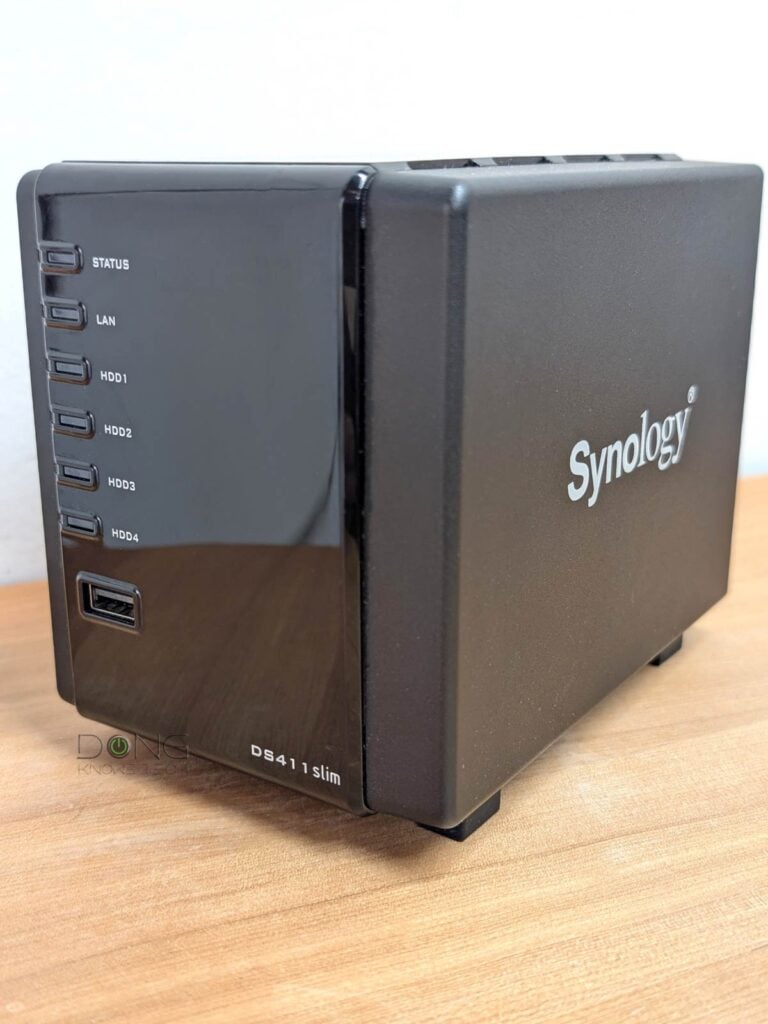
Synology releases security patches to support legacy servers and apps
Synology on October 29, 2026, announced its latest security updates to address the known PHP2Shell vulnerabilities, described in its October 2026 and November 2024 security advisories, that patch its current version of its DiskStation Manager (DSM) operating system (DSM 7.4 and DSM 7.3), as well as the as well as the end-of-life DSM 7.2, DSM 7.1, DSM 7.0, and DSM 6.2.
To put things in perspective, DSM 6.2 is the last supported version of servers released in 2011, such as DS1511+, of the lineage in which the DS1525+ is the latest. Synology NAS servers can generally be updated to the latest DSM version for 10 to 12 years before they become end-of-life. For example, if you buy a new 2025 server today, it’ll likely be officially supported until 2035 or 2037.
The popular NAS maker confirmed that these vulnerabilities impact its servers running certain PHP-dependent packages (applications), including Calendar, IDrive, Joomla, KodExplorer, MailStation, MediaWiki, phpMyAdmin, vtigerCRM, Web Station, and WordPress.
The company urges users to immediately update their servers to the latest supported DSM version and, if they have any of the above packages, update them using the Package Center to the latest versions. “Once the PHP update is complete, dependent packages restart automatically, and the vulnerabilities are resolved,” Synology says.
For those with servers still running DSM older than version 6.2, it’s recommended that they temporarily disable the affected packages and upgrade to a supported DSM version.
If the server can’t run DSM 6.2, it’s best to replace it or use it without any security expectations, as it’s similar to running Windows Vista on a computer today. I personally still have a DS410 that I use now and then to see how far DSN has evolved.
How to keep your NAS server safe
I wrote about steps to keep a NAS server safe in this post.
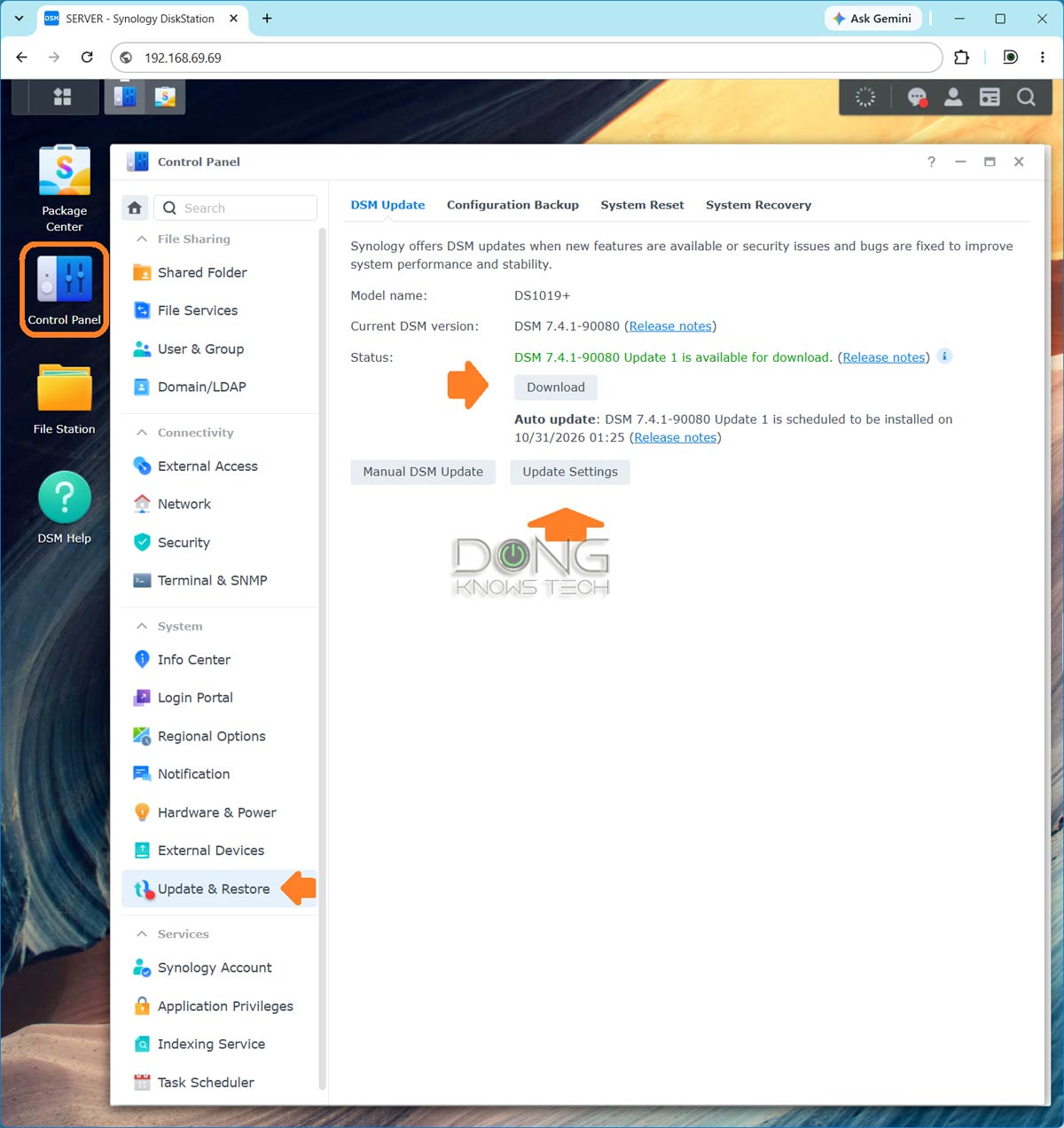
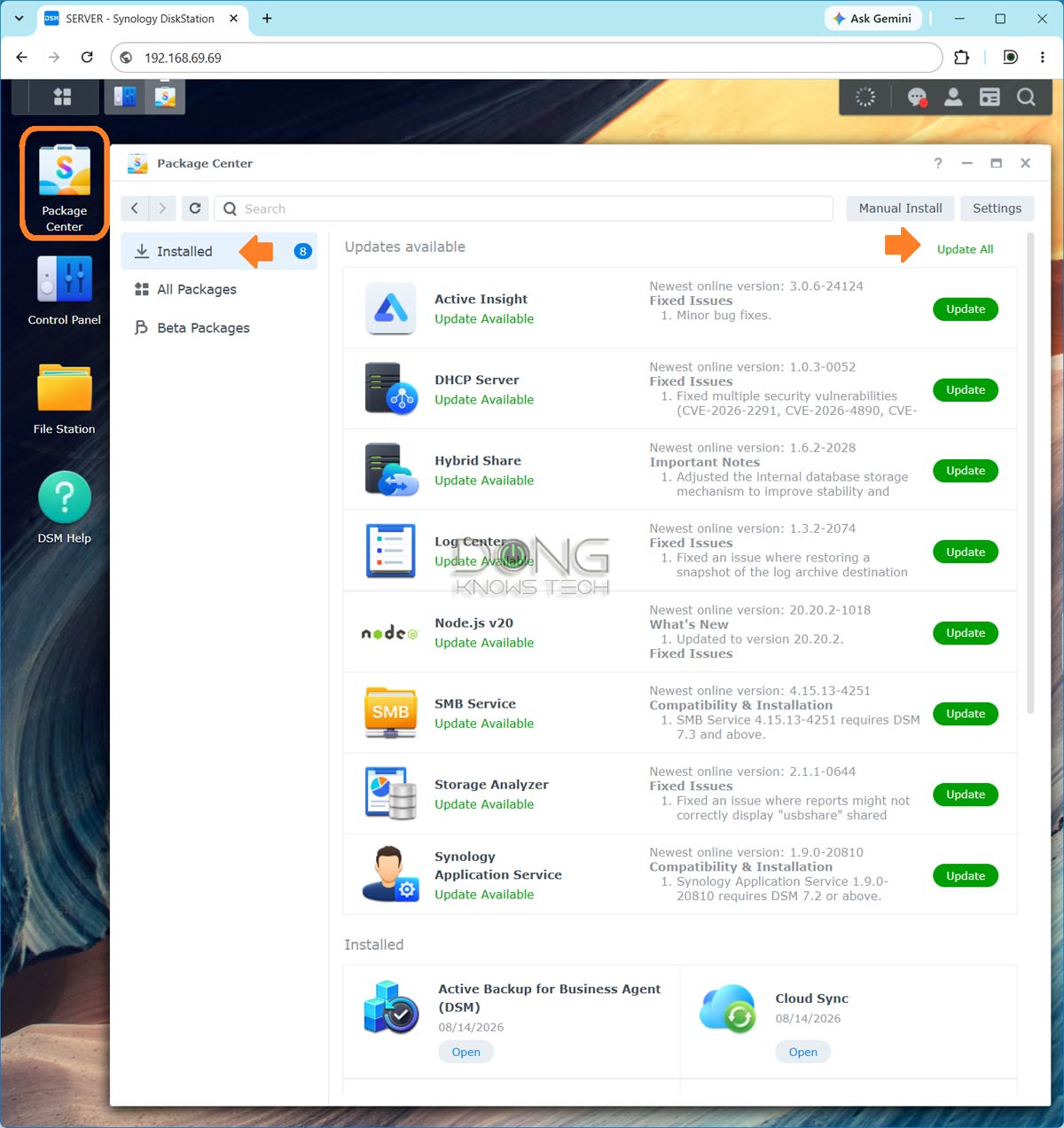
Generally, on a Synology NAS, the key things about security are the following:
- Keep your servers and their apps updated to the latest available version, especially ones that are specifically listed as security patches. On a Synology
- To update the operating system: Log in to the server’s web-based user interface via its IP address with an admin account, run the “Control Panel” app, then pick Update & Restore. Here you can Download the DSM manually or change the Update Settings to make the server do that by itself automatically.
- To update the applications (packages): Run the “Package Center” app, then go to the Installed section and choose to update the installed apps to the latest.
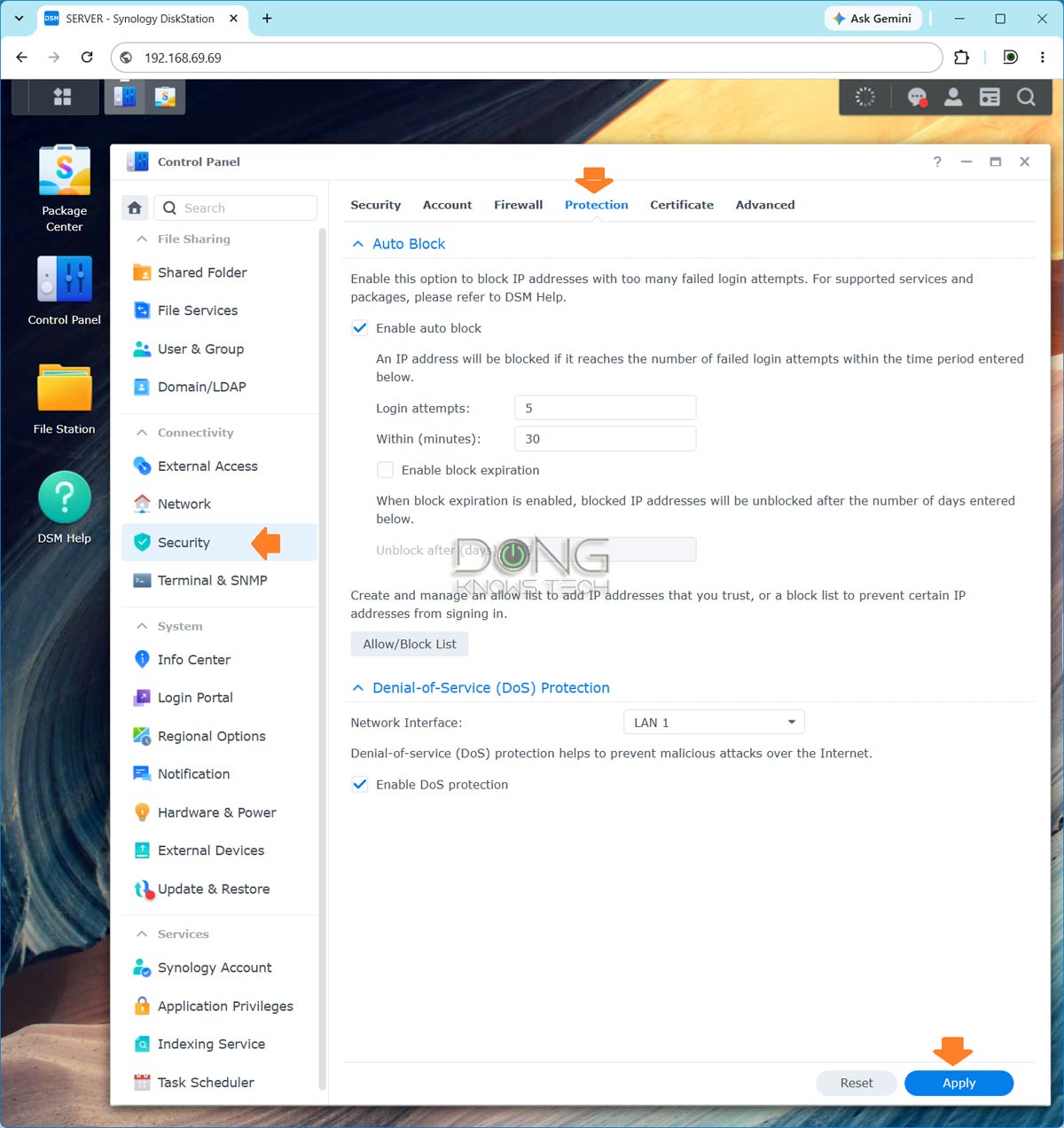
- Keep the server’s user accounts and IP secure: Run the “Control Panel” app and perform the following in the Security section:
- Enable Account Protection to keep existing accounts safe. Disable the default “Admin” account and use non-conventional usernames.
- Enable 2-Factor Authentication (available in DSM 7 and later) for at least the admin accounts.
- Enable Auto Block in the Protection section to prevent third parties from guessing the account and password.
- Turn on the default Firewall and DoS Protection for each of the server’s LAN ports.
- Use the Snapshot and Replication app to keep versions of your important data and make sure there are backups, either to an external drive or another server.
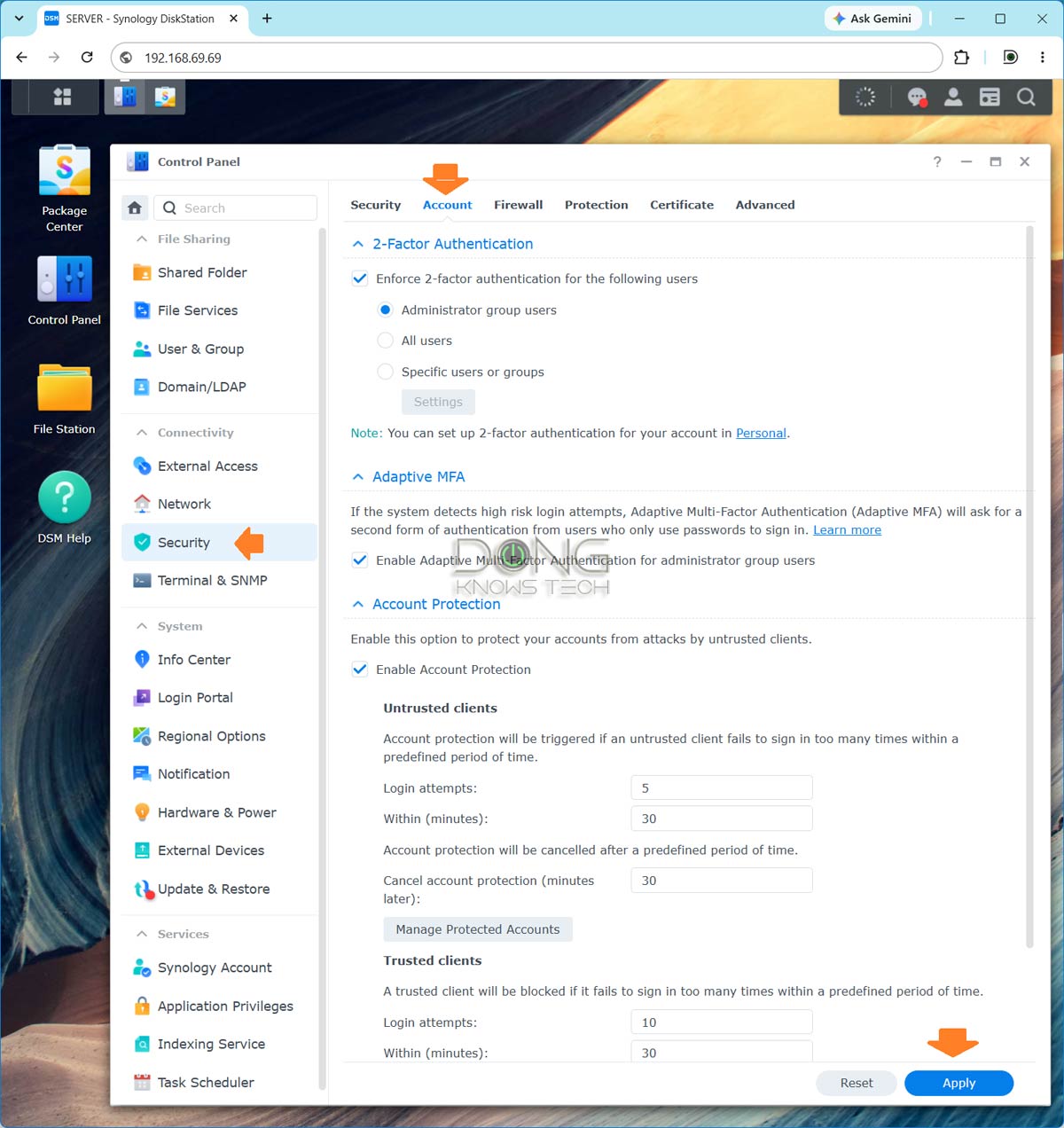
And that’s it. If you follow the three points above, chances are your server is safe.
The takeaway
Synology NAS servers are generally excellent in terms of features, usability, and security. Synology has also been active in keeping its product safe. That said, as long as you keep your server updated (and not too old) and follow the general security rules, you can have peace of mind on this front, even when you allow remote access to your server, such as the use of QuickConnect or Dynamic DNS.
I speak from experience. I have had a dedicated server serving publicly accessible files for years without any issues, including in the face of the recent wave of attacks.



Comments are subject to approval, redaction, or removal. You're in the no-nonsense zone and that applies BOTH ways.
It's generally faster to get answers via site/page search. Your question/comment is one of many Dong Knows Tech receives daily.
Thank you!
(•) If you have subscription-related issues or represent a company/product mentioned here, please use the contact page or a PR channel.