
The UniFi 5G Backup (model U5G-US or U5G-EU, depending on the market), which Ubiquiti announced and made available today, is a stripped-down version of the previous UniFi 5G Max (U5G-Max): it’s compact, less capable, and significantly more affordable. The new PoE-powered add-on modem is not designed to deliver top 5G speeds, but to provide a reliable, low-cost cellular connection.
Here’s the bottom line: If you have a network hosted by a UniFi Cloud Gateway and need a 5G cellular model as a backup Internet connection, the U5G is an easy recommendation for its friendly $99 price tag and reliable real-world performance. Get one today!
Ubiquiti UniFi 5G Backup (U5G)'s Rating
Pros
Affordable with excellent 5G cellular support with seamless integration into a UniFi network
Built-in Nano SIM slot with eSIM option
Convenient and compact design with mounting accessories included
Cons
RedCap 5G specs with modest real-world cellular performance
No dual-SIM capability
No third-party router support
Ubiquiti U5G: A cool representative of RedCap 5G
Apart from being a much smaller device, the biggest difference between the newly released UniFi 5G Backup and the UniFi 5G Max is the fact that the former is a reduced-capacity (RedCap) 5G modem, whereas the latter is a full-capacity model (5G NR).
As a RedCap device, the U5G has much lower cellular celling speeds, capping at 220 Mbps download and 120 Mbps upload on paper. In return, it costs significantly less, merely a fourth of the U5G-Max’s price. Other than that, the two are essentially the same in terms of usability.
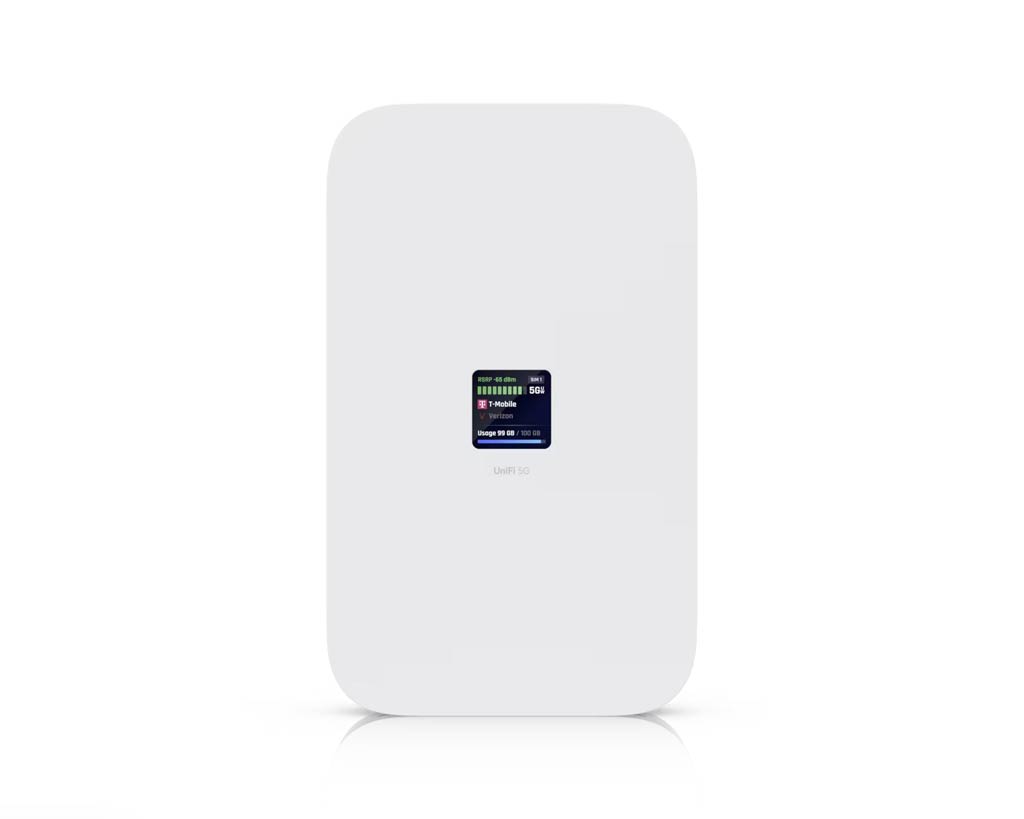
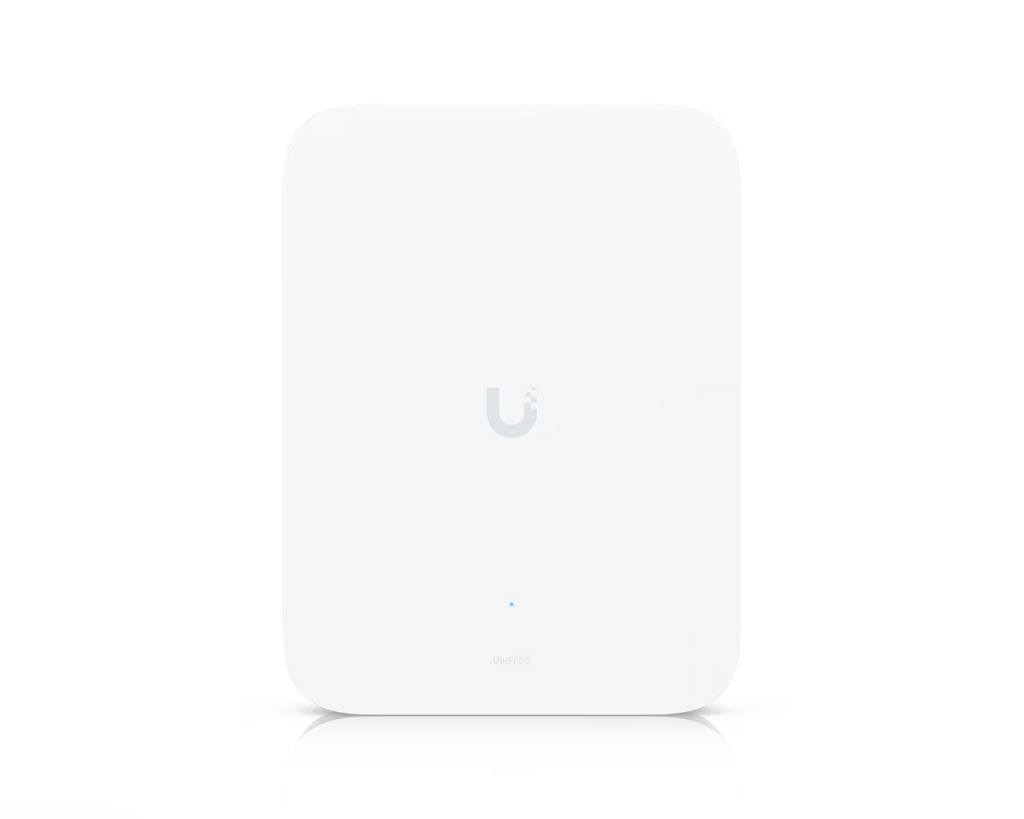
The table below compares the hardware specs of U5G and the U5G-Max (and its Outdoor variant).
Hardware specifications: Ubiquiti U5G Backup vs. U5G Max vs. U5G Max Outdoor
 |  |  | |
|---|---|---|---|
| Full Name | UniFi 5G Backup | UniFi 5G Max | UniFi 5G Max Outdoor |
| Model | U5G | U5G-Max | U5G-Max-Outdoor |
| Operating Roles | Cellular Modem | ||
| 5G Category | 5G RedCap (reduced capacity) | 5G NR (full capacity) | |
| 5G Modem Specs | Bands: n2, n5, n7, n12, n13, n14, n25, n26, n30, n38, n41, n48, n66, n71, n77, n78 Max. TX Power: 23 dBm Max Downlink: 220Mbps Max Uplink: 120Mbps | Bands: n1, n2, n3, n5, n7, n8, n12, n13, n14, n18, n20, n25, n26, n28, n29, n30, n38, n40, n41, n48, n66, n71, n75, n76, n77, n78, n79 Max. TX Power: HPUE power class 2: 26 dBm Max Downlink: 3.4Gbps Max Uplink: 560Mbps | |
| 4G LTE Modem Specs | Bands: B2, B4, B5, B7, B13, B14, B25, B26, B30, B38, B41, B42, B43, B48, B66, B71 Max. TX Power: HPUE power class 2: 26 dBm Max Downlink: 195Mbps Max Uplink: 1000Mbps | Bands: B1, B2, B3, B4, B5, B7, B8, B12, B13, B14, B18, B19, B20, B21, B25, B26, B28, B29, B30, B32, B34, B38, B39, B40, B41, B42, B43, B46, B48, B66, B71 Max. TX Power: HPUE power class 2: 25 dBm Max Downlink: 1.6Gbps Max Uplink: 210Mbps | |
| 3G Modem Specs | None | Bands: B1, B2, B4, B5, B8, B19 | |
| Antenna | Two embedded omnidirectional cellular antennas | Four embedded omnidirectional cellular antennas | Six embedded cellular antennas, including two high-gain for downlink: peak 9 dBi, 85°x85° |
| SIM | 1x Nano SIM slot and 1x eSIM | 2x Nano SIM slots supporting two concurrent Nano SIMs or one Nano SIM and one eSIM | |
| Dual-SIM Support | No | Yes (two physical SIMs or one plus one e-SIM) | |
| Remote SIM Support (when used with a supported gateway, such as the UCG Industrial) | No | Yes | |
| Dimensions | 7.9 x 1.5 x 0.8″ (200 x 38 x 20.2 mm) | 7.1 x 4.3 x 1.3″ (180 x 109 x 33.8 mm) | Device: 8.7 x 6.5 x 2.6″ (220 x 165 x 66.9 mm) With mount: 8.7 x 6.5 x 4.8″ (220 x 165 x 122 mm) |
| Weight | .88 lb (400 g) | 3.1 lb (1.4 kg) | Device: 2.6 lb (1.2 kg) Mount: 4.6 oz (130 g) |
| Mount Option (accessories included) | Window, wall, desktop | wall, desktop | wall, pole |
| PoE-in Port (uplink) | 1x 802.3af Gigabit port | 1x 802.3af 2.5Gbps Multi-Gig port | |
| Max Power Consumption | 14.5 W | ||
| LAN Port | None | ||
| Power Method | PoE | ||
| Firmware Version (used during testing) | UniFi Network: 10.4.57 Firmware: 1.0.5 | UniFi Network: 10.1.85 Firmware: 7.3.37 | |
| Notable Design | Front-facing 1.14″ status screen | Front-facing 1.3″ touchscreen | IP67 ratting |
| Release Date | May 2026 | December 5, 2026 | January, 2026 |
| US Launch Cost (check prices) | $99 | $399 | |
Ubiquiti U5G Backup: Well-thought-out design
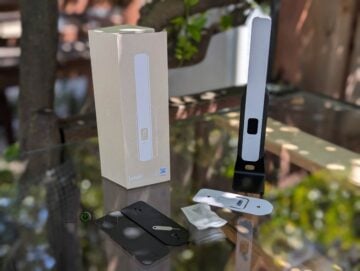
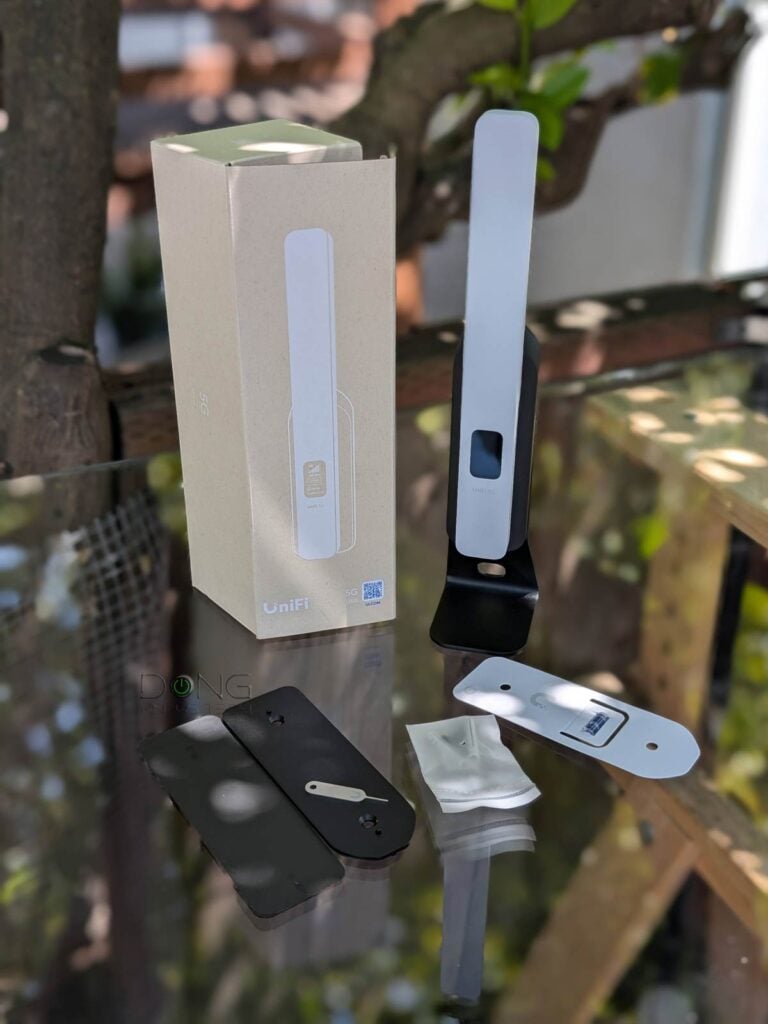
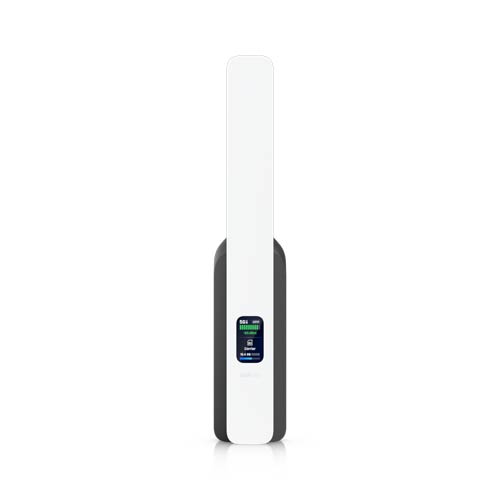
Out of the box, the UniFi 5G Backup looks like a large antenna with a small non-touch screen on the front that shows its real-time status during operation. As with the screen on all UniFi devices, you can manage its brightness or on/off status via the host UniFi Cloud Gateway interface.


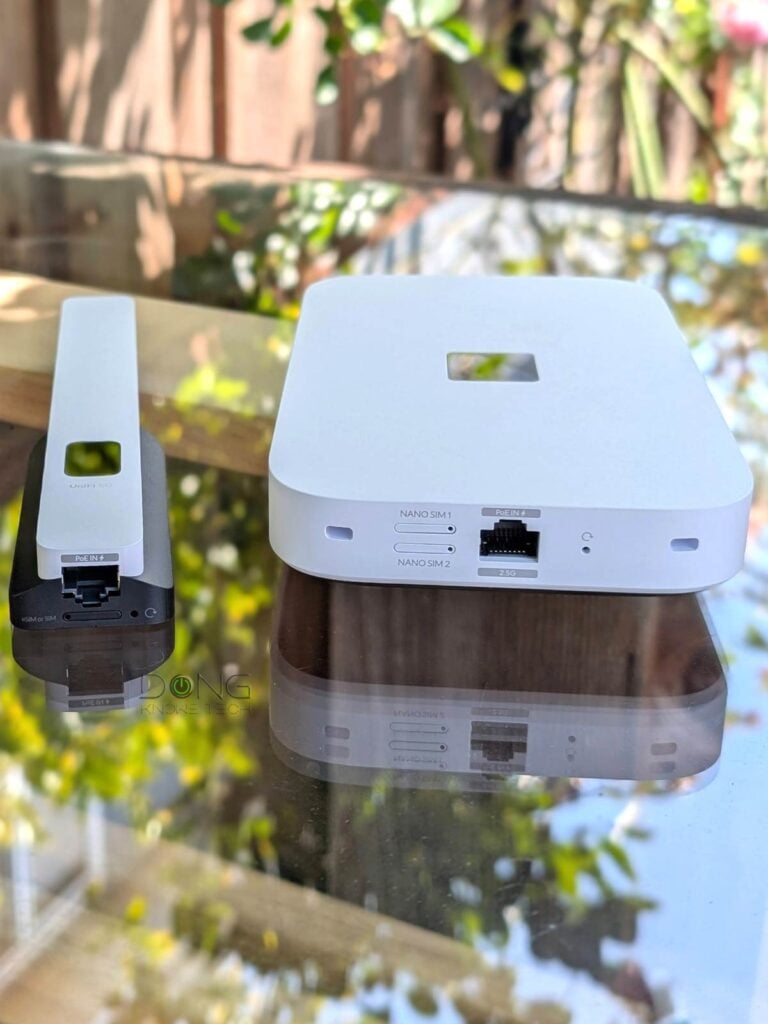
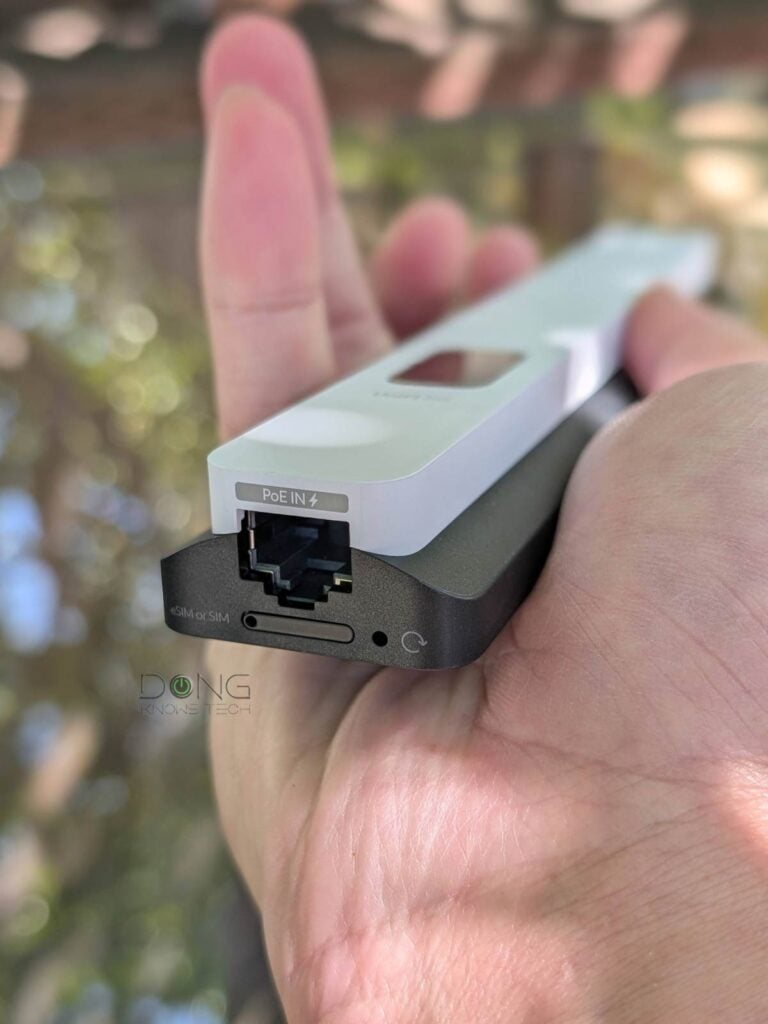
On the underside, the U5G Backup comes with a Gigabit PoE-in port that serves as its sole power source. Considering its modest cellular ceiling speeds, the Gigabit grade is more than fast enough. Next to the port is its sole Nano SIM slot. You can use this slot to host a physical SIM or use an e-SIM—only one at a time.
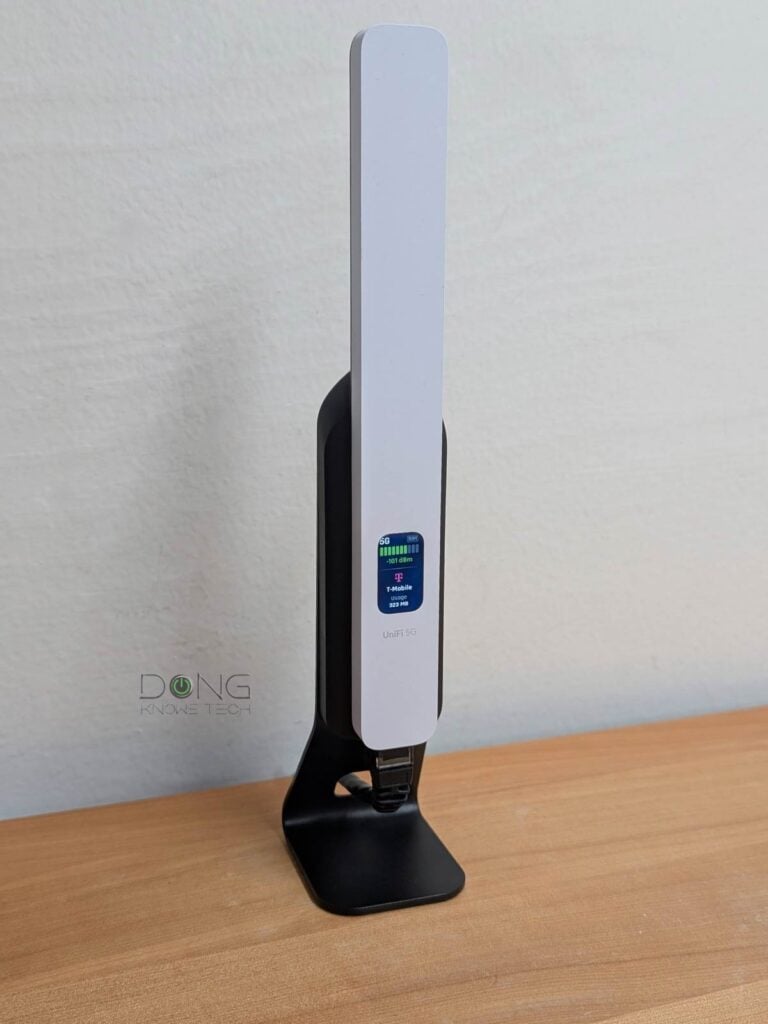
On the back, or its wall-facing side, the U5G Backup comes with a strong magnet that attaches it securely to the included form-fitting metal desktop cradle. As a result, in a well-wired home, you can easily move it around for the best cellular reception. Or you can hang it permanently on a wall using the included mounting accessories.
Overall, the UniFi 5G Backup looks great. I love the way it looks and how everything makes sense, design-wise.
Single-SIM support, super-easy to set up and manage
As mentioned, the U5G Backup can work only with one SIM at a time (physical or e-SIM). As a result, once it’s hosting a physical SIM, you can’t configure an e-SIM, and vice versa. The drawback is that if you need to replace the SIM, you’ll have to turn off cellular data, which isn’t a huge deal since it’s designed as a backup Internet source.


I tried it with a few US data SIMs, and they were all automatically recognized and configured. Note, though, that as with most cellular modems, the UniFi 5G Backup doesn’t support SIMs from T-Mobile Home Internet plans—because T-Mobile requires users to use its equipment for that broadband service. Additionally, at the time of this review, Verizon SIMs are not yet automatically recognized, and Ubiquiti says they will be in the future via firmware updates.
In most cases, you can expect the U5G Backup to be plug-and-play. With SIMs that are not automatically provisioned, you can likely make them work via manual configuration. That said, the U5G Backup is straightforward to use as a PoE modem: insert a physical SIM and connect it to a UniFi network via PoE, and you’re almost done.
Now, when you view the network’s UniFi Cloud Gateway interface via its web-based GUI or the UniFi mobile app, you’ll note that the U5G Backup is detected, as with any UniFi device, and can be adopted with a single tap (or click).
Note: Once adopted, the U5G Backup will likely immediately check and update its firmware to the latest version—it’s important to keep it plugged in during this time.
And that’s it! Chances are, the SIM automatically serves as a secondary Internet connection via seamless Failover dual-WAN (backup mode): it kicks in immediately when the primary WAN is down and resumes standby mode when things are back to normal.
If, for some reason, your SIM is not working, the U5G Backup includes all the settings for manual SIM configuration, such as a specific APN value.
For an e-SIM, which is only available when a physical SIM is not present, you can enter its code manually or use the UniFi mobile app to scan its QR code to activate it with the system.
Note: Unless you have an unlimited data plan, turn off “Automatic Speed Test” in the console’s Internet section to conserve your cellular data.
Ubiquiti UniFi 5G Backup: Reliable performance with modest real-world cellular speeds
I tested and used the U5G Backup for a few weeks and was happy with how reliable it worked. On this front, it proved to be the same as the U5G Max.


In terms of real-world performance, though, the U5G Backup was clearly slower. As cellular performance varies by location, provider, and data plan, for the best consistency, I tested U5G Backup using the same Google Fi data SIM with an unlimited data plan, placing it at the exact indoor location—the place has average cell reception, like most homes in an urban area.
The U5G Backup shows the same signal strength as the 5G Max (≈100 dBm), but its real-world download speeds ranged from 30 Mbps to 85 Mbps. The upload was even lower, ranging from 1 Mbps to 3 Mbps. By comparison, the U5G Max, a full-capacity 5G device, consistently achieved over 300 Mbps for downloads and higher than 15 Mbps for uploads.
That said, the difference in data rates between the two represents what you can expect from a 5G RedCap device vs. a 5G NR counterpart. It’s quite obvious that the U5G Backup, as the name suggests, is only suited as a backup connection to keep you online, and not as an Internet source for heavy applications. In that role, it’s an excellent device considering the cost.
Other than that, the PoE modem was silent and became slightly warm to the touch during operation—it was much cooler than the UniFi 5G Max and most other UniFi devices I’ve tested. And this lack of heat is always a good thing.
Conclusion
With great ease of use, reliable performance, and a friendly $99 price tag, the U5G Backup is an easy recommendation for those with a UniFi network who need a cellular backup solution. Get one today!
On the other hand, the full-capacity U5G Max is a much better option for those needing the top 5G data rates. Either PoE cellular modem will work with any UniFi Cloud Gateway.
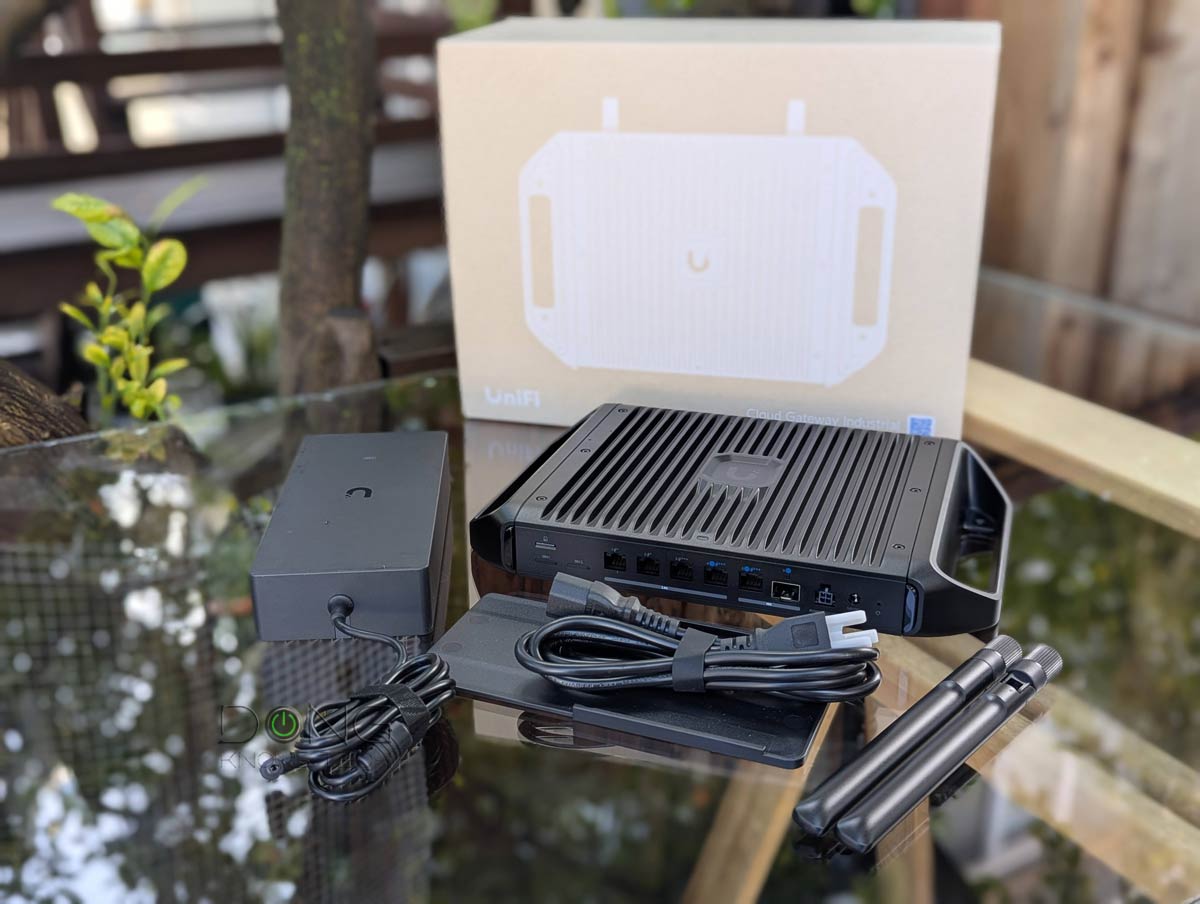
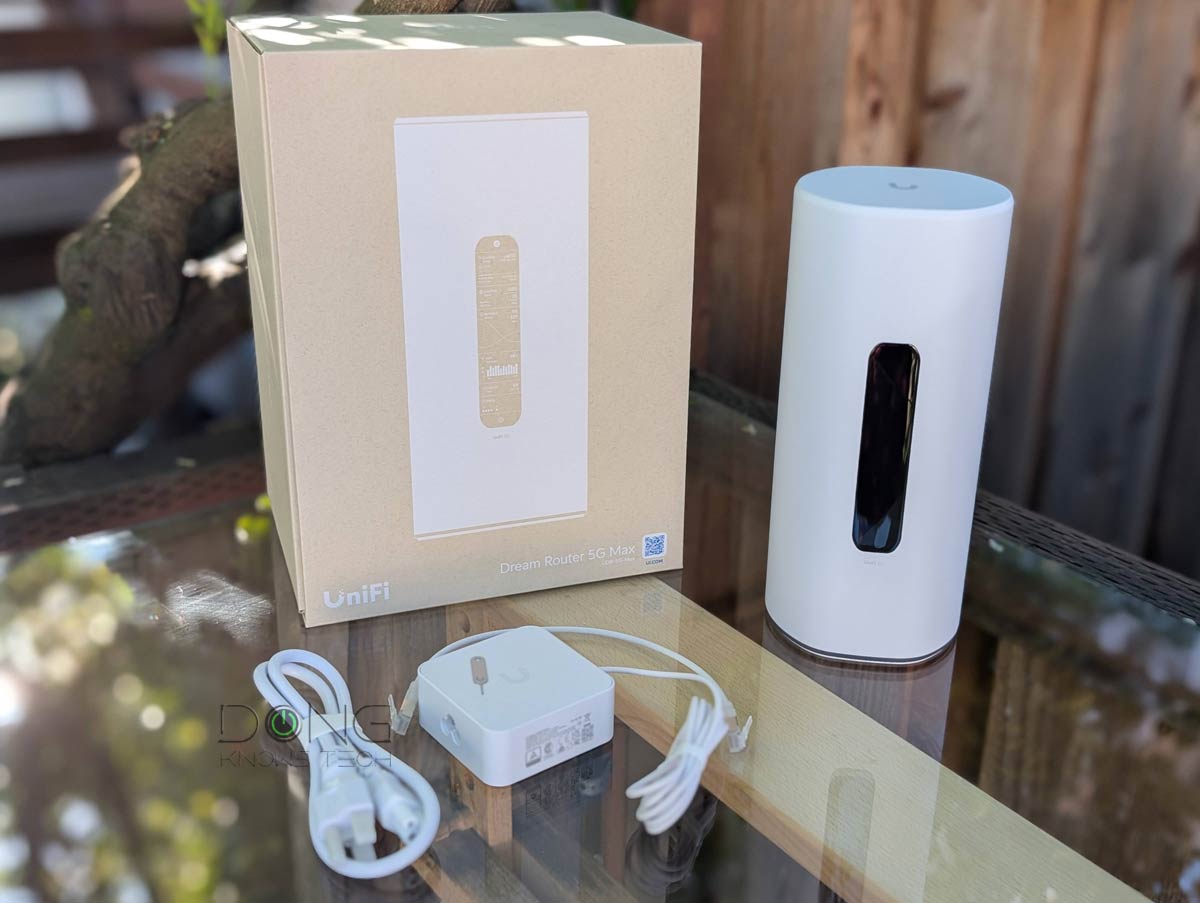
If you’re in the market for a UniFi “router” to build your network from scratch, the list of the top 5 current options below will help. Keep in mind that, among them, the Dream Router 5G Max already has the U5G Max built in.
Top 5 Best Wi-Fi UniFi Cloud Gateways (Wi-Fi UniFi routers)
 |  |  |  |  | |
| Name | Ubiquiti UniFi Dream Router 7 (UDR7)'s Rating | Ubiquiti UniFi Cloud Gateway Industrial (UCG-Industrial)'s Rating | Ubiquiti UniFi Dream Router 5G Max (UDR-5G-Max)'s Rating | Ubiquiti UniFi Express 7 (UX7)'s Rating | Ubiquiti UniFi Dream Router (UDR)'s Rating |
| Price | – | – | – | – | – |
| Rating | |||||
| Description | |||||
| Statistics | |||||
| Buy this product |
Check current prices at Ubiquiti Store or on Amazon!



I would really like to know how much ubiquity built in data prices are in the USA. They won’t let you see it until you buy the device and add to your network, but I’m really curious what options there are direct from ubiquiti
Ubiquiti is not a cell service provider, Cliff. It only sells the equipment (the modem) and you need to get your own SIM from a provider of your choosing.
From Unifi Ubiquiti’s website:
You can now purchase and activate a compatible eSIM data pack directly through the UniFi Mobile app, making setup faster and easier than traditional carrier activation.
Apparently, they are offering direct pricing of so many gb PER YEAR. I currently have T-Mobile Home for $50 per month as my failover, so I’m curious how this compares for different data levels as we barely use it, so annually pricing seems uniquely beneficial for this use case.
Yes, you can use the app to apply the SIM (as in activate it) but the data plan is from the providers. I mentioned that in the review.
Okay, but can you just screenshot the prices offered for this for the esim data packs in the Unifi app as the only way you can see this pricing is after you purchase the device except the base $60 10gb annual plan that you can buy when you purchase the device on the unifi website.
It’s just hard to buy a modem before the service pricing.
It’ll work with any data SIM. In fact you can put the SIM currently in your phone in it and it likely works.
Received my 5G Backup today, Unifi’s direct esim data pack prices when purchased in the Unifi app after adopting the device are:
– $79 for 10gb annually
– $149 for 50gb annually
– $229 for 100gb annually
(United States within Tmobile coverage areas)
You have to be in the latest version of the iOS Unifi app for the Buy Esim option to show up on the 5g backup device card. I didn’t see it until I went in the app store and updated.
That’s good to know. Thanks for sharing, Cliff.
Does the data packs expire over time (use it or lose it)?