
The UniFi 5G Max (model U5G-Max) and the Outdoor variant (U5G-Max-Outdoor) are among the few 5G solutions Ubiquiti unveiled in late 2025. At their core, these are modems designed to connect to a UniFi network via Power over Ethernet (PoE), providing cellular Internet access to the entire system.
Here’s the bottom line: If you have a system powered by a UniFi Cloud Gateway (a.k.a UniFi “router”) and need cellular backup, the UniFi 5G Max (or the Outdoor variant) is a must-have. The thoughtful design, plug-and-play setup, and stellar performance make the relatively high $399 price tag easy to stomach.
Update: On May 21, 2026, Ubiquiti released a more compact $99 UniFi 5G Backup for those with modest cellular bandwidth needs.
Looking for a UniFi Cloud Gateway with built-in 5G support? Consider the Dream Router 5G Max instead!
Ubiquiti UniFi 5G Max (U5G-Max)'s Rating
Pros
Excellent hardware design with reliable and fast cellular performance as backup or primary WAN source
Fast 2.5Gbps PoE-in port to offer flexible hardware placement
Useful accessories included, dual-SIM with eSIM support, plug-and-play
Cons
No local web user interface to support a non-UniFi router
Bulky
A bit pricey
Ubiquiti UniFi 5G Max: Your UniFi network’s best cellular friend
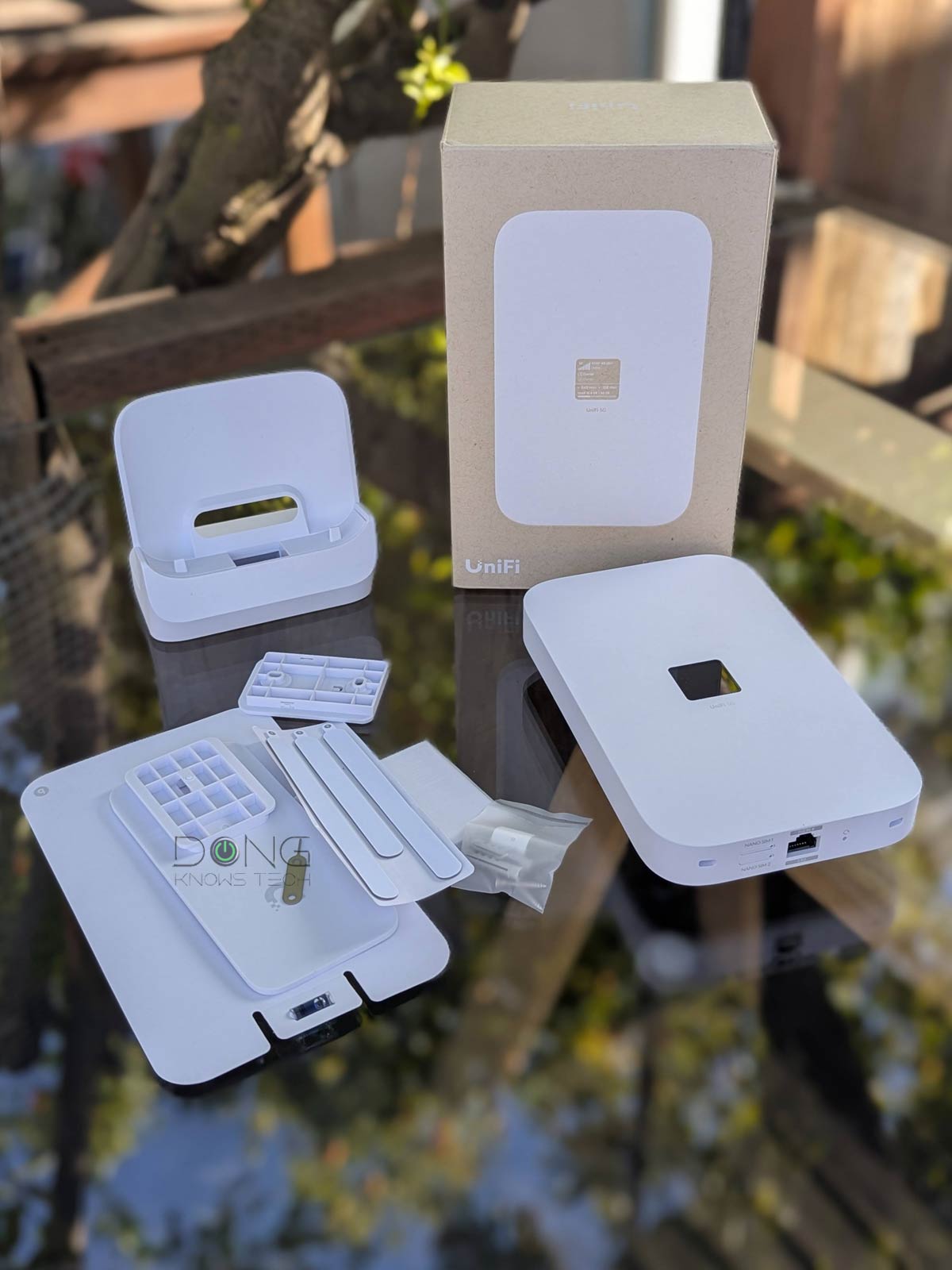
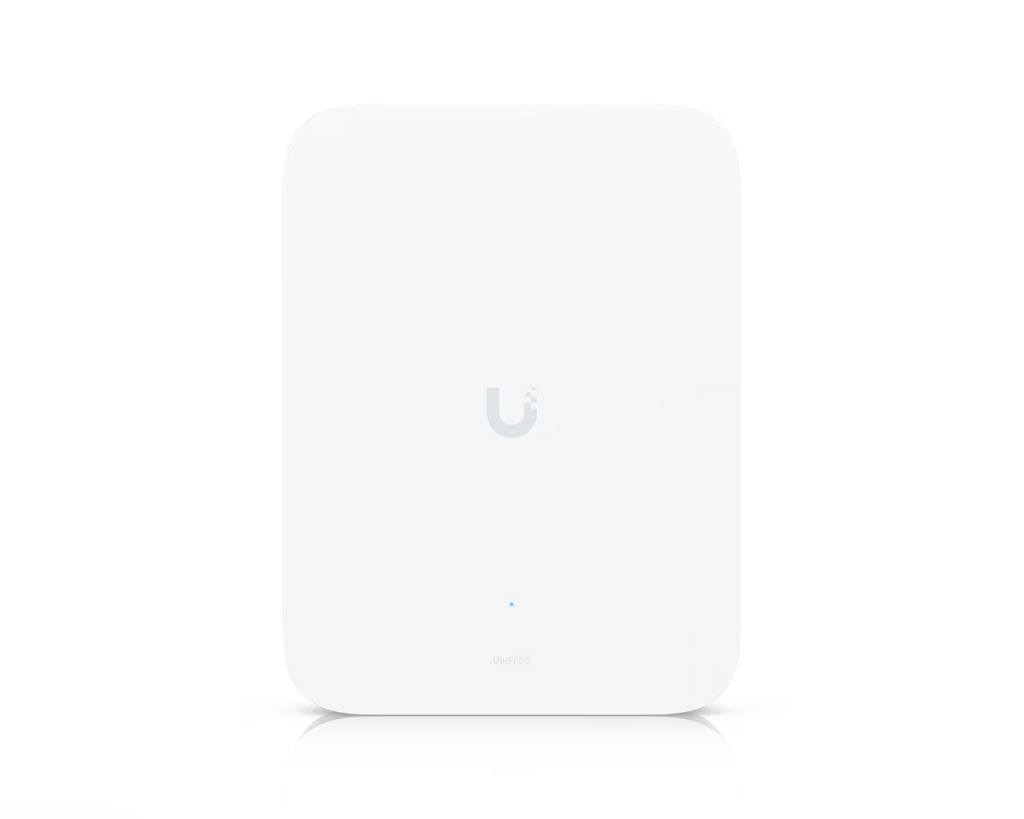
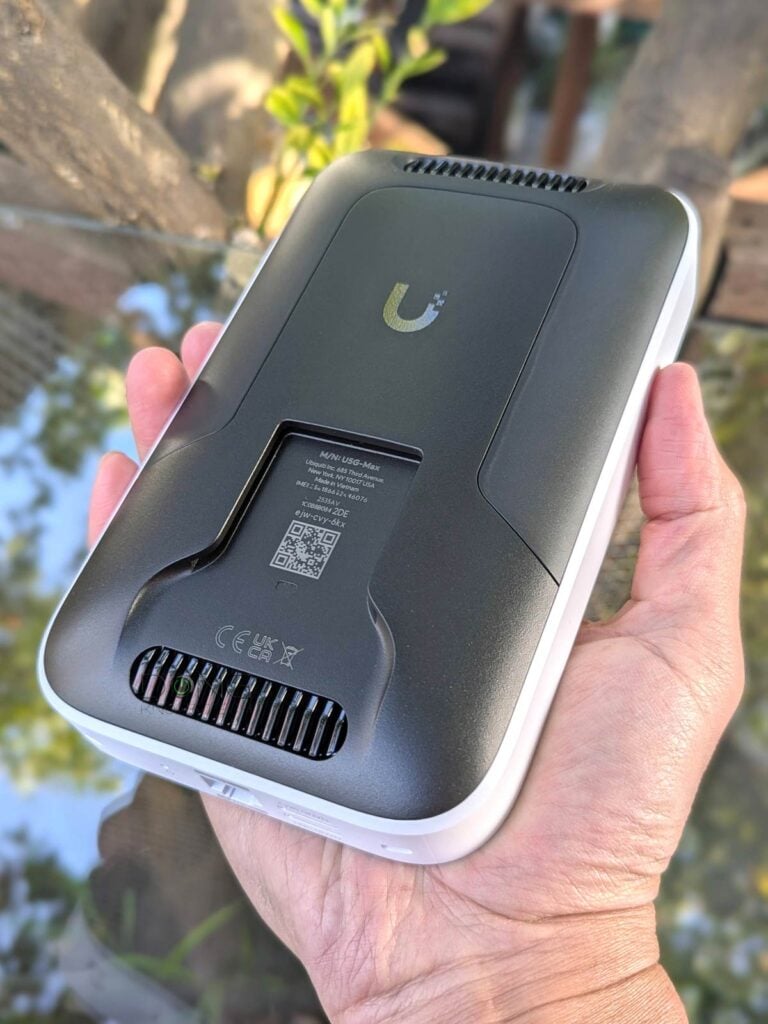
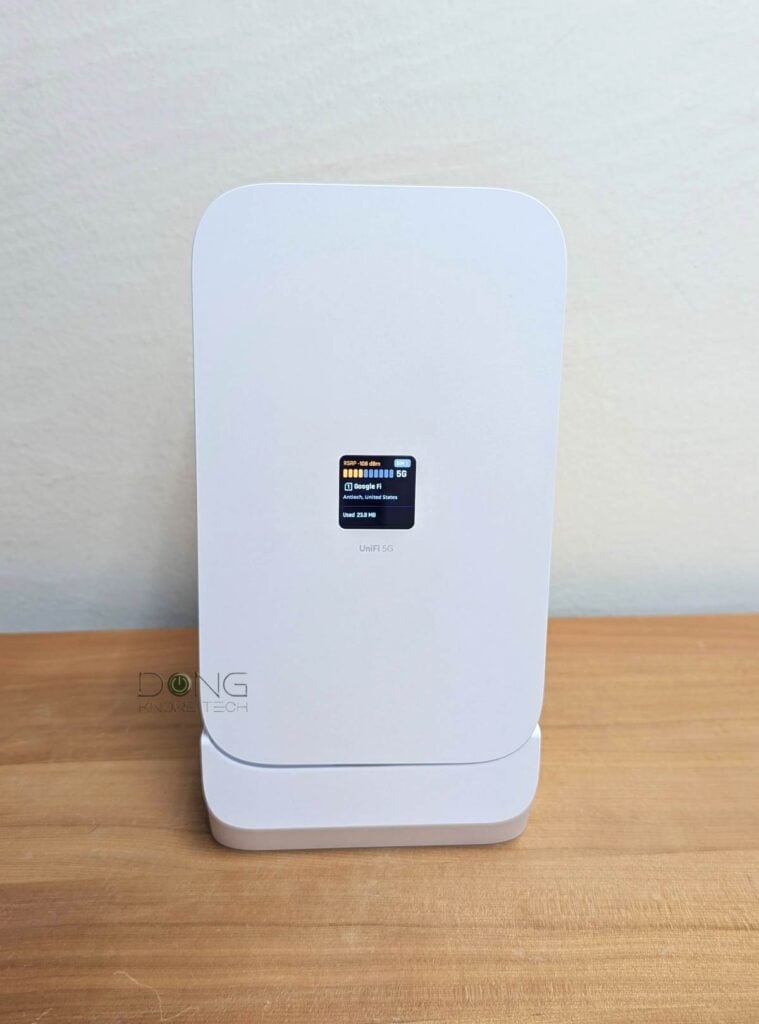
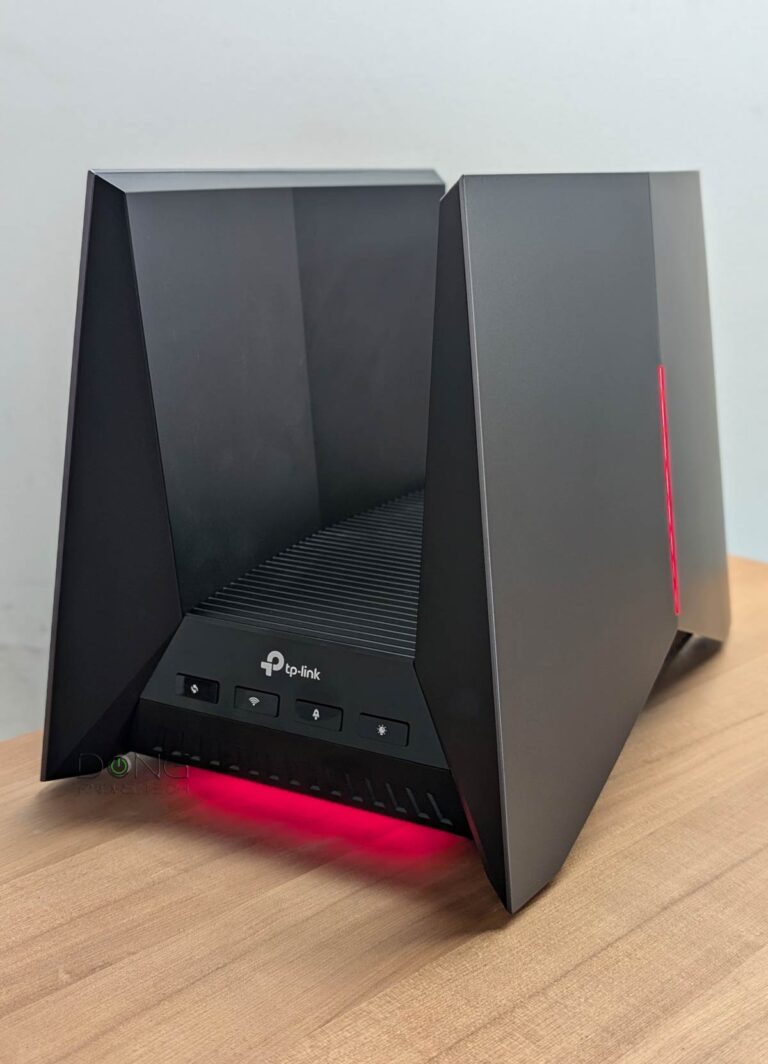
Out of the box, the UniFi 5G Max looks substantial: it’s super-large for a cellular modem, though not overly huge, about four times the size of the tiny UniFi Travel Router. Additionally, it comes with a desktop base and wall-mounting accessories. (The UniFi 5G Max Outdoor is about 30% larger and includes pole and ceiling mount accessories.)
The point is that, despite support for cellular Internet, the U5G-Max is not a device to be carried around like other cellular modems. It is meant to remain stationary during operation.
At the bottom, the U5G-Max has two Nano SIM slots and a PoE-in 2.5Gbps uplink port, which is also its sole power input—it has no other power port. That said, you’ll need a PoE switch on your network or an injector ready. This PoE support lets you place it anywhere you can run a network cable—even on a pole out in the open with the U5G-Max-Outdoor—to get the best cellular reception. Those with their router in the basement or a closet, a common scenario, can greatly appreciate the UniFi 5G Max’s placement flexibility.


The UniFi 5G Max is unlocked and supports dual-SIM, allowing you to use up to two Nano SIMs or one Nano SIM and one eSIM. At the time of this review, T-Mobile Home Internet SIMs are not supported, though that might change. In any case, like all cellular modems, it requires at least one data SIM to work. If you have two SIM cards in it, one will function as a backup.
According to Ubiquiti, the Outdoor version of the UniFi 5G Max will get Remote SIM support at some point. The table below shows the hardware specs of the UniFi 5G Max and its Outdoor variant.
Hardware specifications: Ubiquiti UniFi 5G Max vs. UniFi 5G Max Outdoor
 |  | |
|---|---|---|
| Full Name | UniFi 5G Max | UniFi 5G Max Outdoor |
| Model | U5G-Max | U5G-Max-Outdoor |
| Operating Roles | Cellular Modem | |
| 5G Modem Specs | Category: 5G NR Bands: n1, n2, n3, n5, n7, n8, n12, n13, n14, n18, n20, n25, n26, n28, n29, n30, n38, n40, n41, n48, n66, n71, n75, n76, n77, n78, n79 Max. TX Power: HPUE power class 2: 26 dBm Max Downlink: 3.4Gbps Max Uplink: 560Mbps | |
| 4G LTE Modem Specs | Bands: B1, B2, B3, B4, B5, B7, B8, B12, B13, B14, B18, B19, B20, B21, B25, B26, B28, B29, B30, B32, B34, B38, B39, B40, B41, B42, B43, B46, B48, B66, B71 Max. TX Power: HPUE power class 2: 25 dBm Max Downlink: 1.6Gbps Max Uplink: 210Mbps | |
| 3G Modem Specs | Bands: B1, B2, B4, B5, B8, B19 | |
| Antenna | Four embedded cellular antennas | Six embedded cellular antennas, including two high-gain for downlink: peak 9 dBi, 85°x85° |
| SIM | 2x Nano SIM slots supporting two Nano SIMs or one Nano SIM and one eSIM | |
| Dimensions | 7.1 x 4.3 x 1.3″ (180 x 109 x 33.8 mm) | Device: 8.7 x 6.5 x 2.6″ (220 x 165 x 66.9 mm) With mount: 8.7 x 6.5 x 4.8″ (220 x 165 x 122 mm) |
| Weight | 3.1 lb (1.4 kg) | Device: 2.6 lb (1.2 kg) Mount: 4.6 oz (130 g) |
| PoE-in Port (uplink) | 1x 802.3af 2.5Gbps Multi-Gig port | |
| Max Power Consumption | 14.5 W | |
| Gigabit Port | None | |
| Power Method | PoE | |
| Notable Design | Front-facing 1.3″ touchscreen | IP67 ratting |
| Release Date | December 5, 2026 | January, 2026 |
| US Launch Cost (check prices) | $399 | |
Convenient touch screen, super-easy to set up
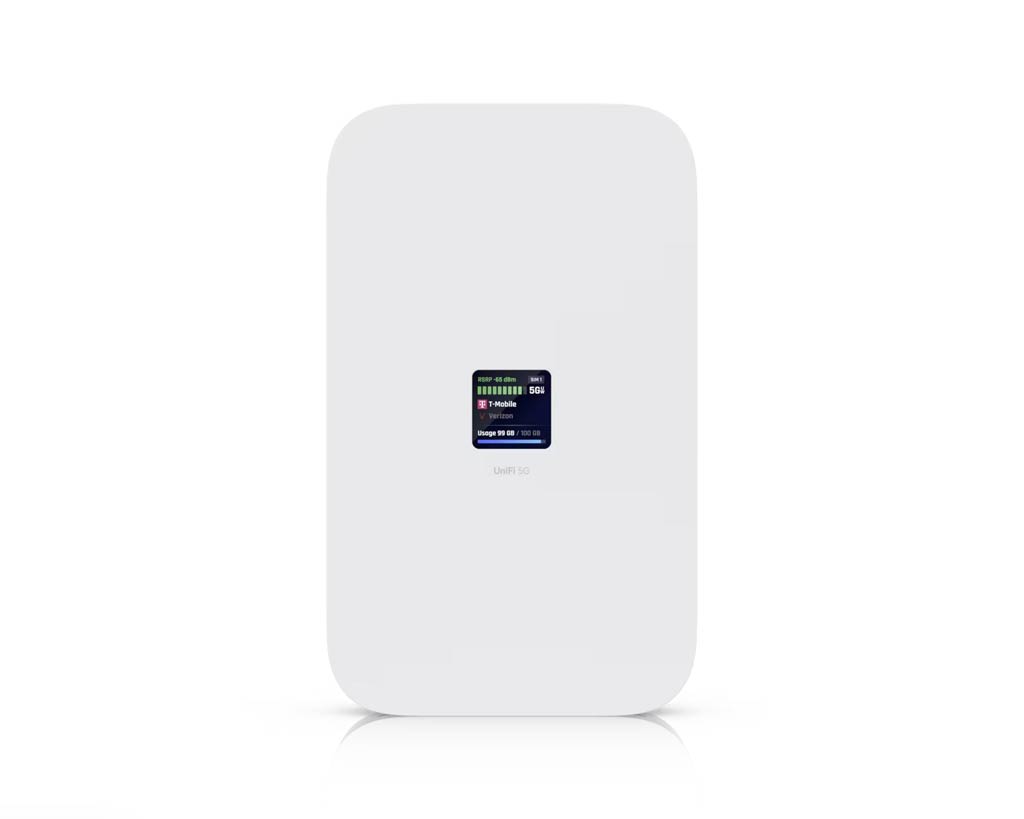
On the front (or top, depending on how you place it), the UniFi 5G Max has a 1.3″ touchscreen that shows its status. Users can swipe between pages of different sections. This screen comes in handy when you need to quickly find out what’s going on with the modem, but it doesn’t offer to change any settings, nor does it play any role in the setup process.
That’s partly because there’s not much to do. The U5G-Max is almost plug-and-play.
Like any other UniFi device, you first need to “adopt” it to the system. Once plugged in, it’s automatically detected by the UniFi mobile app or the UniFi “router’s” web user interface. After that, it takes a single tap (or a mouse click) to adopt it.
Note: Once adopted, as with other UniFi devices, the U5G-Max immediately checks and updates its firmware to the latest version—it’s important to keep it plugged in during this time.
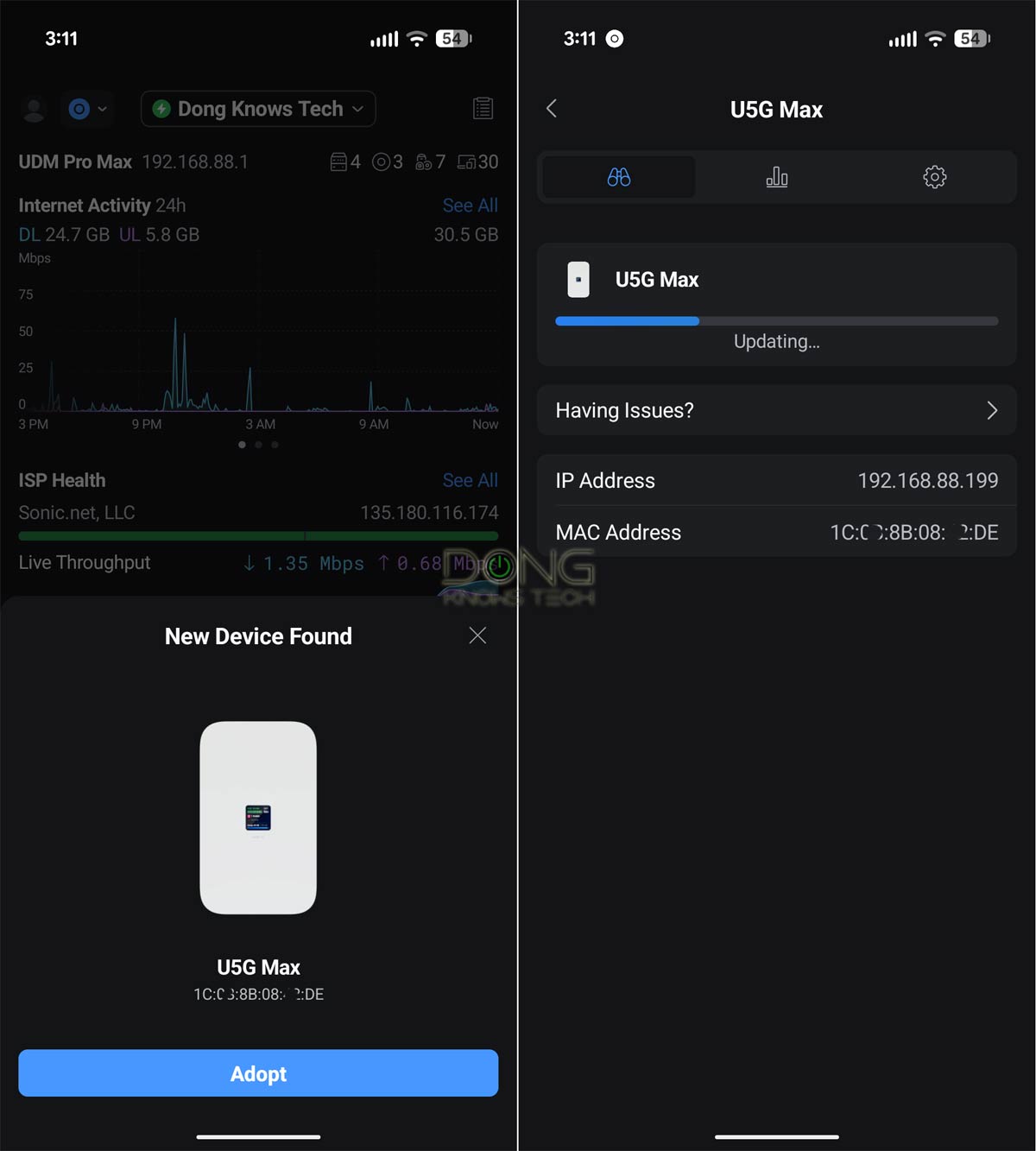
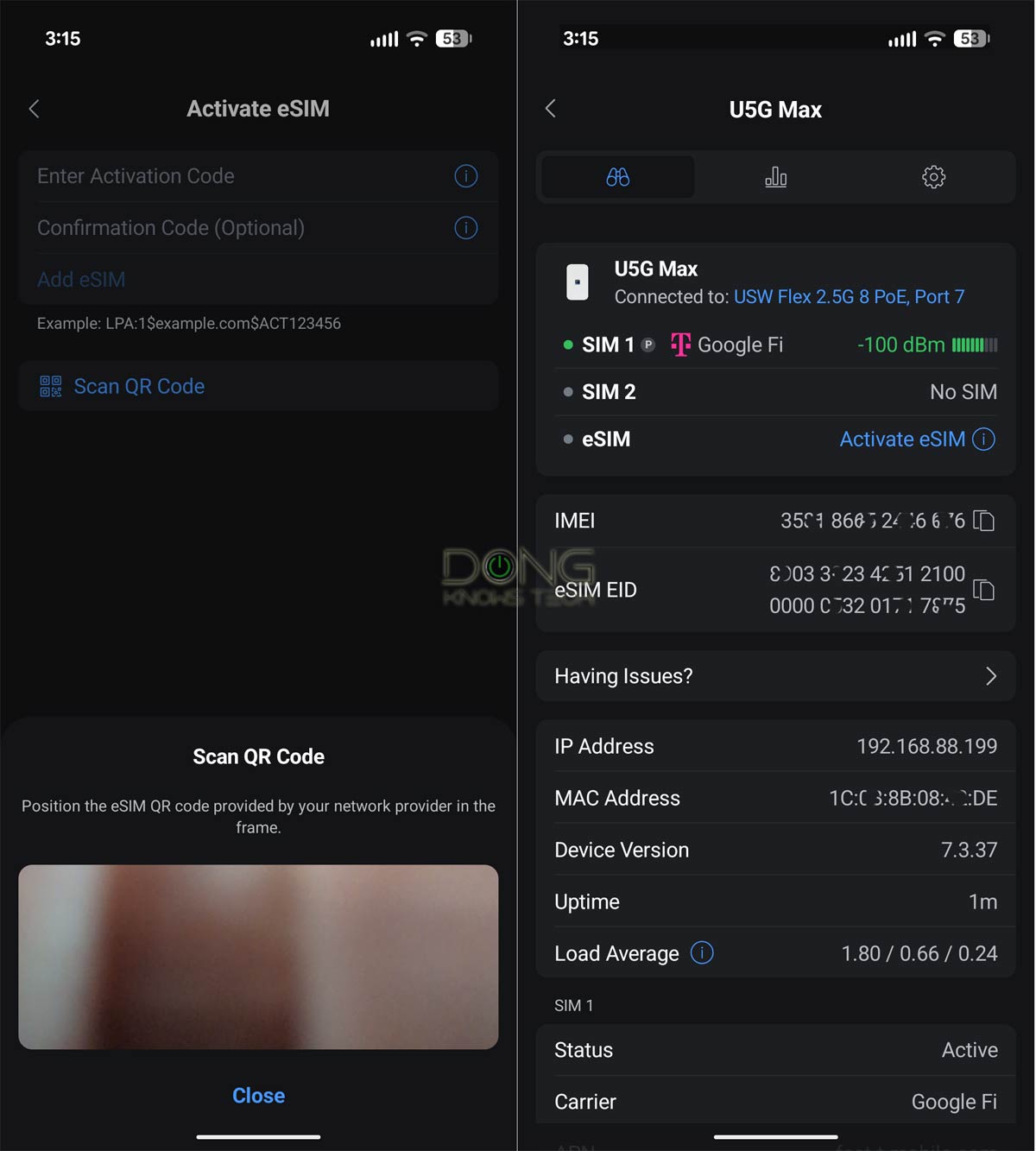
If you have a physical SIM, pop it into one of the SIM slots, and within a few minutes, the modem will be working as a cellular backup. A few things to note on the SIM front:
- I tried it with a few physical data SIMs from various US carriers, and they were all automatically recognized and provisioned. All I had to do was load them into the SIM lot.
- The U5G-Max supports a custom SIM value, such as a specific APN. If a SIM requires customization, you can manage it in the UniFi app or the router’s web user interface.
- An eSIM can be loaded via its activation code, or you can use the UniFi app to scan its QR code.
In any case, adding a SIM proved to be a walk in the park in my experience. Once added, the SIM-based data plan will function as an additional WAN source, working in tandem as a failover (default) backup with the UniFi router’s existing primary Internet source, a 10Gbps fiber-optic in my case.
Note: To conserve cellular data, it’s best to use the UnFi 5G Max in failover (default) mode in a dual-WAN or multi-WAN configuration. Additionally, turn off “Automatic Speed Test” in the console’s Internet section.
Ubiquiti UniFi 5G Max: Excellent performance
I used the UniFi 5G Max on a network hosted by a UDM Pro Max for over two weeks and was quite impressed. During this time, there were a few fiber-optic outages due to construction and ONT replacement, and the add-on modem proved extremely valuable.
The U5G-Max’s cellular reception (WAN 3 in my setup) kicked in immediately as the primary WAN source (WAN 1) was down, without any delay. When WAN 1 was restored, the system automatically switched back to it immediately.
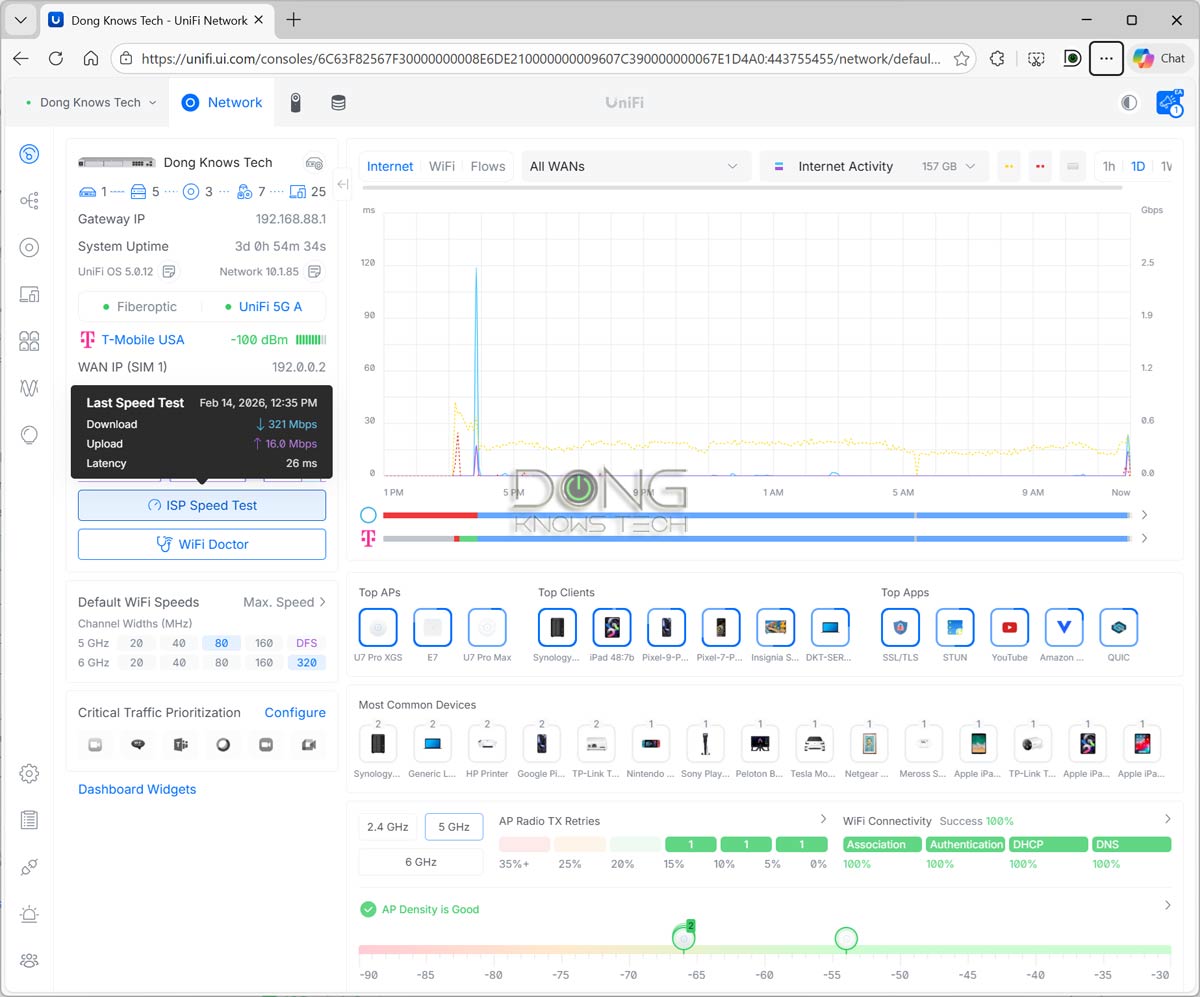
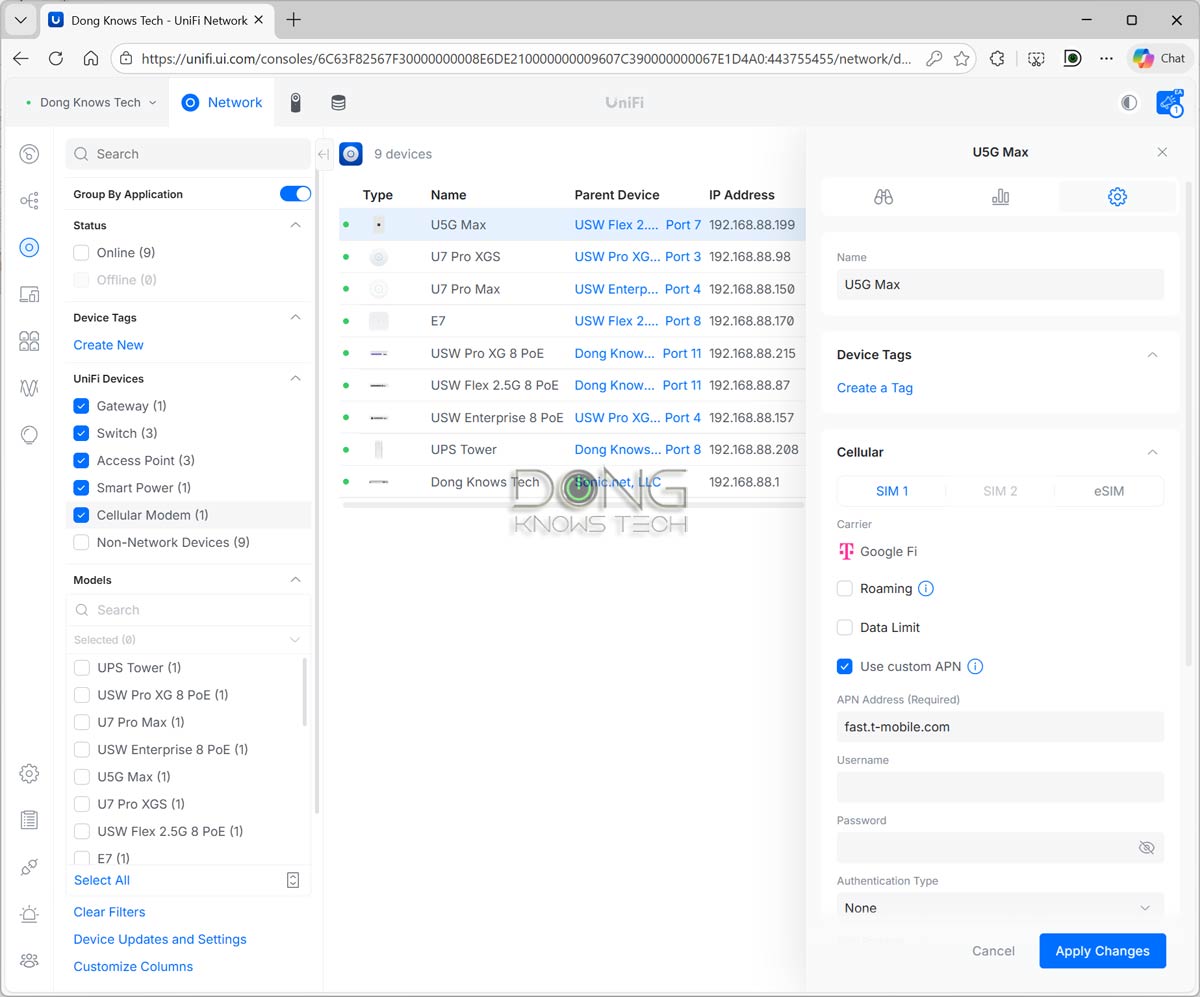
In terms of performance, I use the UniFi 5G Max with a Google Fi data SIM. When used indoors at a location with a 100 dBm signal strength, I often got over 300 Mbps of download speed. That’s faster than many cable connections.
It’s important to note that cellular data speeds vary by provider, data plan, and location, but it’s safe to say the U5G-Max will deliver the best possible speed across those three.
Like many other UniFi devices, the UniFi 5G Max became quite warm during operation but never hot enough to cause concern. It was completely silent during my trial, suggesting it has no internal fan, but I didn’t open it up to check.
Conclusion
As an add-on cellular backup, the UniFi 5G Max is not for everyone. However, for those with a UniFi network who need high availability or rely solely on cellular for Internet, it’s truly a must-have. Get one today!
Dong’s note: I used mostly the UniFi 5G Max for this review, but you can expect the same experience from the Outdoor version, which costs the same and likely offers better cellular reception thanks to its outdoor placement option. Additionally, I tested the unit on a UniFi Dream Machine Pro Max network, but you’ll get the same result with any UniFi network console.


Would be interested to have a comparison between this and the 5G Backup.
In Canada it’s $140 (Backup) vs $570 (Max) so I am very curious about the value proposition between the two.
Appreciate any insights.
That’s in the review of the 5G Backup, Brad.
Am i reading it right this device does not have a router component, so i can connect it to a router eg UDM to establish internet connectivity and connect to the rest of the usual devices, eg UNVR, cctv cams via a switch, ie a complete replacement of the traditional incoming fibre connection? It will not cause the double NAT issue like when one has a personal router behind an ISP router, correct? Thanks
It’s a PoE add-on 5G modem, Jo. So, you read it right, you’ll have a Dual-WAN setup, not a double NAT.
For SD-WAN / Site Magic deployments, if I want a spoke site to maintain connectivity to the hub during ISP failover, can the UniFi 5G Max operate correctly when connected via LAN, or does it need to be connected directly to a WAN port?
This document (https://help.ui.com/hc/en-us/articles/29887153953559-UniFi-5G-and-LTE-Backup-Best-Practices) seems to suggest that for advanced SD-WAN / Site Magic scenarios, the 5G Max should be connected as a true WAN uplink.
What is confusing is that many examples/videos still show the 5G Max connected to a LAN/switch port, while the console still presents it as a WAN source (with load balancing and other usual WAN options) which differs from the LTE Backup Pro.
I previously tested with an LTE Backup Pro on a spoke site and observed that when the primary ISP failed, Site Magic did not maintain/re-establish connectivity to the hub. However, the LTE Backup Pro appears architecturally different from the 5G Max since it does not support load balancing, policy routing, or Primary WAN mode.
Can you clarify:
1. Whether Site Magic failover is supported with the 5G Max in LAN-connected Backup Internet mode
2. Whether WAN-connected mode provides more deterministic/reliable SD-WAN failover behavior
3. Whether the 5G Max remains fully adoptable/manageable by the UniFi gateway/controller when connected directly to a WAN port
4. The practical pros/cons of LAN-connected vs WAN-connected deployments (other than needing a POE injector for WAN connection)
The docs seem to imply both modes are valid, but it’s unclear what the full impact is on manageability and functionality.
I haven’t tried the scenario, Ryan, but generally, in this case, you would want to use a port on the UCG for the modem. This port will become a WAN automatically. Now the failover is a matter of the local gateway. In any case, it’s not a good idea to use non-landline for this type of setup.
I tested this scenario and wanted to share my findings.
In both tests, the UniFi 5G Max was configured as a standard WAN2 interface, with WAN1 designated as the primary connection and WAN2 configured for failover. The only difference between the two tests was how the 5G Max was physically connected to the gateway.
**LAN-connected test:** The 5G Max was connected to a LAN port and adopted by the gateway. In this configuration, UniFi presented it as a normal WAN interface with the expected configuration options, including failover, load balancing, policy routing, and SD-WAN / Site Magic. However, during an ISP failover, SD-WAN / Site Magic did not operate reliably. The tunnel appeared to reconnect, but traffic was not consistently routed through it.
I suspect this may be related to the combination of T-Mobile’s CGNAT and the additional tunneling involved when the 5G Max is connected through the LAN, although I can’t say for certain.
**WAN-connected test:** I then purchased a PoE injector and connected the 5G Max directly to the WAN2 port. The adoption process was essentially identical, the available WAN configuration options remained unchanged, and the gateway continued to fully manage the device. In this configuration, SD-WAN / Site Magic worked reliably. During a WAN1 failure, the SD-WAN tunnel remained online and traffic continued routing correctly over the 5G connection.
Performance was also impressive. With a reasonably strong signal, latency and throughput were both excellent.
My conclusion is that if you want the 5G Max to function as a fully featured secondary WAN—including advanced capabilities such as SD-WAN / Site Magic—it is worth connecting it directly to a WAN port (using a PoE injector if necessary). Although the LAN-connected deployment exposes the same WAN configuration options and appears to support the same features, I found that advanced failover scenarios were not reliable in that configuration.
For most home networks, this distinction is unlikely to matter. However, for more advanced deployments involving SD-WAN, Site Magic, or similar features, I would recommend using a dedicated WAN port.
Overall, I have been very impressed with the 5G Max. It has proven to be an excellent backup WAN solution. While cellular connections have traditionally not been considered suitable as fully featured backup WANs, my testing suggests the 5G Max changes that. With a good signal, it provided the performance and reliability needed to serve as a true secondary WAN, even in more demanding networking scenarios.
Thanks for sharing, Ryan. That’s very thorough of you.
How have you found data usage to be on the device when it’s just sitting as an unused standby failover device? I’ve seen people reporting it chomping through 1GB/day.
Not in my case, Neil. However, I can imagine that can be the case if they have certain features turned on for that cellular WAN, such as Automatic Speed Test, load-balancing dual-WAN, etc.