
This post offers detailed tips on UniFi Cloud Gateway backups and migrations. It’s a supplement to my previous buying guide and will explain how to migrate from one UniFi “router” to another, such as when you want to upgrade the hardware or replace it with a better-suited option.
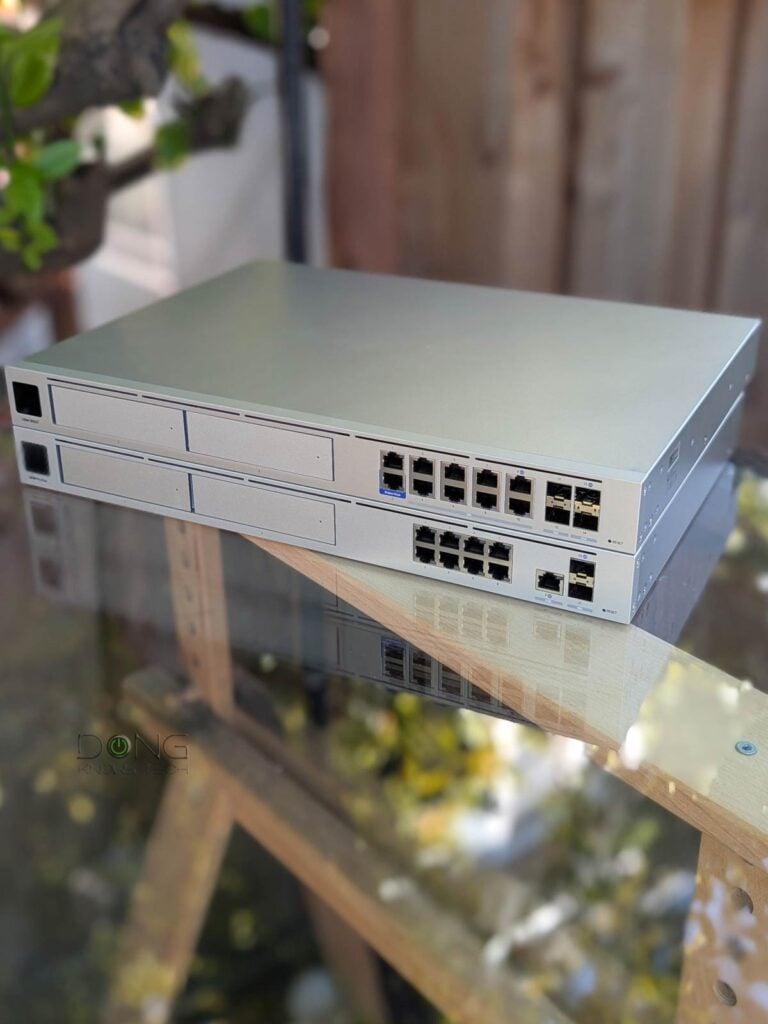
UniFi Cloud Gateway Backups and Migration: The quick and comprehensive guide
As part of the UniFi ecosystem, all UniFi Cloud Gateways can work interchangeably as “routers” since they use the same UniFi OS and Network app.
That said, in most cases, when you want to move from one UniFi Cloud Gateway to another, the network portion is generally straightforward.
However, if you also use your UniFi “router” as a UniFi Network Video Recorder (UNVR) for the Protect surveillance app and want to keep existing recordings, you need to tread lightly.
Let’s walk through these two scenarios.
I. The Network-only or Protect with no-recordings scenario
Again, replacing the current UniFi Cloud Gateway—migrating from one to another, that is—is simple if:
- You use only the Network app. Or
- You also use the Protect app but do not care about keeping its existing recordings.
In this case, here are the two steps:
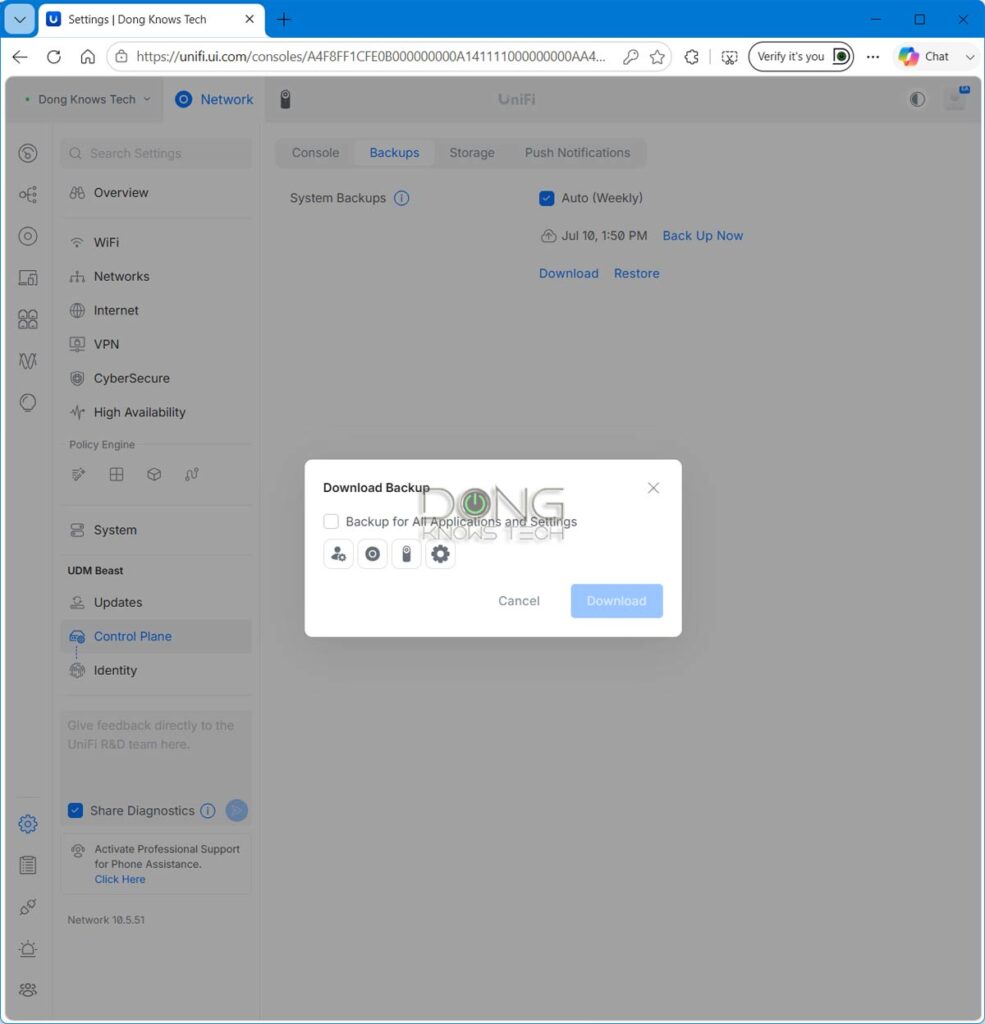
- Back up the current gateway’s settings to a file (or to Ubiquiti’s cloud if you use a UI account). To do this
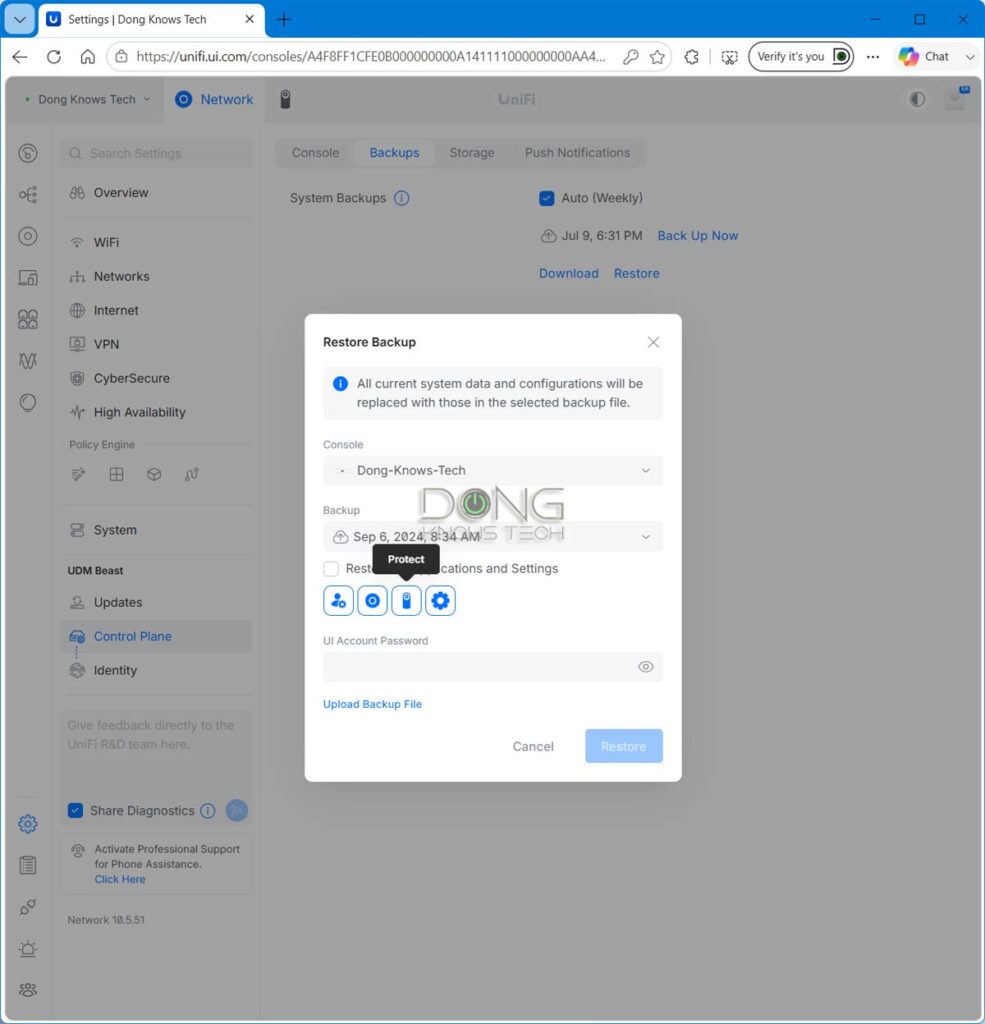
- Open the web-based user interface, then navigate to Settings (the cogwheel) -> Control Plane -> Backups as shown in the screenshot above.
- Choose to back up “All Applications and Settings” to your UniFi online account, or download the backup file to your computer.
- Now reset the gateway to its factory defaults to avoid potential conflicts. Turn it off and put it away.
- On the replacement gateway, select the option to restore it using the backup file created in #1—this option is available during the initial setup or in the same interface section. You can restore everything (default) or just the application you want, as shown in the screenshot below.
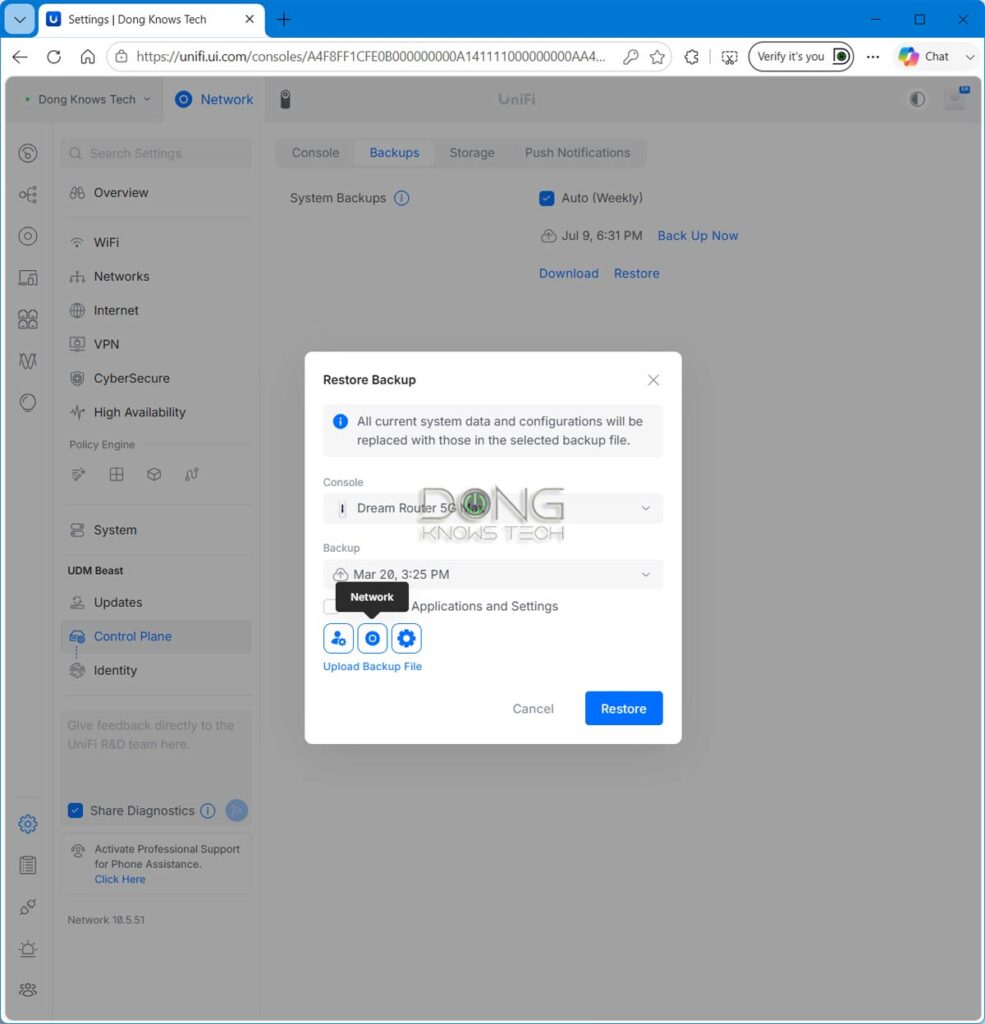
After that, you’ll note that most of the settings from the old console will be carried over to the new one. In my experience, some of the previous settings might need to be checked and adjusted for them to work properly or at all.
The discrepancy varies depending on how different the new UniFi console is from the one it replaces. However, overall, the following often require some attention:
- VPN server configuration
- Dynamic DNS settings
- Certain advanced port configuration and WAN settings
In any case, after the replacement, it is never a bad idea to check that everything is in order. When possible, it’s best to update the hardware to the latest firmware before the process.
As for the Protect app, without keeping the existing recording, chances are it’ll work immediately with the replacement gateway’s storage. In rare cases, if you use an older camera model, you might need to reset it and re-add it to the system. And that’s it.
II. The Protect-with-existing-recording scenario
If you want to migrate the existing recording from the source UniFi Cloud Gateway into the replacement one, keep these in mind:
- It’s not possible in many cases.
- When possible, things can still be tricky, as currently there’s no option for data copying or drive cloning.


The first thing to note is that keeping the existing recording is only possible if the two gateways share what I call the UNVR Compatibility. Specifically, all three of the following conditions must be met:
- You move to a gateway that uses the same type of storage media (SD card, NVMe SSD, or hard drive) as the existing gateway. And
- The number of supported cameras and storage units (drives) on the replacement gateway is the same as or higher than on the source gateway. And
- You keep the same storage device(s) by moving them from the source gateway to the replacement gateway.
To be more specific, if your current gateway uses an SD card for storage, the replacement gateway must also support one. The same can be said about NVMe SSD or hard drive(s).
The table below will give you some quick pointers on which UniFi Cloud Gateway to get based on its ports, wired/wireless bandwdith and number of supported cameras. It’ll also help you find the replacement gateway if you want to keep your existing UniFi Protect recordings.
| Model Name | Network Ports and PoE | Max Bandwidth Wired/Wi-Fi | Camera Support and Storage Type | UNVR Compatibility (with camera/storage agreement) | Notes | |
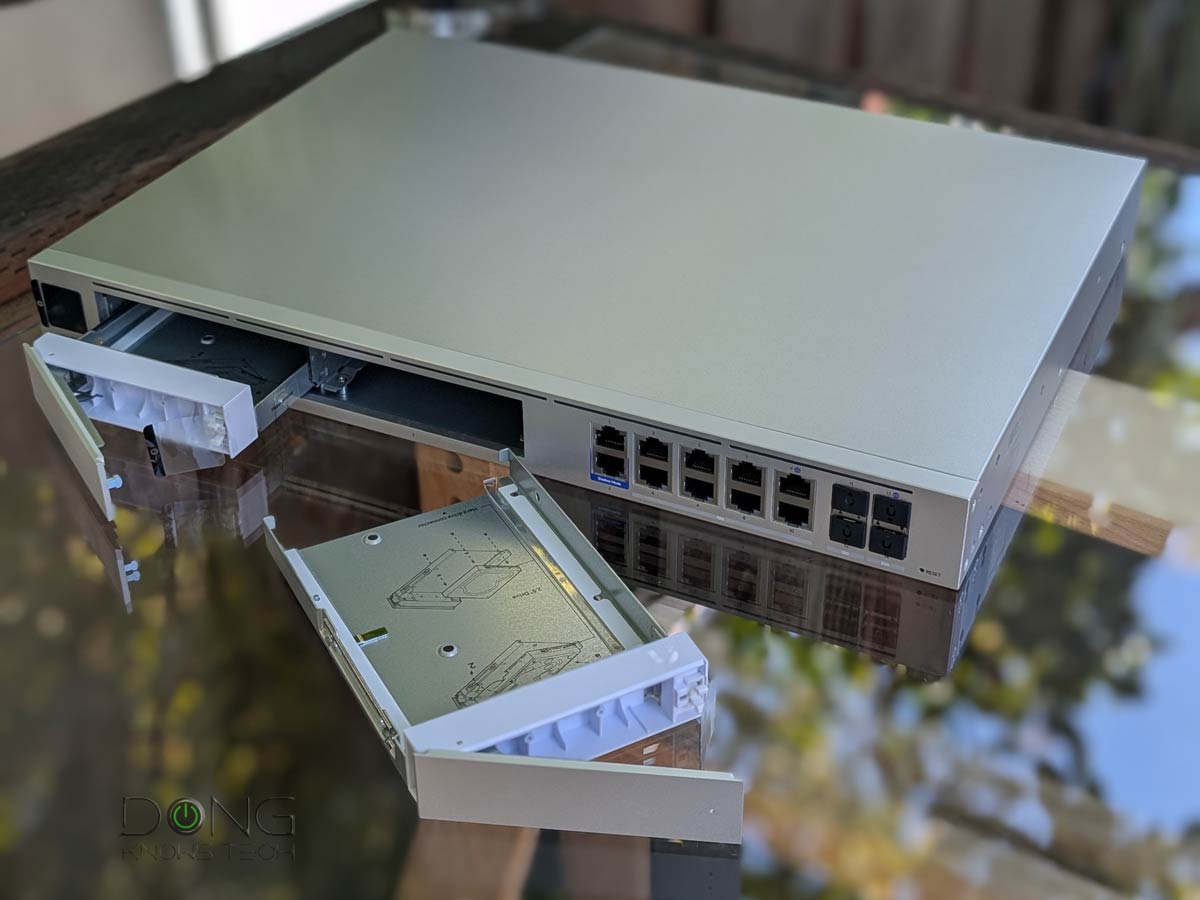
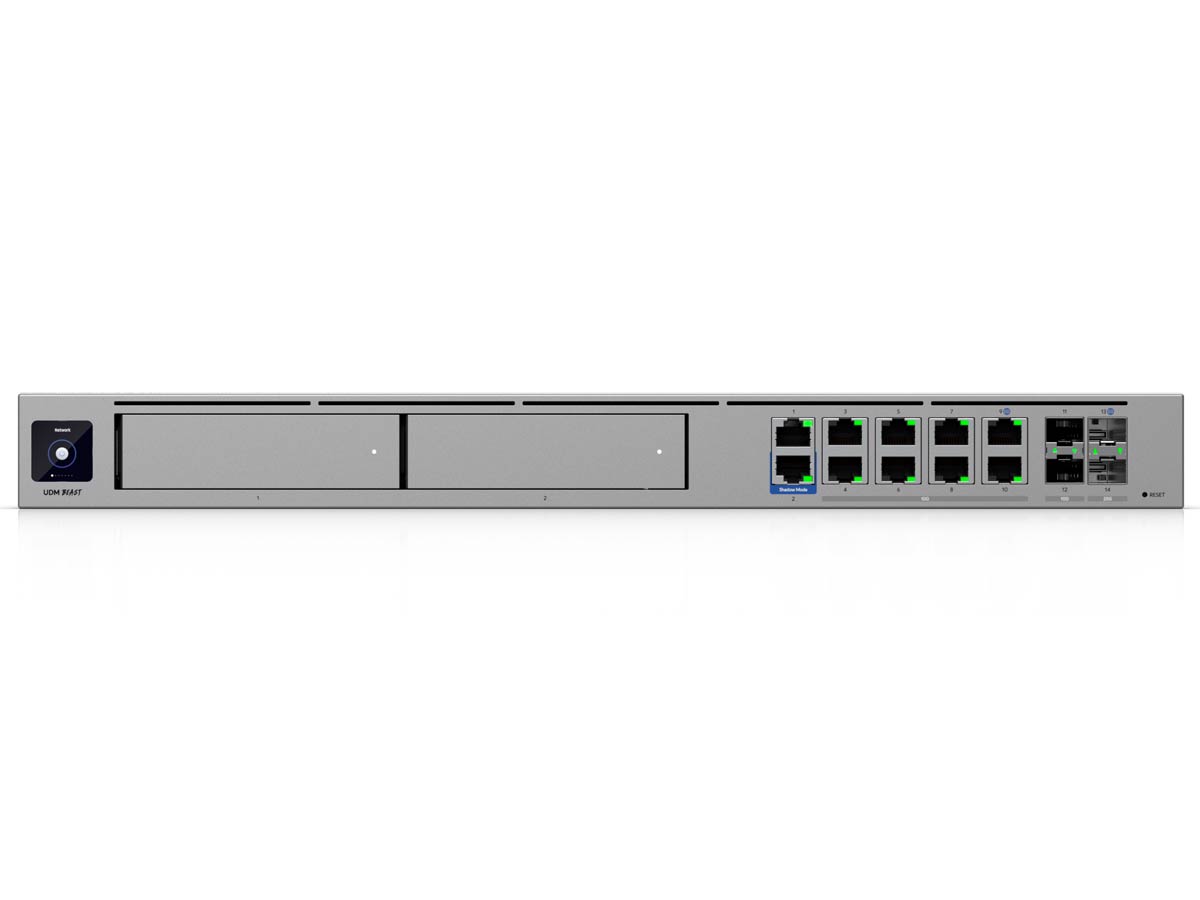 | Dream Router Beast (UDM-Beast) | 2x SFP28, 2x SFP+ 8x 10GbE 2x Gigabit | 25Gbps/None | HD (100) 2K (60) 4K (40) 2x 3.5″ HDD bays | Self, UDM-Pro-Max, UDM-Pro, UDM-SE (compare specs and costs) | Rackmount design |
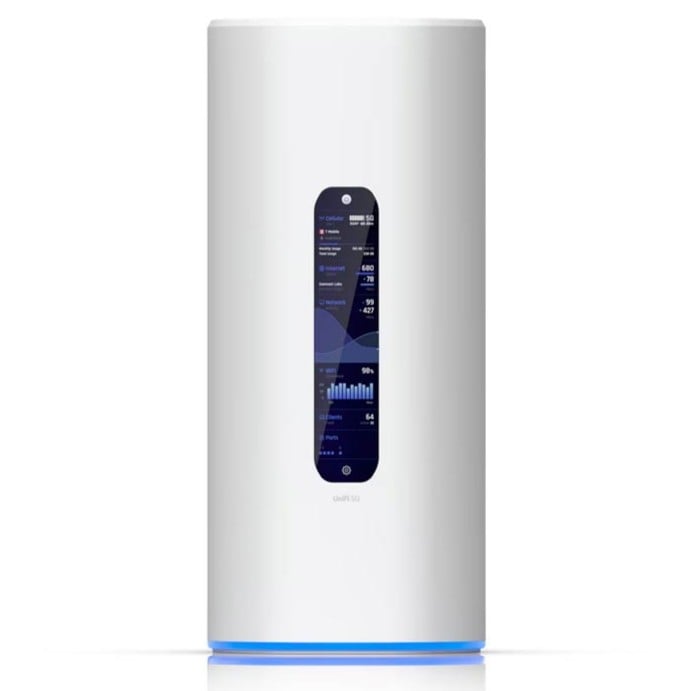 | Dream Router 5G Max (UDR-5G-Max) | 1x 10G SFP+, 4x 2.5 GbE (1x PoE) | 2.5Gbps/Tri-band BE11000 | (5) HD (2) 2K (1) 4K 1x microSD Card | Self, UDR, UDR7, UCG-Industrial (compare specs and costs) | Desktop design with built-in 5G cellular modem |
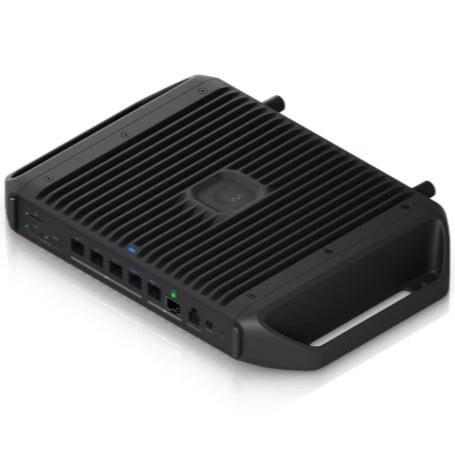 | Cloud Gateway Industrial (UCG-Industrial) | 1x 10GbE (PoE+++), 1x SFP+, 4x 2.5GbE (2x PoE+ and 2x P0E+++) | 10Gbps/Dual-band BE5000 | (15) HD (8) 2K (5) 4K 1x microSD | Self, UDR, UDR7, 5G-Max (compare specs and costs) | Desktop and various mount designs for rough environments |
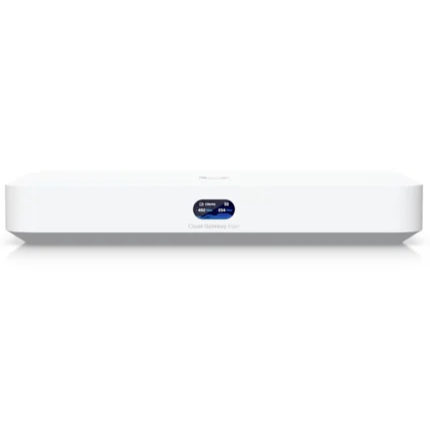 | Cloud Gateway Fiber (UCG-Fiber) | 1x 10GbE, 2x SFP+, 4x 2.5GbE (1x PoE+) | 10Gbps/None | (15) HD (8) 2K (5) 4K 1x NVMe SSD | Self, UCG-Max (compare specs and costs) | Desktop design |
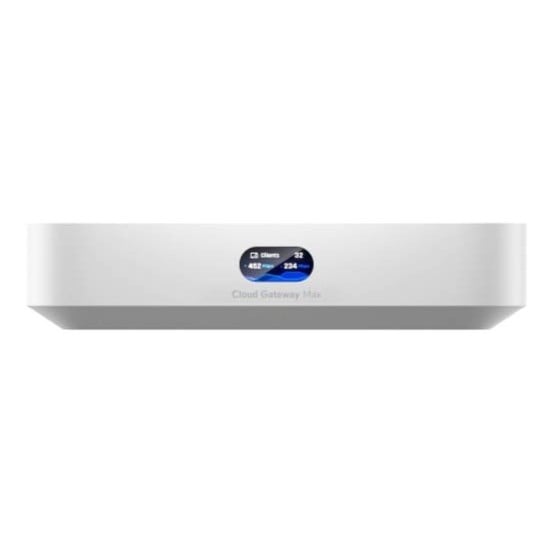 | Cloud Gateway Max (UCG-Max) | 5x 2.5GbE | 2.5GbE/None | (15) HD (8) 2K (5) 4K 1x NVMe SSD | Self, UCG-Fiber (compare specs and costs) | Desktop design |
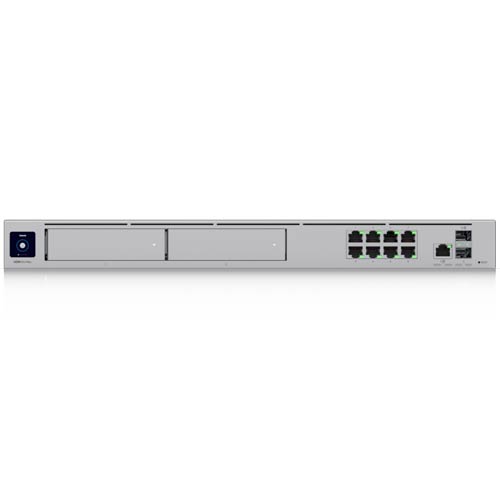 | Dream Machine Pro Max (UDM-Pro-Max) | 2x SFP+, 1x 10GbE, 8x Gigabit | 10Gbps/None | (50) HD (25) 2K (15) 4K 2x 3.5″ HDD bays | Self, UDM-Beast, UDM-Pro, UDM-SE (compare specs and costs) | Rackmount design |
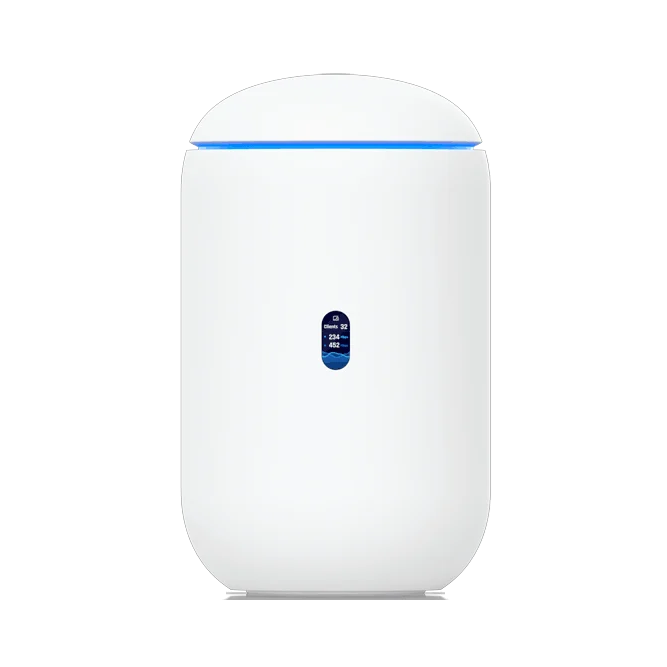 | Dream Router 7 (UDR 7) | 1x SFP+ 4x 2.5Gbps (1x PoE) | 2.5Gbps/Tri-band BE11000 | (5) HD (2) 2K (1) 4K 1x microSD | UDR, UDR-5G-Max, UCG-Industrial (compare specs and costs) | Desktop design |
 | UniFi Express 7 (UX7) | 1x 10GbE 1x 2.5GbE | 2.5Gbps/Tri-band BE11000 | None | N/A | Desktop design, Can work as a UniFi access point or mesh point |
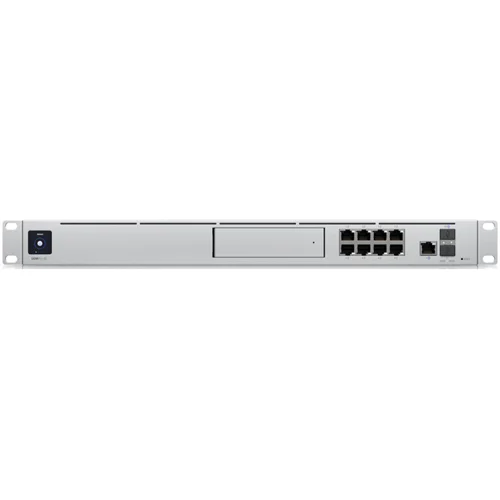 | Dream Machine Second Edition (UDM-SE) | 2x SFP+, 1x 2.5GBE, 8x Gigabit (2x PoE+ and 6x PoE) | 10Gbps/None | (24) HD (14) 2K (8) 4K 1x 3.5″ HDD bay | Self, UDM-Beast, UDM-Pro-Max, UDM-Pro (compare specs and costs) | Rackmount environment |
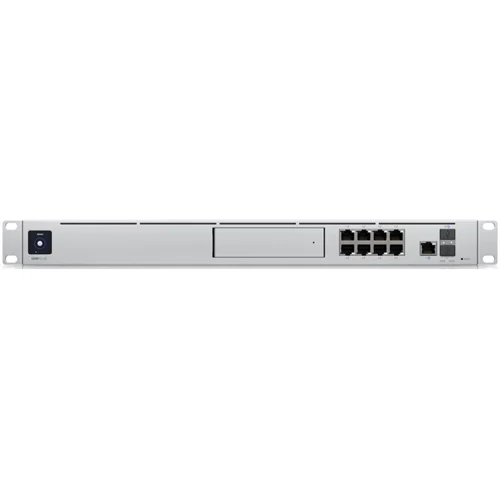 | Dream Machine Pro (UDM-Pro) | 2x SFP+, 9x Gigabit | 10Gbps/None | (24) HD (14) 2K (8) 4K 1x 3.5″ HDD bay | Self, UDM-Beast, UDM-Pro-Max, UDM-SE (compare specs and costs) | Rackmount design |
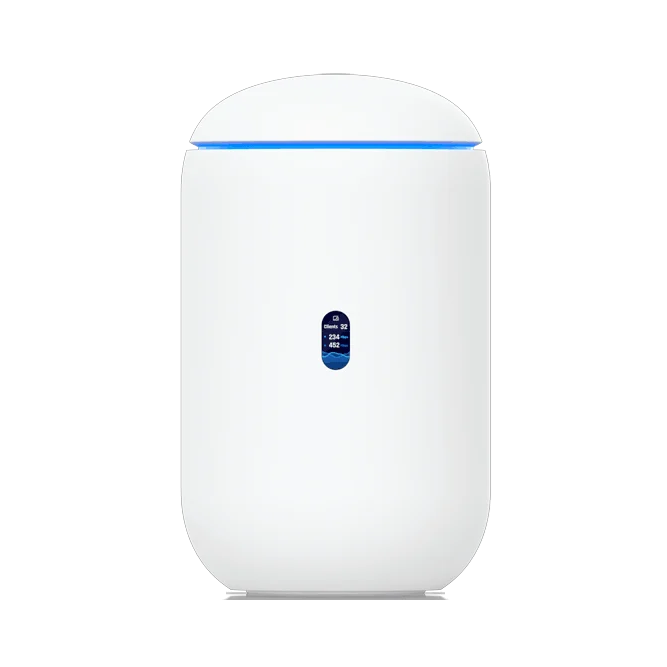 | Dream Router (UDR) | 5x Gigabit (2x PoE) | Gigabit/Dual-band AX3000 | (5) HD (2) 2K (1) 4K 1x microSD | Self, UDR7, UDR-5G-Max, UCG-Industrial (compare specs and costs) | Desktop design |
 | Dream Machine (UDM) | 5x Gigabit | Gigabit/Dual-band AC2000 | None | N/A | Desktop design |
From the table above, you’ll note, for example, that you can switch the UniFi Protect app from UCG-Max to UCG-Fiber, or vice versa, while keeping the existing recordings by moving the NVMe SSD from the source gateway to the replacement one.
On the other hand, keeping the existing recordings is not possible if you want to replace that SSD (such as for a larger one)—currently, the UniFi ecosystem doesn’t support manual copying or drive cloning for the Protect storage.
Needless to say, it’s not possible to retain existing recordings when you move from the UCG-Fiber to the UCG-Industrial or the UDM-Pro-Max, as they use different media types.
Another thing to note is that, in a downgrade, you can migrate recordings from gateways with two drive bays (UDM-Beast, UDM-Pro-Max) to a gateway with a single drive bay (UDM-SE, UDM-Pro). As the dual-bay gateways always keep the drives in RAID 1, the contents of each are the same.
Now that we’re clear on when it’s possible to keep the existing UniFi Protect recordings, here are the crucial steps to perform the replacement:
- Back up the current (source) gateway’s settings to a file (or to Ubiquiti’s cloud if you use a UI account) and turn it off. Move the storage device—SD card, HDD(s), or NVMe SSD—to the new replacement gateway. Important: Make sure the replacement gateway is turned off during this time and has been reset to factory defaults (which is already the case if it’s new).
- Turn on the replacement gateway and, during the initial setup, select the option to restore from the backup file created in #1, then choose to restore all apps and settings (the default option).
- Once the restoration process is finished, run Protect. Important: The first time you run the Protect app, depending on the situation, the system might ask you to confirm whether you want to keep the current recordings or restore them from disks. In this case, pick the latter (restore from disks). You only have one chance to pick the right answer—if you pick the wrong answer, the existing recordings will be ignored or even deleted.
That’s it. You’ll note that both the Network and Protect apps will have the same or largely the same settings as the previous gateway. Still, as a rule, check to ensure that everything is in proper working order.
UniFi Protect Network Video Recorders: Ubiquiti’s Top 5 Best
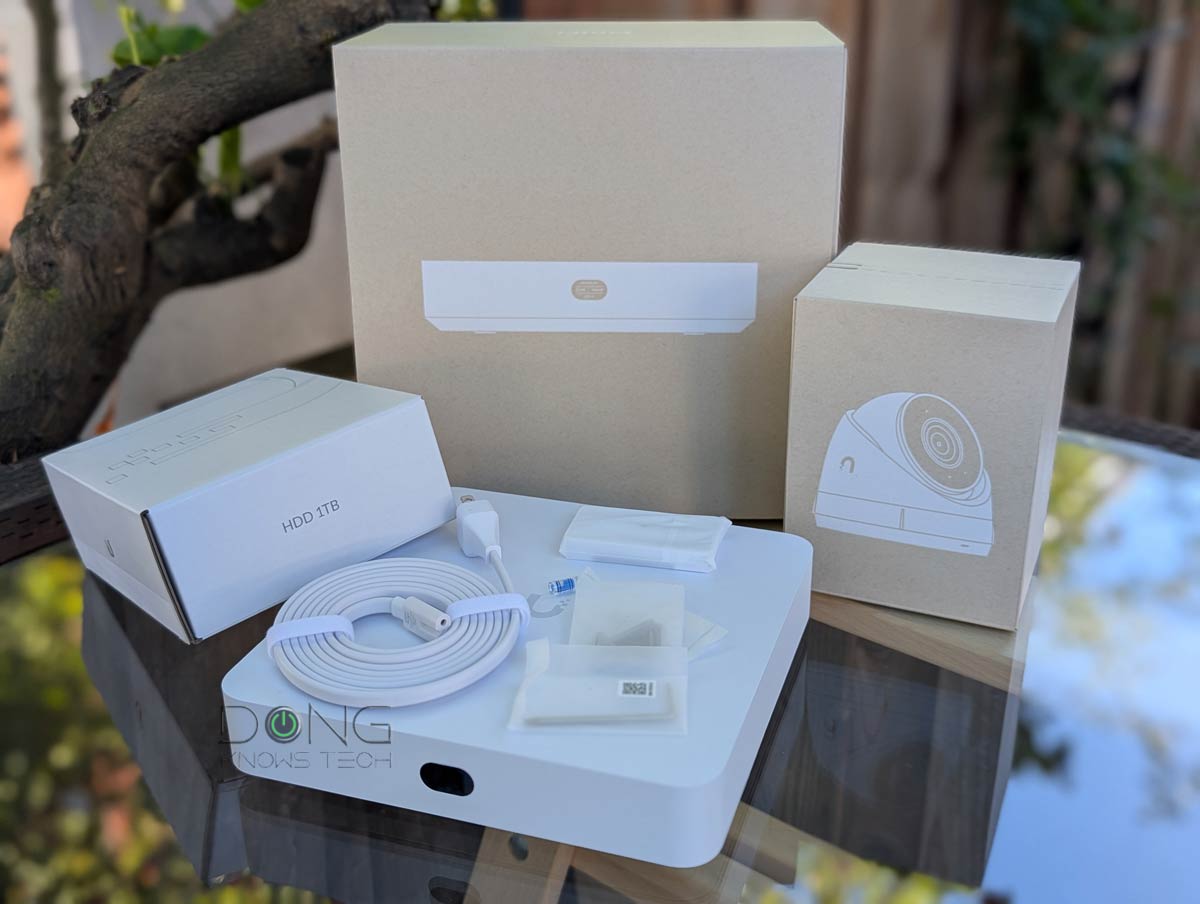


UniFi Cloud Gateway Backups and Migration: The final tip
Given that you can quickly migrate from one UniFi Cloud Gateway to another while keeping the network portion intact, it’s a good idea to keep an old gateway handy in case of an emergency. If your current gateway dies for some reason, you can quickly restore it to the old unit and keep the network running.


Comments are subject to approval, redaction, or removal. You're in the no-nonsense zone and that applies BOTH ways.
It's generally faster to get answers via site/page search. Your question/comment is one of many Dong Knows Tech receives daily.
Thank you!
(•) If you have subscription-related issues or represent a company/product mentioned here, please use the contact page or a PR channel.