
Summer is here, and many of you are considering a travel router for your upcoming trip. While that’s a sensible thing to do, here’s an alternative: How about turning that inseparable laptop of yours into a mobile “router”? Among other things, that will help you pack a bit lighter.
In this post, I’ll show you how to do exactly that, when possible: whenever that computer gets an Internet connection, such as when it connects to a Wi-Fi network at your destination, it can also provide a private Wi-Fi network for your other devices—your phones, tablets, or other laptops—just like when you’re home.
Turning your laptop into a mobile hotspot is quite easy and even fun. I speak from experience as I’ve done this for years during my numerous trips.
Dong’s note: I first published this piece on December 29, 2019, and updated it on May 23, 2026, to include up-to-date, relevant information.
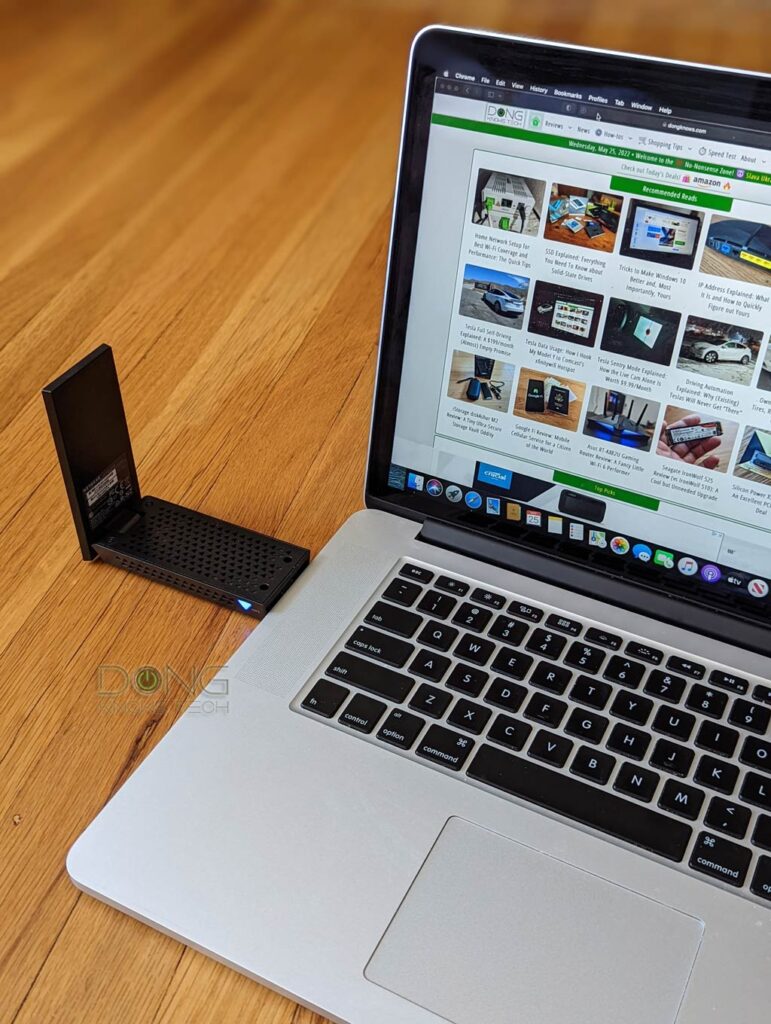
Turning a laptop into a Wi-Fi travel router: All you need to know
If you’re wondering why you’d want to turn your laptop into a Wi-Fi travel router when the destination already offers Wi-Fi, the answer is simple: privacy and convenience. It’s the same reason why travel routers are made in the first place.
When you’re away from home, in a hotel room or an Airbnb, having your own Wi-Fi network means you can keep all your devices isolated from the rental property’s network. Besides privacy and security, a private network is also convenient.
For example, you can use the same SSID and password as your home network, so you won’t need to fumble with your devices to connect them to a new network, which can be a pain if you also bring along streaming devices, such as Fire TV, as in my case.
Generally, you can turn any computer that has a Wi-Fi adapter—all laptops do—into a Wi-Fi router. However, as not all laptops are created equal, let’s start with getting that machine ready for the task.
Getting your laptop ready
For a laptop to work as a Wi-Fi travel router, it must run macOS or Windows, which nowadays means Windows 11.
After that, the computer must meet the two following requirements:
- It must be able to connect to the Internet at the destination. On this front, generally, there are two popular ways the Internet is offered when you travel:
- Via Wi-Fi (wireless): This is the most popular, and any laptop will work.
- Via a network port (wired): Your computer will need to have a network port of its own, and since most laptops no longer have this port, you may need to prepare a USB adapter. (Pick one that works with your computer: via USB-C or USB-A, and supports its version of the OS.)
- It must be able to share its Internet connection with others via Wi-Fi. On this front:
- All Windows laptops can do this. The Windows operating system can even use a single Wi-Fi adapter for both receiving and sharing the Internet.
- All Mac laptop must use their built-in Wi-Fi adapter solely for Internet sharing. As a result, to share the incoming Internet from an existing Wi-Fi network, your computer will need a separate Wi-Fi adapter.
Note: If you use a tethered phone or a USB cellular/satellite receiver, the method for sharing that Internet connection with your laptop remains the same.
To recap, given that all laptops have built-in Wi-Fi adapters and Wi-Fi is the most popular way to access the Internet worldwide, it’s safe to say that if you have a Windows computer, you’re ready to turn it into a travel router.
Note: For optimal performance, you might want to bring an additional USB Wi-Fi adapter for your Windows computer. (Again, pick one that works with your computer.) In this case, when you’re at the destination, use that add-on Wi-Fi adapter to connect the laptop to the Internet. Now, the laptop’s built-in Wi-Fi adapter can only connect your devices.
On the other hand, if you have a Mac laptop, the chance of being able to share a Wi-Fi-based Internet connection at the destination is low. That’s because Macs running macOS 11 (Big Sur) and later generally do not support USB Wi-Fi adapters.
Tips: USB network adapters to get
Generally, things are easy if you use a Windows computer—virtually all USB adapters (Wi-Fi or Ethernet) will work, and there are many options. (This applies to when you run Windows on an Intel-based Mac natively via Boot Camp.)
If you use macOS, things are complicated.
- macOS 11 (Big Sur) and later: No known USB Wi-Fi adapter officially works. If you want to use one, you’ll likely need to hack the drive software to make it work. On the other hand, there are plenty of USB Ethernet adapters (wired). It’s always safe to use one from Apple. But if you can also find third-party options.
- macOS 10 (Catalina and older): Most USB Wi-Fi 5 and Wi-Fi 6 adapters will work. However, the rule of thumb is to check with the vendor’s support page to ensure driver software is available for your OS before getting it.
With that, let’s move on to the detailed steps.
How to turn a Windows laptop into a Wi-Fi travel router
First, connect your laptop to the existing Internet-ready network, via wired or Wi-Fi. In the latter case, again, if you have an add-on Wi-Fi adapter (optional), use that adapter to connect the laptop to the Internet.
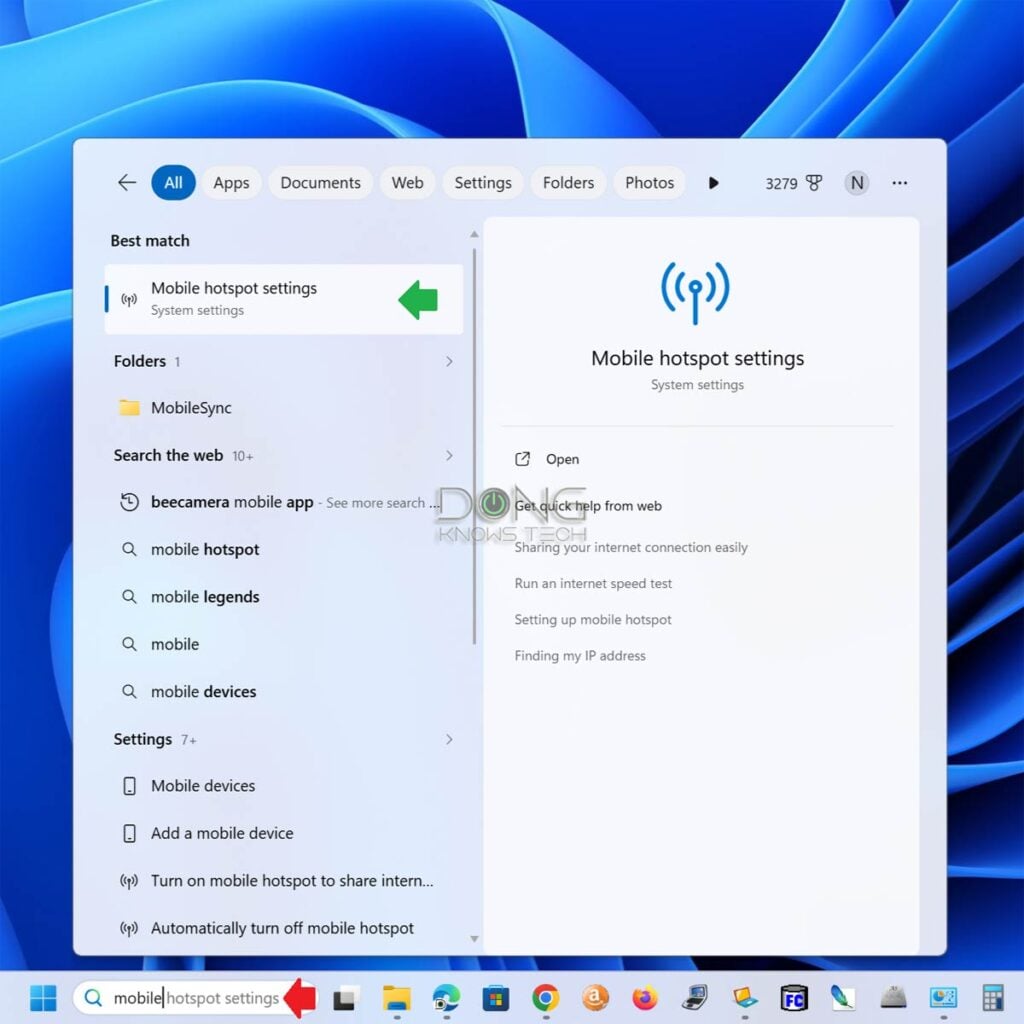
1. Launch the Mobile Hotspot settings of Windows
Find Mobile hotspot settings in the Start Menu—you can search for it—and click it to open the dialog where you can turn on this feature and customize it.
2. Turn Mobile hotspot on
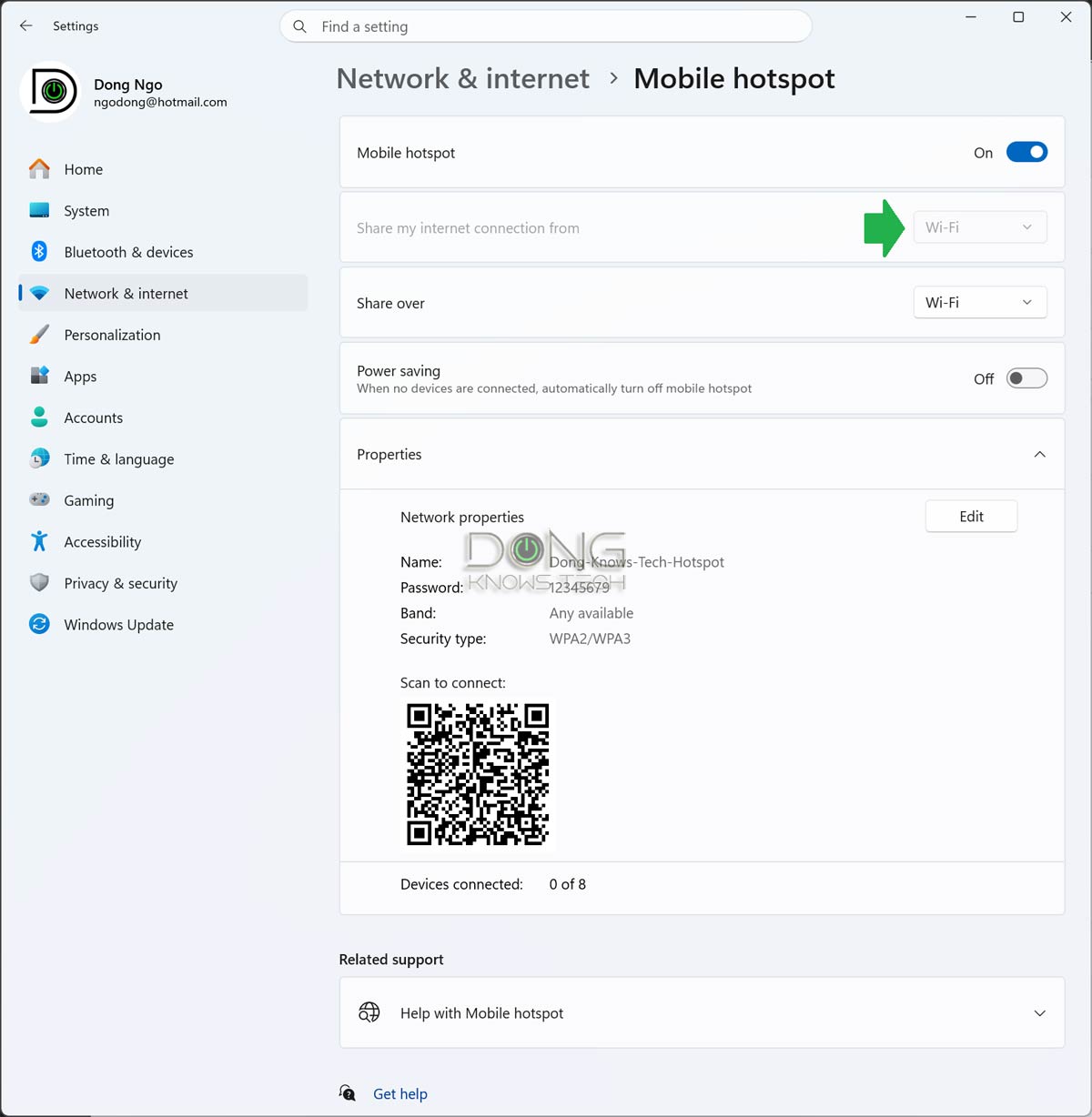
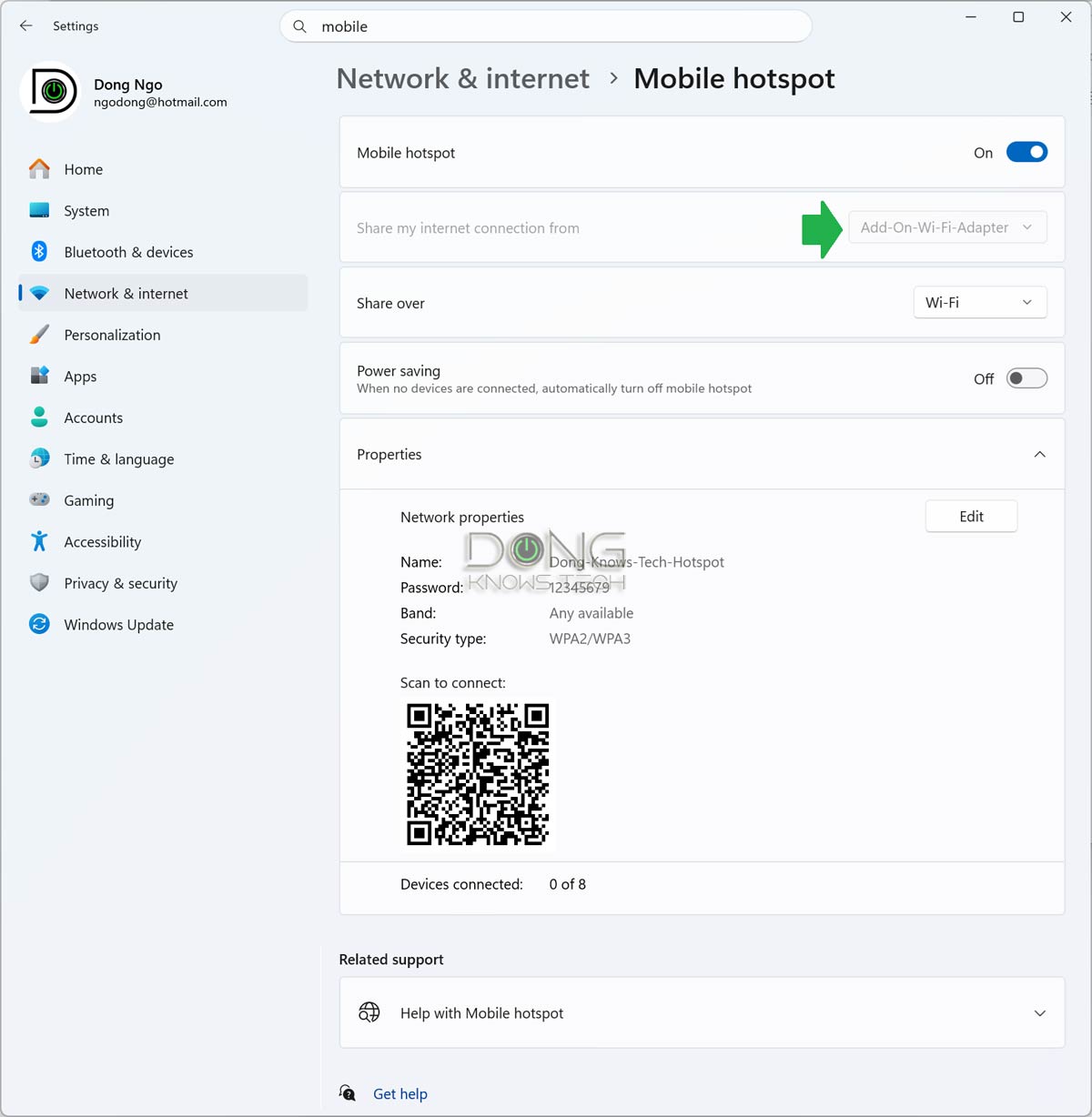
On the Settings page that appears, you’ll see that the current Internet connection under “Share my Internet connection from” is already selected—if you have more than one Internet connection on the laptop, you can click the down-arrow and choose the one you want to use.
In the screenshots below, I show both when I used a USB Wi-Fi adapter (Add-on Wi-Fi adapter) to connect the computer to an existing network and when I used the computer’s built-in adapter (Wi-Fi). The difference between the two lies solely in the performance of the private Wi-Fi network.
Now, move the slider for the feature to On. Then click on Edit to change your Wi-Fi network’s name or password.
3. Customize the new Wi-Fi network
Change the Wi-Fi network settings to your liking. Here, you can use the same SSID and password as your home Wi-Fi, so your other devices connect automatically.
Additionally, for the best performance, pick the 5GHz for the “Network band”. However, if you have devices that can only work on the 2.4GHz band, pick “Any available”.
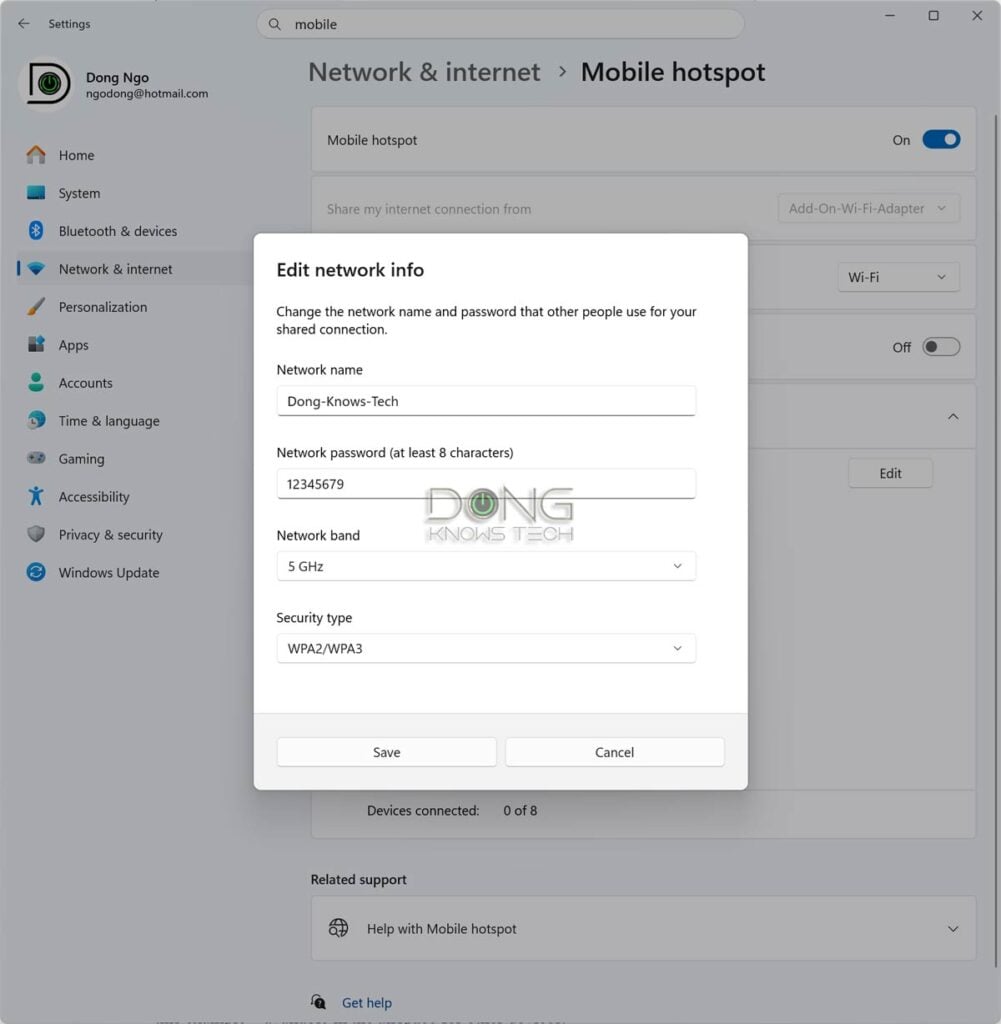
And that’s it. You’ll find the new Wi-Fi network—”Dong-Knows-Tech” in this example—available in the airspace for other devices.
The Windows Mobile hotspot feature allows you to share the Internet with up to 8 Wi-Fi devices.
How to turn a Mac computer into a travel router (Wi-Fi mobile hotspot)
Again, as mentioned above, a Mac computer needs its built-in Wi-Fi adapter to share the Internet as a Wi-Fi travel router (hotspot). As a result, you need a second adapter (wired or wireless) to connect the computer itself to the Internet. That said, if you use a Mac running macOS 11 or newer, given the scarcity of Mac-compatible Wi-Fi add-on adapters, sharing a wired connection is generally the only option.
The steps below were done on a Mac running macOS Tahoe (version 26.5) using a secondary USB network adapter. However, if you use a different version of macOS or a different network adapter, the steps are similar.
1. Call up the Internet Sharing settings
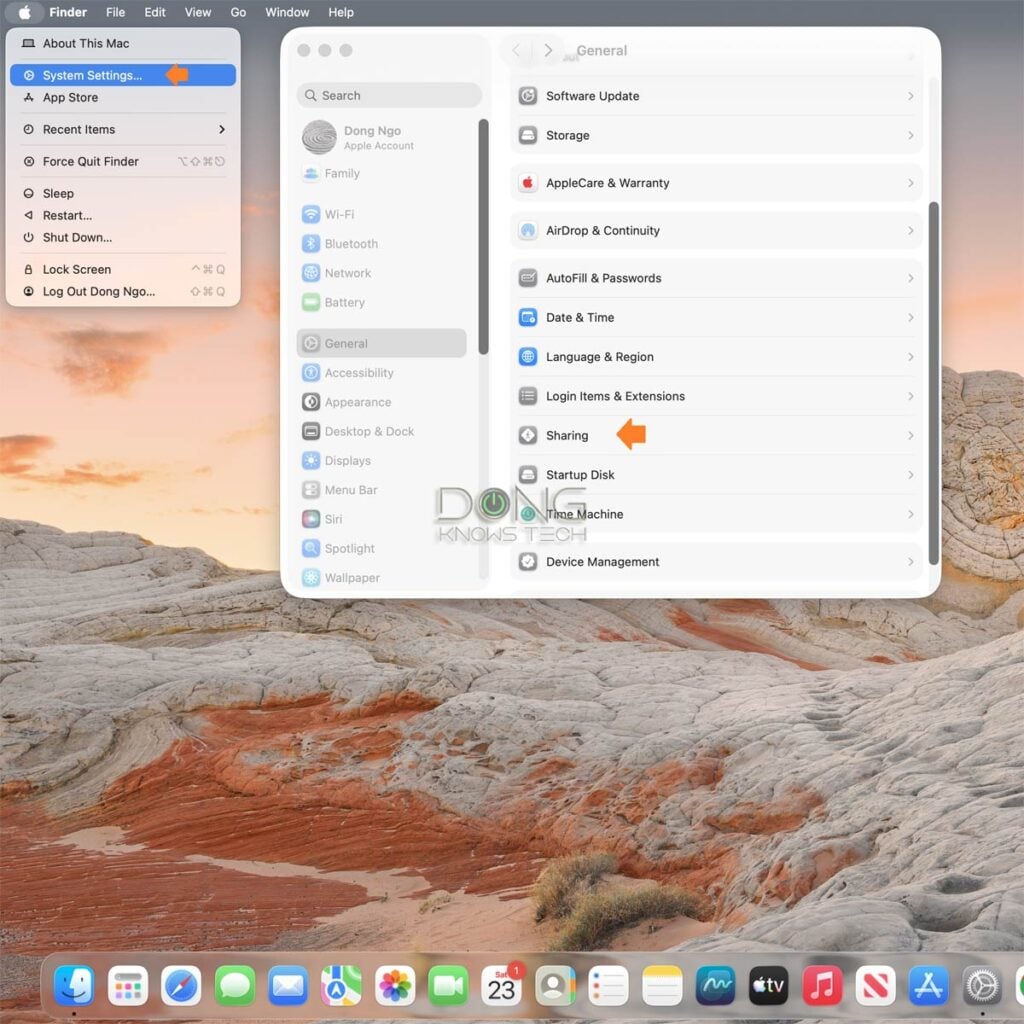
Click on the Apple icon (top-left corner) and then on System Settings (or System Preferences on an older Mac). Look for the Sharing section and click on it.
2. Open Internet sharing
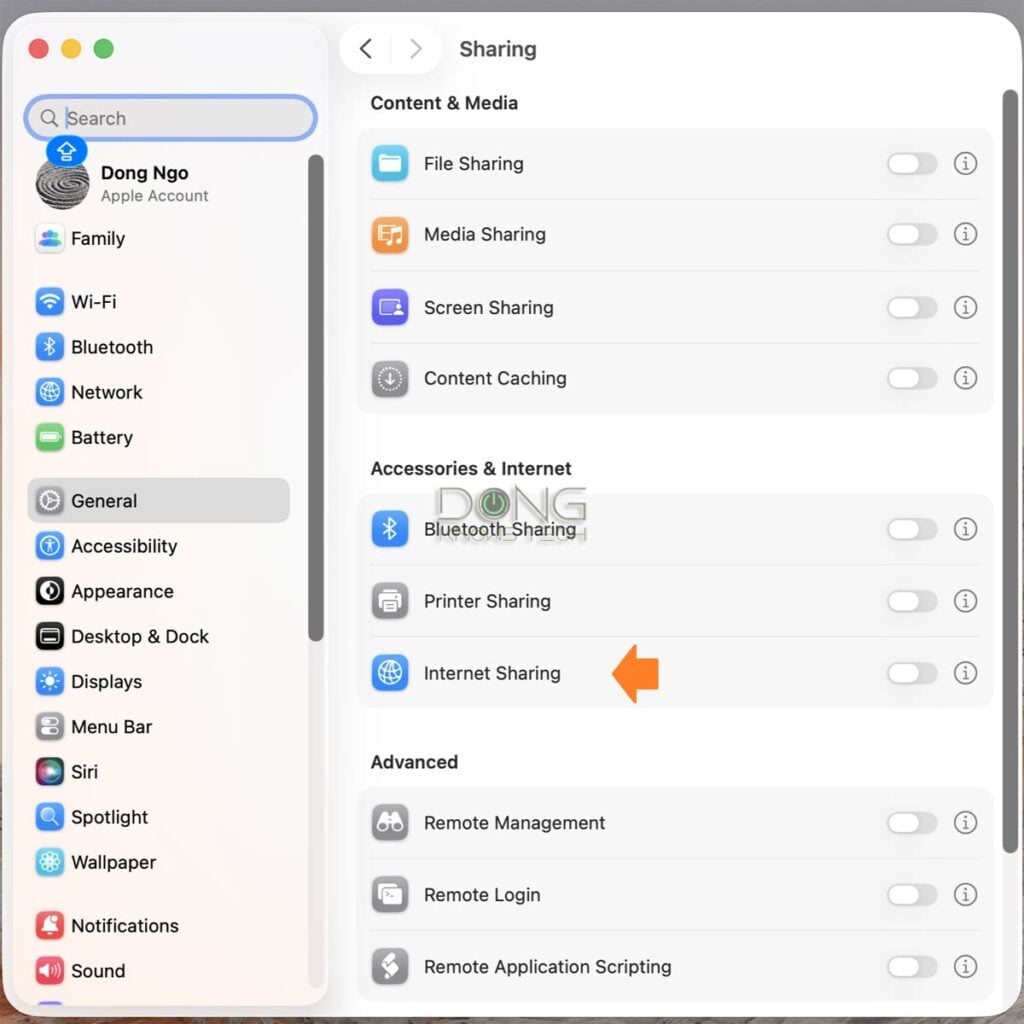
Within the Sharing section, pick the Internet Sharing and answer the pop-up question affirmatively to confirm that you want to share the Internet. This will open up the dialog for the one-time setup process for Internet sharing.
3. Pick the Internet source
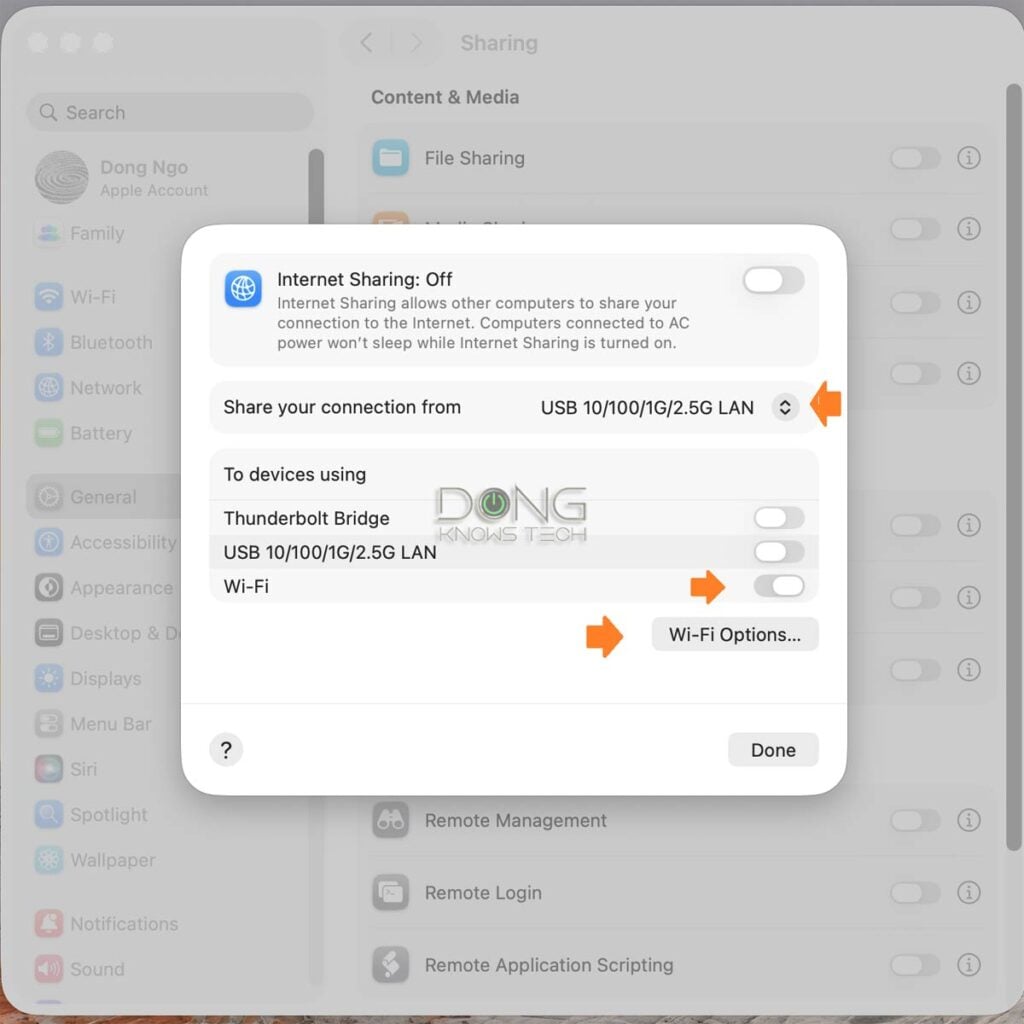
In the dialog that appears, select the correct Internet connection, which is the one the computer currently uses to connect to the Internet. In this example, I use a USB network cable.
Then move the “Wi-Fi” slider to the on position.
Now click on “Wi-Fi Options…” to customize the private Wi-Fi network.
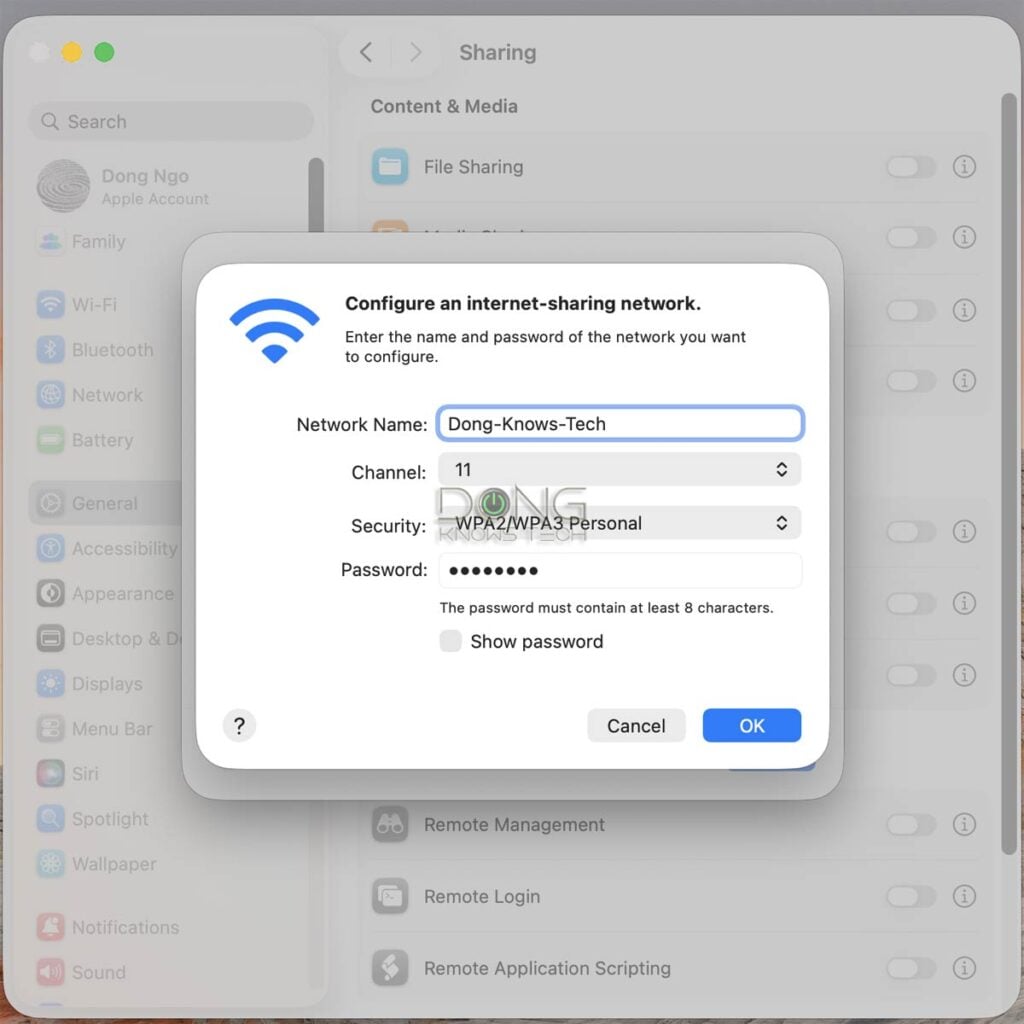
4. Customize the private Wi-Fi network
Customize the private Wi-Fi network to your liking. At this step, it’s best to use the sname SSID (network name) and password of your home network to seamlessly support your devices on the go.
Click OK when finished to return to the previous screen.
5. Turn your Wi-Fi Internet sharing on
Move the Internet sharing slider to the On position.
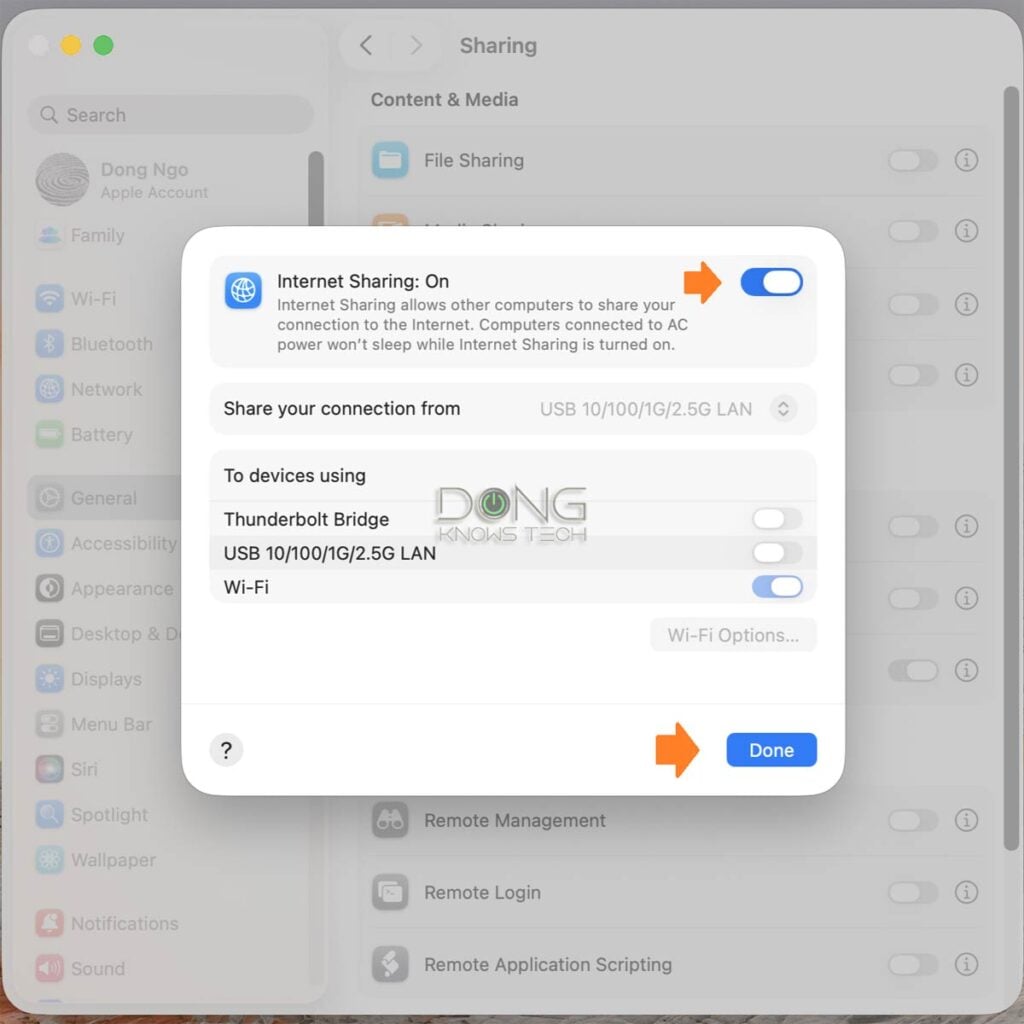
And that’s it. Now Internet sharing is enabled, and the Mac is working as a Wi-Fi router, sharing its incoming Internet connection with other Wi-Fi devices. In this example, the “Dong-Knows-Tech” Wi-Fi network will be broadcast to clients for connection.
Generally, you can connect up to 15 devices to a Mac computer’s mobile hotspot, though the exact limit depends on your laptop.
Going forward, Internet Sharing can be enabled or disabled via the slider in the settings.
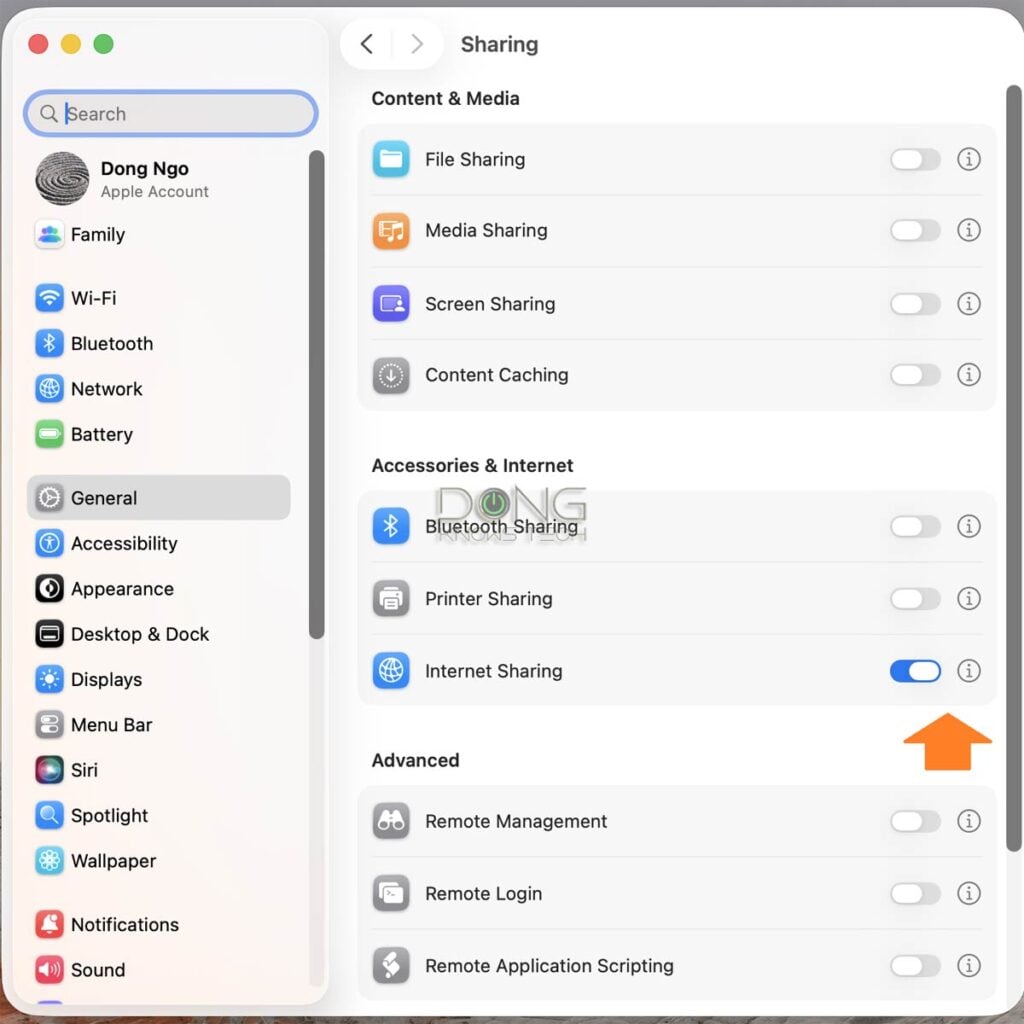
After the one-time setup above, Internet Sharing can be quickly turned on or off using the slider. To repeat the customization, click the exclamation point next to the slider.
The final thoughts
There you go. Turning your laptop computer into a Wi-Fi travel router—or as a mobile hotspot, for that matter—has a lot of advantages:
- Better performance: Wi-Fi cards for a computer generally have much better Wi-Fi performance than a mobile hotspot. Your mobile Wi-Fi network will have better range and faster speeds than those of most mobile hotspots or when you turn your phone into one.
- Cost-saving: When staying at a venue that charges you for Internet access per device, this trick will save you some serious dough because you only need to pay for a single device—the laptop—instead of all others.
- Less packing: You won’t need to carry an extra piece of hardware, like a portable travel router or a mobile hotspot. (Sure, you might need an additional Wi-Fi or Ethernet adapter, but these are very small devices.)
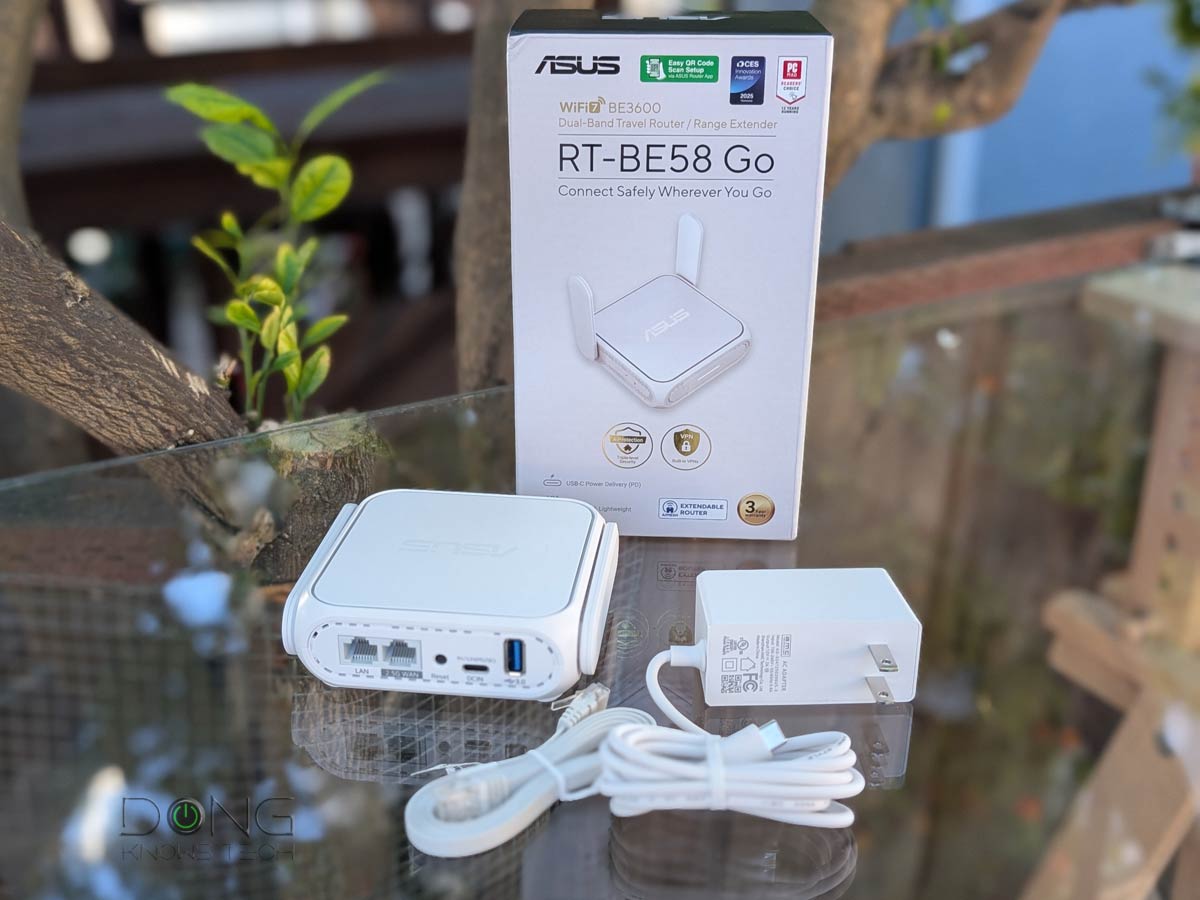
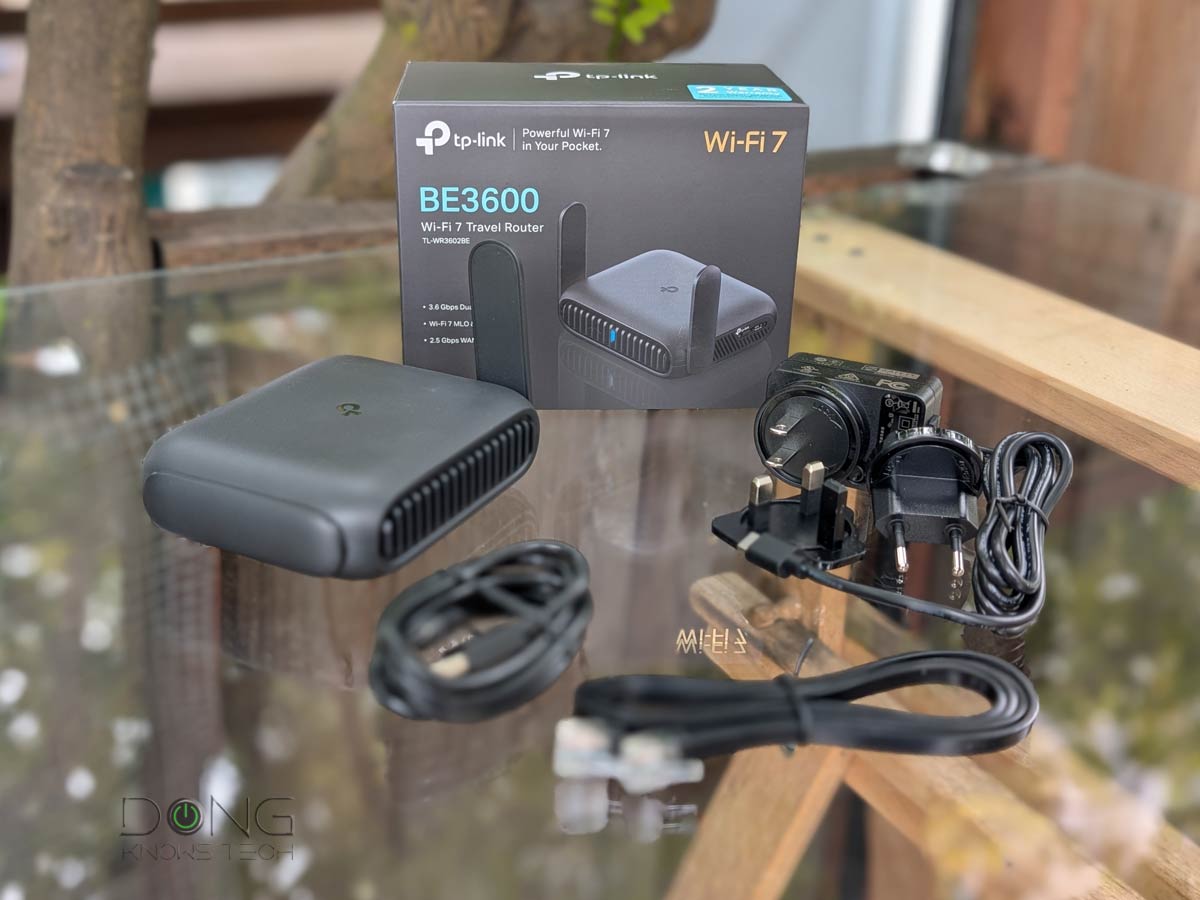
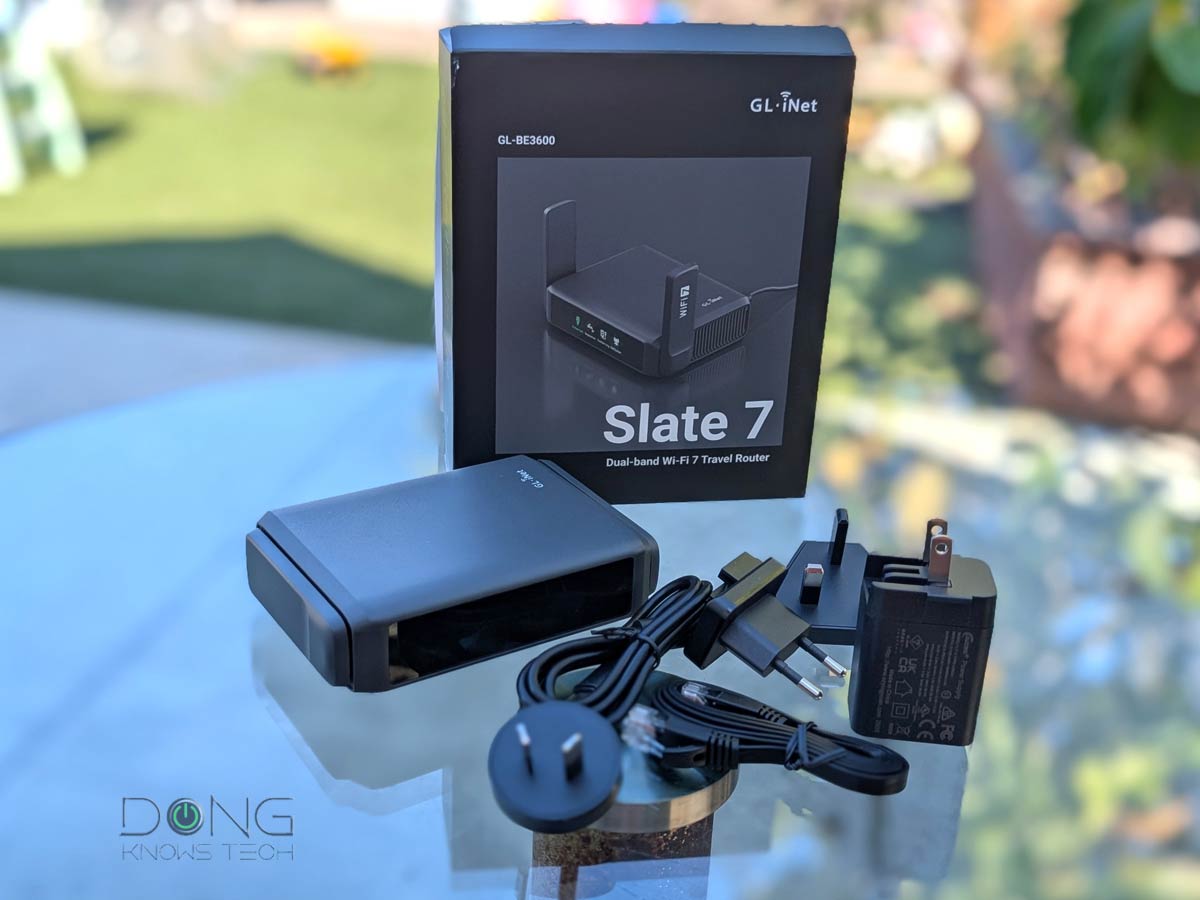
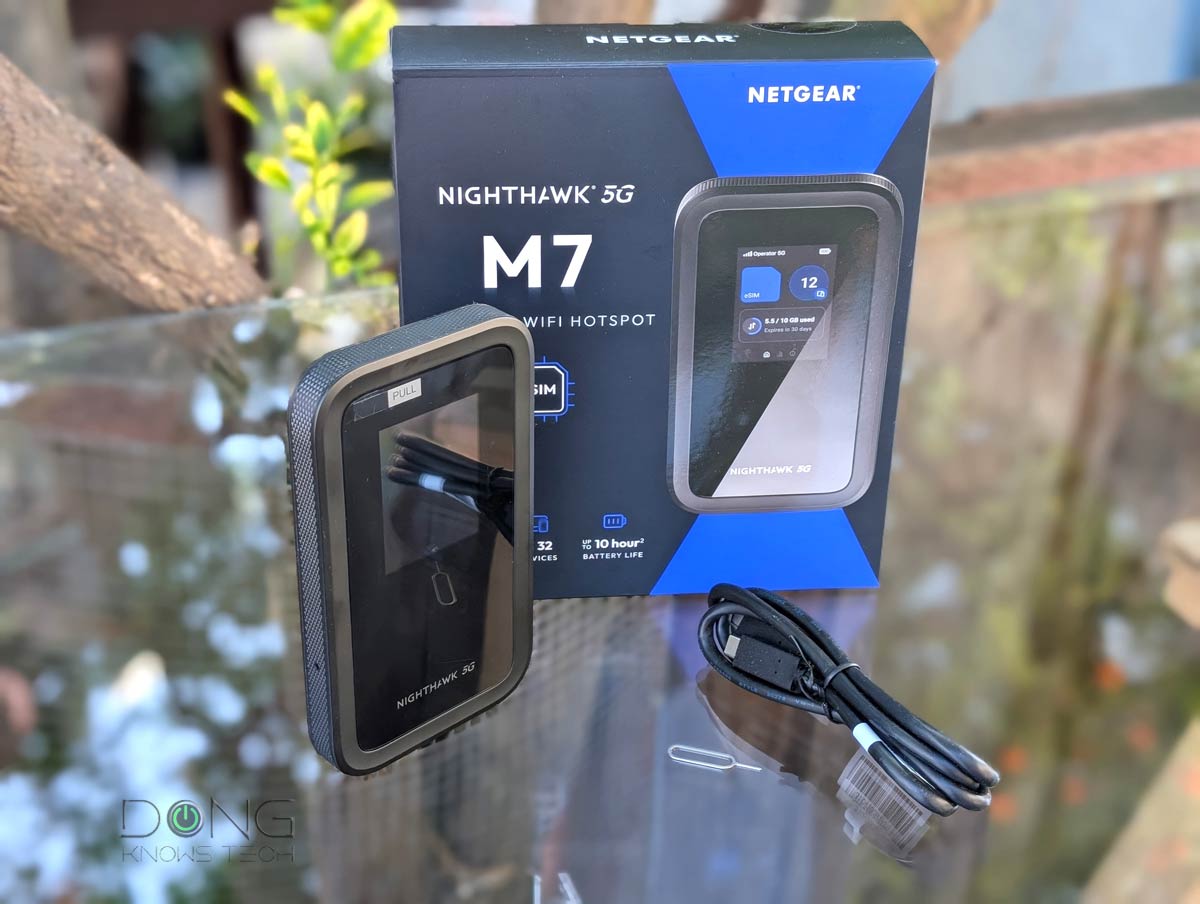
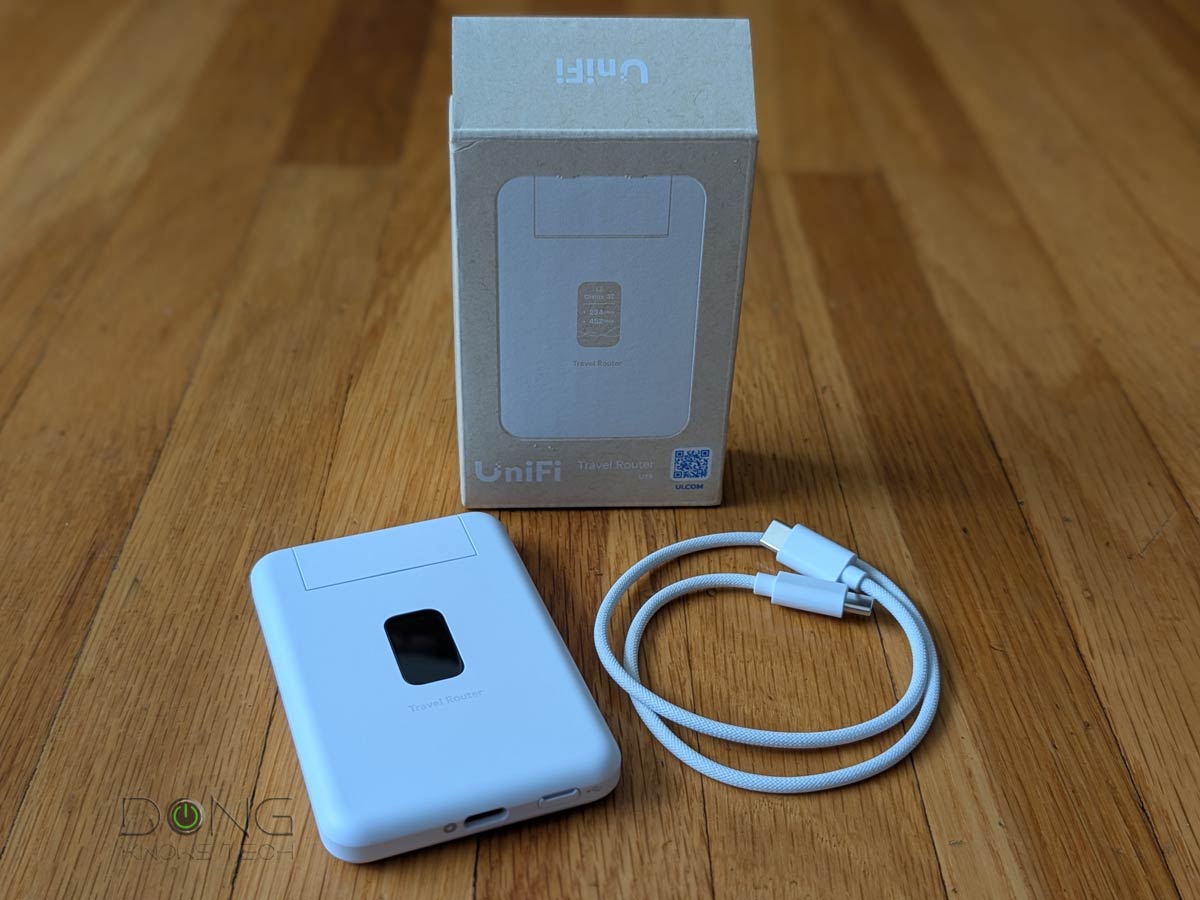
In any case, keep in mind that this type of temporary Internet sharing is meant to be a convenience and not a full-featured Wi-Fi solution. No laptop can outdo a full-feature travel router, let alone a real home Wi-Fi router, in both performance and features. That said, if you still want a real travel router by now, check out the regularly updated top five options below.
Top 5 best travel routers
 |  |  |  |  | |
| Name | ASUS RT-BE58 Go's Rating | TP-Link Roam 7 BE3600 (TL-WR3602BE)'s Rating | GL.iNet GL-BE3600 Slate 7's Rating | NETGEAR Nighthawk 5G M7's Rating | Ubiquiti UniFi Travel Router (UTR)'s Rating |
| Price | – | – | – | – | – |
| Rating | |||||
| Description | |||||
| Statistics | |||||
| Buy this product |
No matter what you use to share Internet access on the go, the quality of your private Wi-Fi network ultimately depends on the broadband connection at your destination, which is often less than ideal in my years-long experience. But we don’t get away from home to stay online. Quite the opposite.
Safe travels!


Hi Dong,
Could using the setup described in this article, potentially prove to a limiting factor ‘if’ the provider capped the speed for each connected device? So if a hotel capped a connection (e.g. 10 Mbps per device), would using the laptop as a hotspot then mean that each connected device is potentially sharing that capped limit? Would it then be better to have each device connect individually to the provider?
I have no experience of providers capping speeds per device. I am assuming that it is possible, even if it may not be widely practiced. And is there a way to find out, without having to connect multiple devices and test the speed. Or maybe I’m just being paranoid. 🙂
Thanks Dong.
That’s correct, Melvin. But generally, when traveling, you only use one or two devices simultaneously. If you use more, remembers that the bandwidth of the hotel itself is not unlimited.
Hi Dong,
The family of 5 are traveliing across Europe over 5 weeks. I’m trying to see how I can make that work as efficiently and cost-effectively as possible. 🙂
Any ideas?
Thanks Dong.
The best way, Melvin, is to go with Google Fi—get an unlimited PLUS plan ($65/month) and four data-only SIMs (free) for the rest of the farm. You guys then can call each other via apps, like facebook. Fi has no contract so you can pause or cancel anytime. Or you can just get a single data SIM and use it for with a mobile hotpot, or use your phone as one.
Thanks Dong! I’ll research both methods and work out the best option for my family’s travels.
I got the Netgear Nighthawk AC1900 USB Wi-Fi adapter on the cheap, to try what you suggested above. It works great as designed, but probably not fit-for-purpose for what I need it for.
Can I re-purpose for any other function? My initial thought was whether I could use it as an access point, but that doesn’t appear to be possible.
Thanks again for all your amazing insights and knowledge!
You can keep that adapter for future use, Melvin, it’ll come in handy in many occasions.
Hi Dong,
Would you recommend using a USB modem connected to the laptop, to enable a sim card with a data, or use a mobile phone and hotspot? Ignore the fact that the mobile phone will allow for calls, messaging, etc. I’m using this hypothetical situation purely to understand the potential performance difference between a USB modem and a mobile hotspot, to then use the laptop as the router to the other devices.
Thanks.
The modem + laptop combo is generally better in terms of performance, Melvin.
Thanks so much, Dong.
👍
I just turned on Mobile Hotspot on my Windows 10 machine with just one Wi-Fi adapter and it worked just fine sharing. Is a second Wi-Fi adapter really necessary? I imagine with just one adapter, the connection is probably a lot slower but maybe sufficient for travel.
Yes, Sam, if your computer uses an adapter with driver software released in 2019 or later, a single adapter is sufficient—you use one band for receiving (say 5GHz) and the other (2.4GHz) for broadcasting. If you’re OK with that—your “slow” assessment is spot on—there’s no need to get a 2nd adapter.
Awesome. Good to know. Thanks for the quick response.
👍
Hi Dong is there anyway to get close to gig speed wifi on a 2021 MacBook Pro or later . I found this article https://support.apple.com/guide/deployment/macbook-pro-wi-fi-specification-details-dep2ac3e3b51/web
No, Chris, you’ll get around 800Mbps of real-world speed at best, most likely lower than that—the normal case of 2×2 Wi-Fi 6 at 80MHz. More on that in this post about Wi-Fi 6.
How does this work with a chromebook?
Not sure if it’s possible with Chromebook, Steve. I haven’t tried it.
I’ve tethered by iPhone to my MacBook Pro. I was then able to connect my iPad via WiFi to my MacBook Pro. I got 26 Mbps Down and 8.4 Mbps Up with 50 ms latency on 4G.
When I tried to ping my iPad I got latency ranging from 4 ms to 120 ms even though it was a foot away. Ping to the iPhone was .1 to .28 ms. Seems that as a WiFi router the built in antenna is not so good. Signal dropped off much faster with distance than my normal router.
No granted, I could have used my iPhone as a WiFi hotspot directly. A USB connection would be more stable and provide power to the iPhone. BTW, I got 64 Mbps down and 18 Mbps up and 43 ms latency.
Thanks for sharing the experience, Edan. That varies from one laptop (Wi-Fi card) to another. Also, 4G itself has pretty bad latency. But yes, the laptop’s antennas (its body) are not tuned for broadcasting and can’t compare to those of a real router. Still better than most travel routers, though.