
IP reservation is the process of assigning a specific IP address to a device, such as a computer, so it receives the same address each time it (re)connects to the network, such as when you restart it or the network’s router.
This post explains when IP reservation applies and how to set it up on popular router brands.
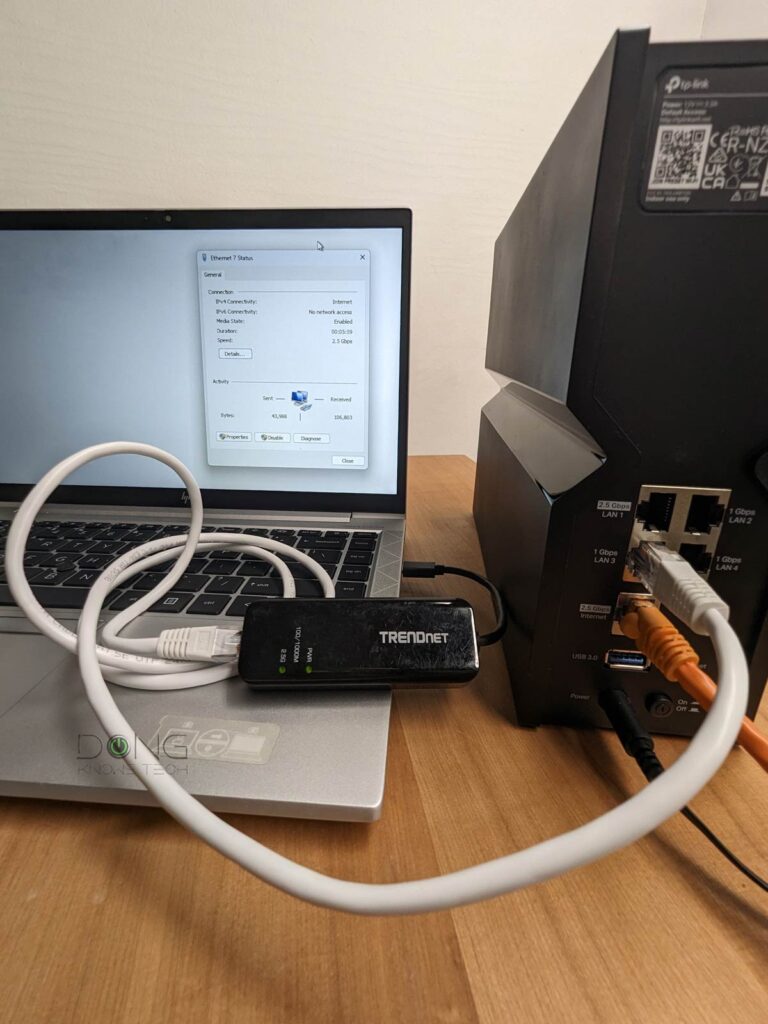
IP reservation: The why
Each time a computer (or any network device, for that matter) connects to a network, via a network cable or Wi-Fi, it gets an IP address from the network’s DHCP server, which is often the router.
This IP address, whether IPv4 or IPv6, is the minimum requirement for the computer to start communicating with others and effectively function as a “network” device. That’s because the IP address is how the device is identified within a network.
Each time a device reconnects to the same network, such as when you bring your laptop home from work or when you restart it, it may get a new IP address. In most cases, that doesn’t matter if all it needs to access other devices, such as the Internet or a network printer, which is often the case.
However, if the device is set as the “destination” of a connection, such as a printer or any server, a change in its IP address might cause connection issues when other devices still look for it using the old address.
And that’s where IP reservation comes into play. It ensures the device always gets the same IP address after a restart or power outage.
IP reservation: The how
Technically, IP reservation means you program the router to automatically bind a specific IP address to a specific MAC address—every network device has a unique MAC address.
Different hardware vendors might call IP reservation differently, such as “Fixed IP address”, “address reservation”, “MAC and IP binding”, and so on, but the idea is the same: each IP reservation is a pair of MAC and IP addresses, bound together as an entry on the DHCP server, which is, again, often the network’s router.
Generally, it’s a 3-step process to create an IP reservation entry:
- Find out the device’s MAC address and enter it via the router’s interface.
- Pick the desired IP address for that MAC address.
- Save the changes.
As you can imagine, manually creating multiple IP reservation entries can be tedious and prone to errors, as it’s easy to make typos when dealing with strings of seemingly random numbers.
Fortunately, it’s often much easier to create an IP reservation, as most vendors let you select a device from the list of devices connected to the router and assign it its current IP address (or a new one of your choosing) with a few mouse clicks on its web-based user interface or screen taps on the mobile app.
| Friendly URL (Internet connection required) | Default IP (a.k.a Default Gateway IP) | Username (no quotes) | Password (no quotes) | |
| Asus | http://www.asusrouter.com | 192.168.50.1 or 192.168.1.1 | “admin” | User-created during initial setup |
| AT&T Gateway | n/a | 192.168.1.254 | n/a | Access code printed on the hardware unit |
| Comcast (Xfinity) Gateway | n/a | 10.0.0.1 or 10.1.10.1 | “admin”, “cusadmin” | User-created during initial setup |
| D-Link | http://dlinkrouter.local | 192.168.0.1 or 192.168.1.1 or 192.168.200.1 | n/a | “admin” or printed on the hardware’s underside |
| MSI | http://msirouter.login | 192.168.10.1 | “admin” | varies (printed on hardware) |
| Netgear | http://routerlogin.com | 192.168.1.1 or 10.168.168.1 | admin | User-created during initial setup |
| Linksys | http://myrouter.local | 192.168.0.1 or 192.168.1.1 | n/a | “admin” (must be changed during the initial setup process) |
| TP-Link | http://tplinkwifi.net | 192.168.0.1 | “admin” | |
| Ubiquiti (UniFi console) | https://unifi.ui.com | 192.168.1.1 | User-created during initial setup | |
| Most Cable Modems | N/A | 192.168.100.1 | n/a | “admin”, “password”, “default” |
Below is the process of getting that done on a popular networking brand.
IP reservation on ASUS routers
On an ASUS router, you can handle the IP reservation, called “MAC and IP address binding”, via either the device’s web-based user interface (my favorite) or the ASUS Router mobile app.
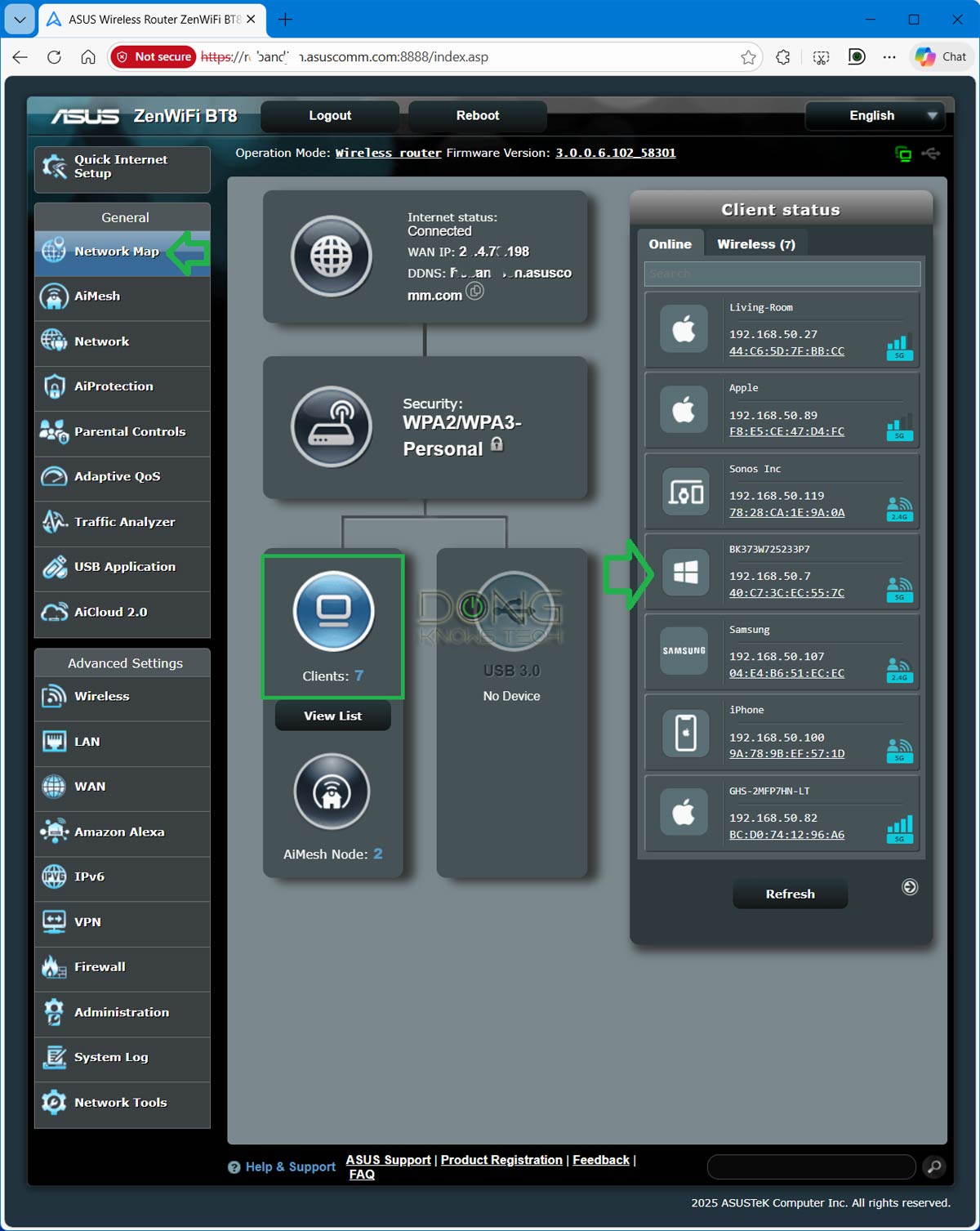
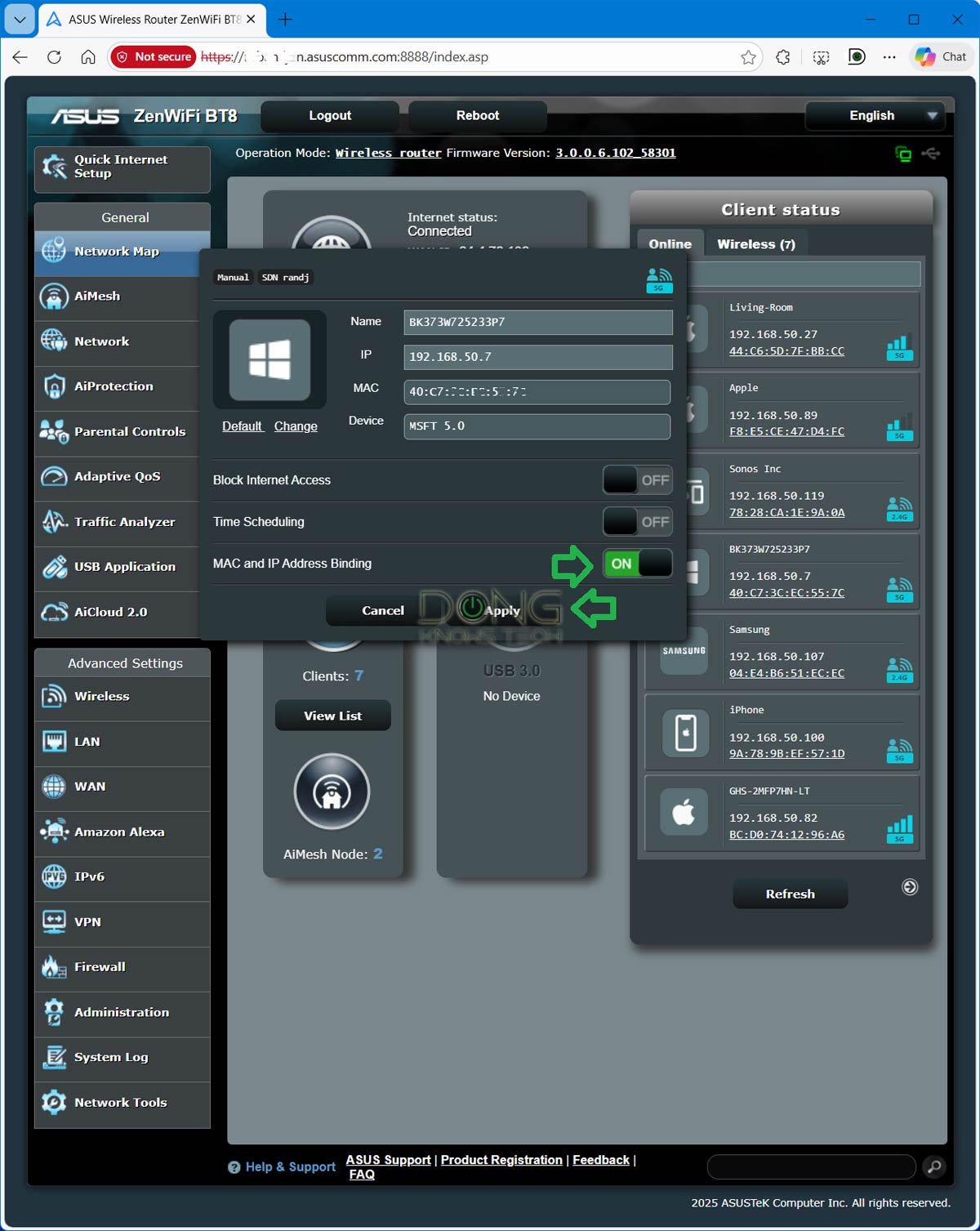
Here are the steps to perform IP reservation on an ASUS router via the web UI.
- Log in to the web user interface using the router’s default IP address (often 192.168.50.1) and pick the Network Map item (often the default screen). Then click the Client button to display the list of currently connected clients.
- Click on the device on the list for which the IP address you want to reserve (bind), and a dialog window will pop up.
- On the pop-up window, slide the value of “MAC and IP Address Binding” to the “On” position. (Optional: You can change the IP to a new one if you don’t like the current one. In this case, make sure the new IP address is not currently used for another device and is within the current IP pool.) Then click on Apply.
That’s it, the router will restart to apply the changes. Repeat from step 1 to add more entries.
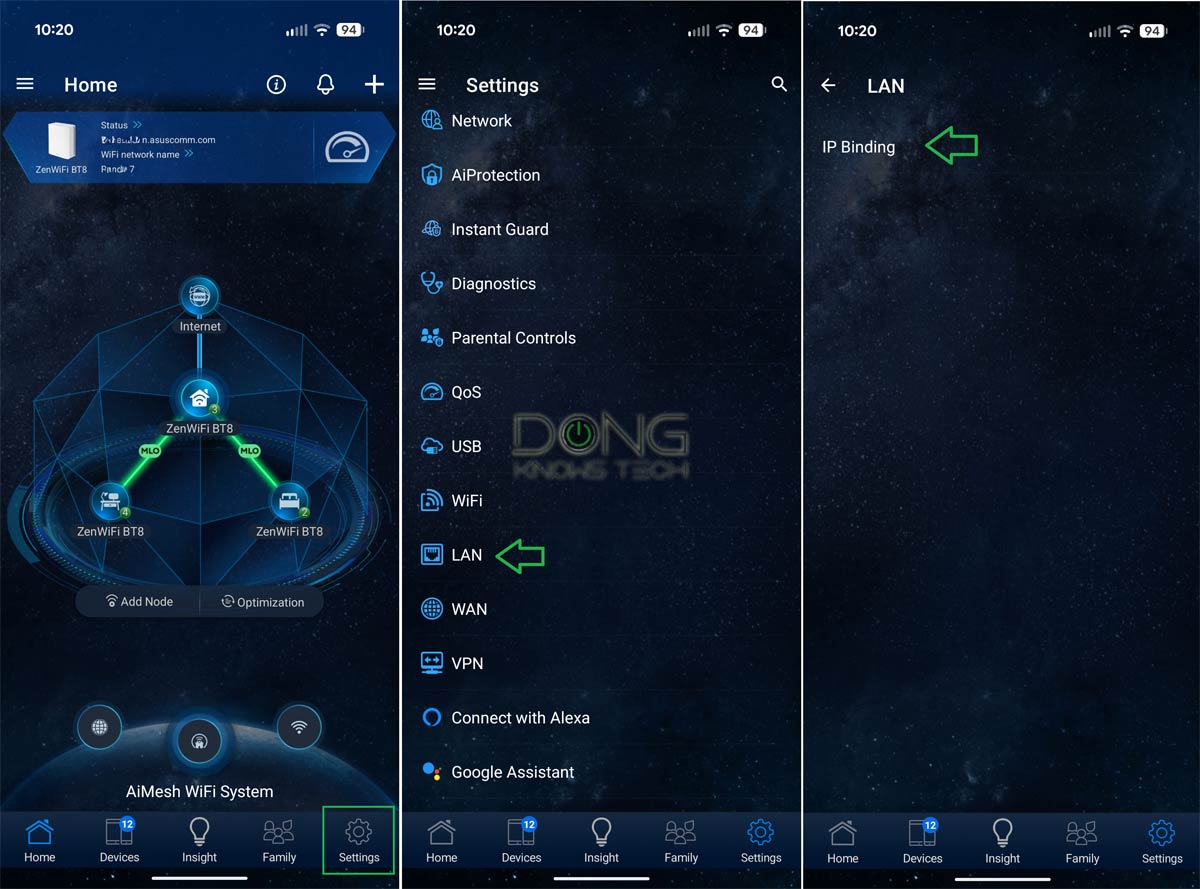
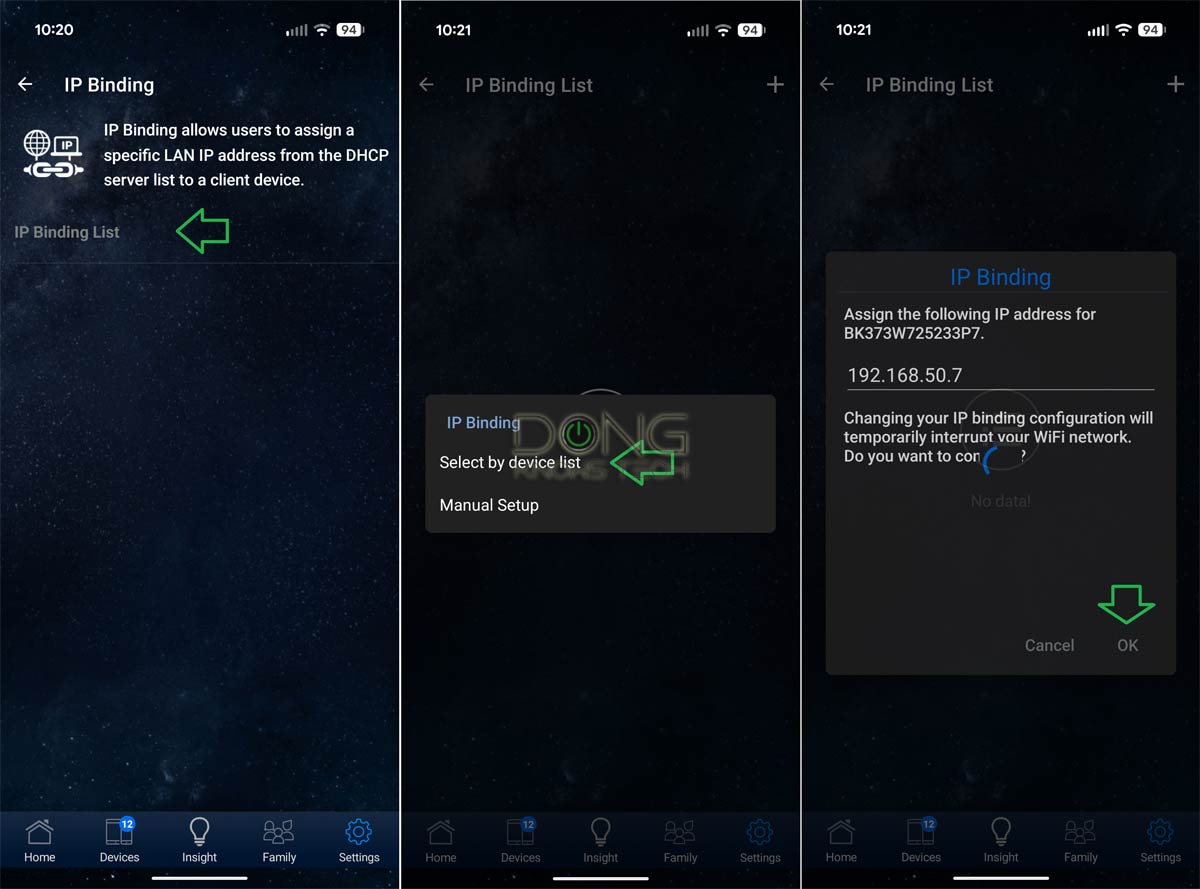
Here are the steps to perform IP reservation on an ASUS router via the ASUS Router mobile app.
- Open the ASUS app, then tap on “Settings”.
- On the Settings menu, tap on “LAN” -> “IP Binding” -> “IP Binding List”.
- In the IP Binding List section, tap on the + (Plus) sign, then on “Select by device list.” (Alternatively, you can pick “Manual Setup” to enter the MAC and IP manually.)
- On the device list that appears, tap on the device whose IP address you want to reserve.
- Enter a new IP address or leave the current one as is, then tap on OK.
Mission accomplished. Repeat from step #3 to add more entries.
IP reservation on NETGEAR routers
With NETGEAR routers, both the Nighthawk and Orbi series, you need to use the web-based user interface to perform IP configuration, called “Address Reservation”. The mobile apps generally don’t include this function.
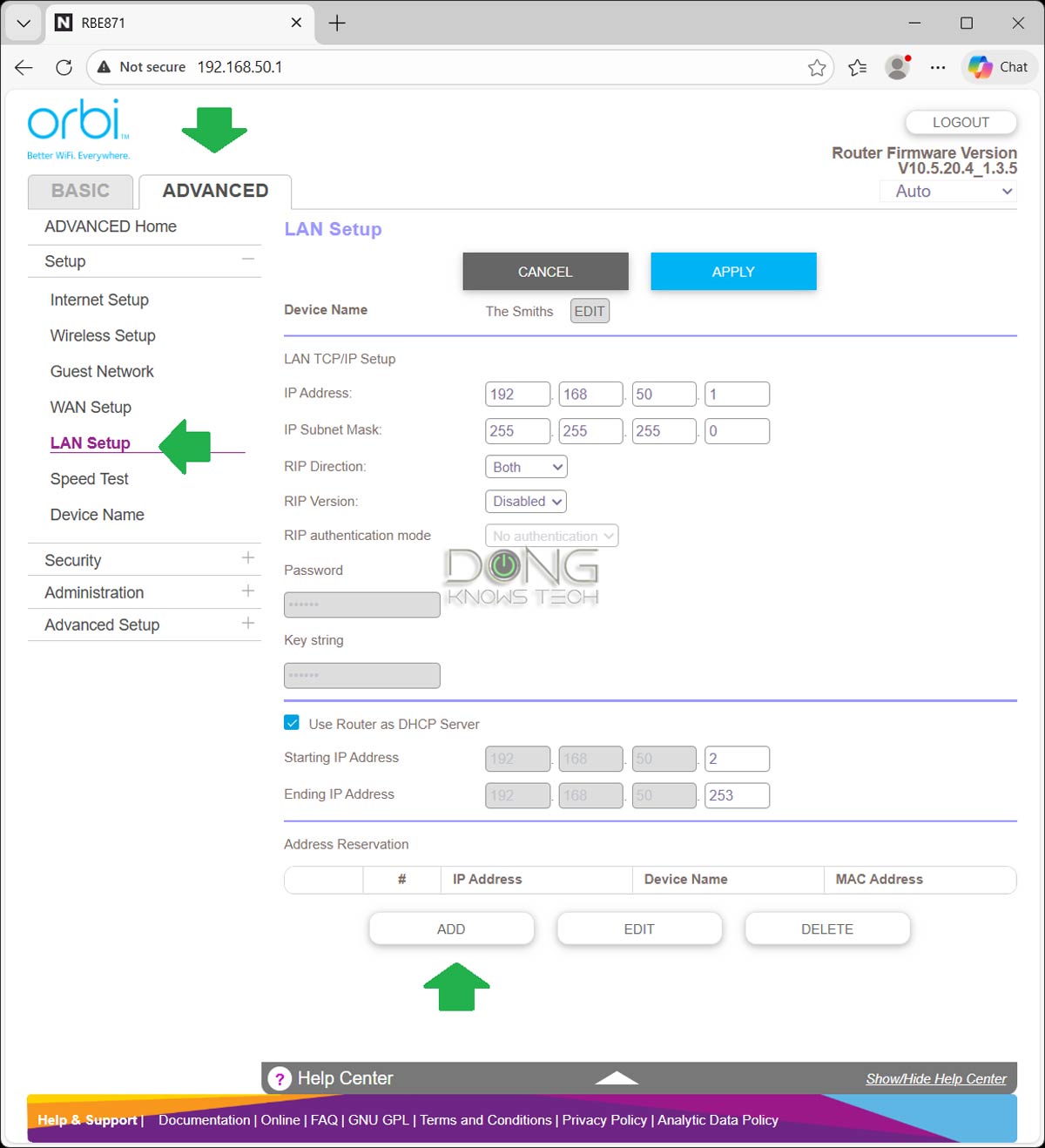
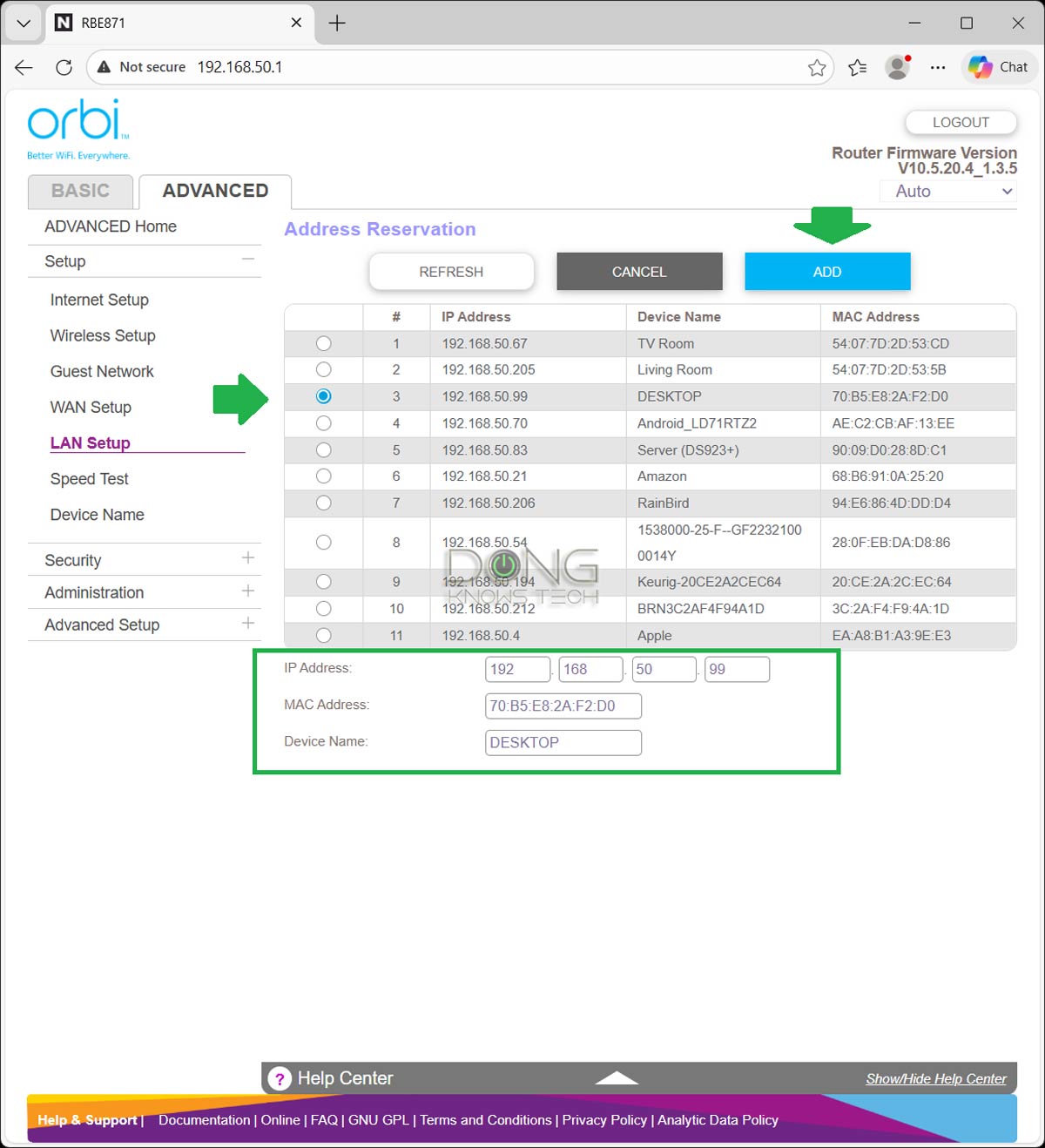
Here are the steps:
- Log in to the web user interface using the router’s default IP address (often 192.168.1.1), then click the ADVANCED tab.
- On the “Setup” menu, click on the “LAN Setup” item.
- Under the Address Reservation section, click “Add” to display the list of currently connected devices.
- Select the device whose IP address you want to reserve, change the current IP address to your liking, or accept the current one. Click on “Add”.
Mission accomplished. Repeat from step #3 to add more entries.
IP reservation on TP-Link routers
With TP-Link hardware, you generally manage IP reservations on a standalone router (Archer series) via the web-based user interface. On the Deco home mesh lineup, the only option is the Deco mobile app.
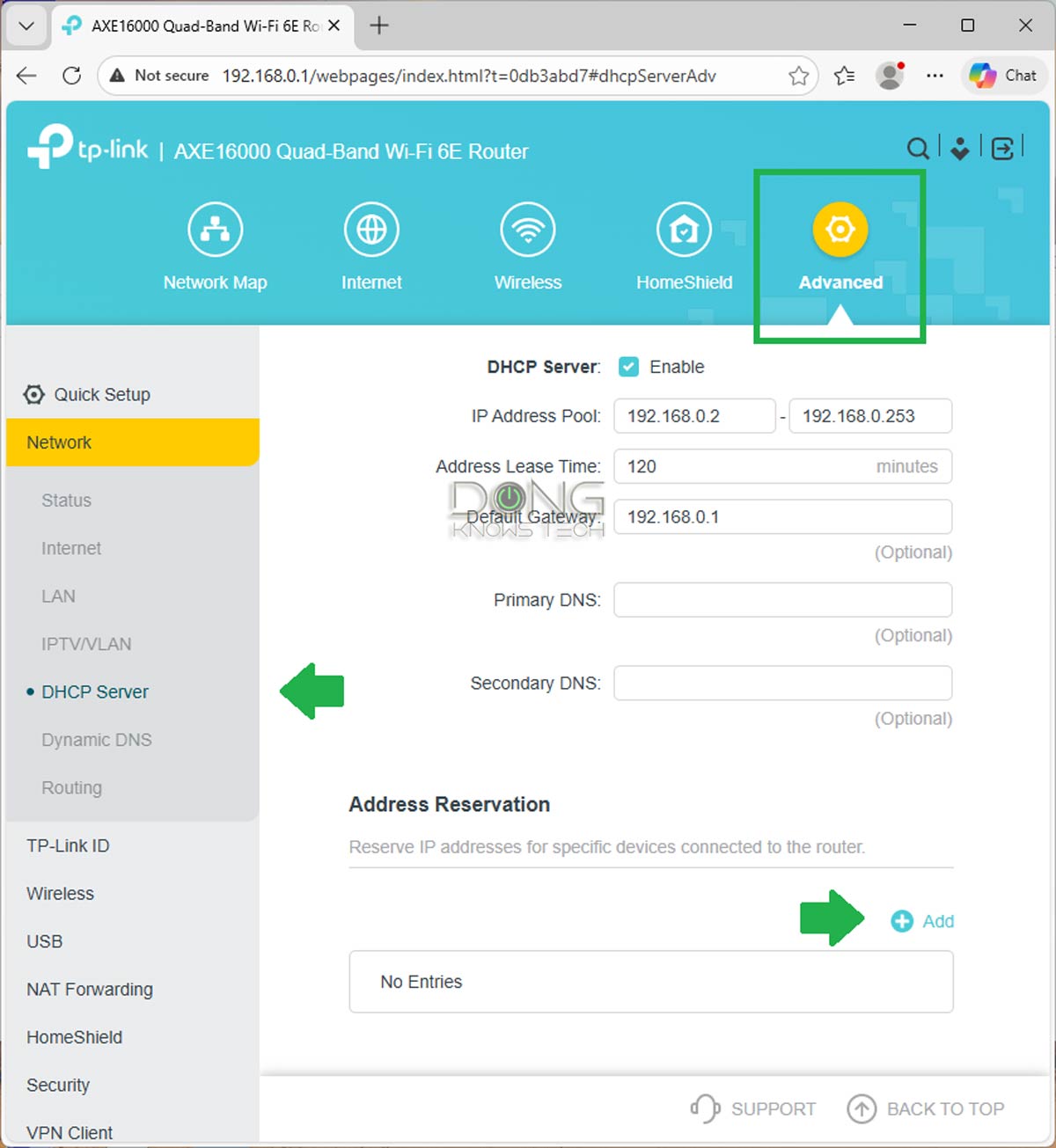
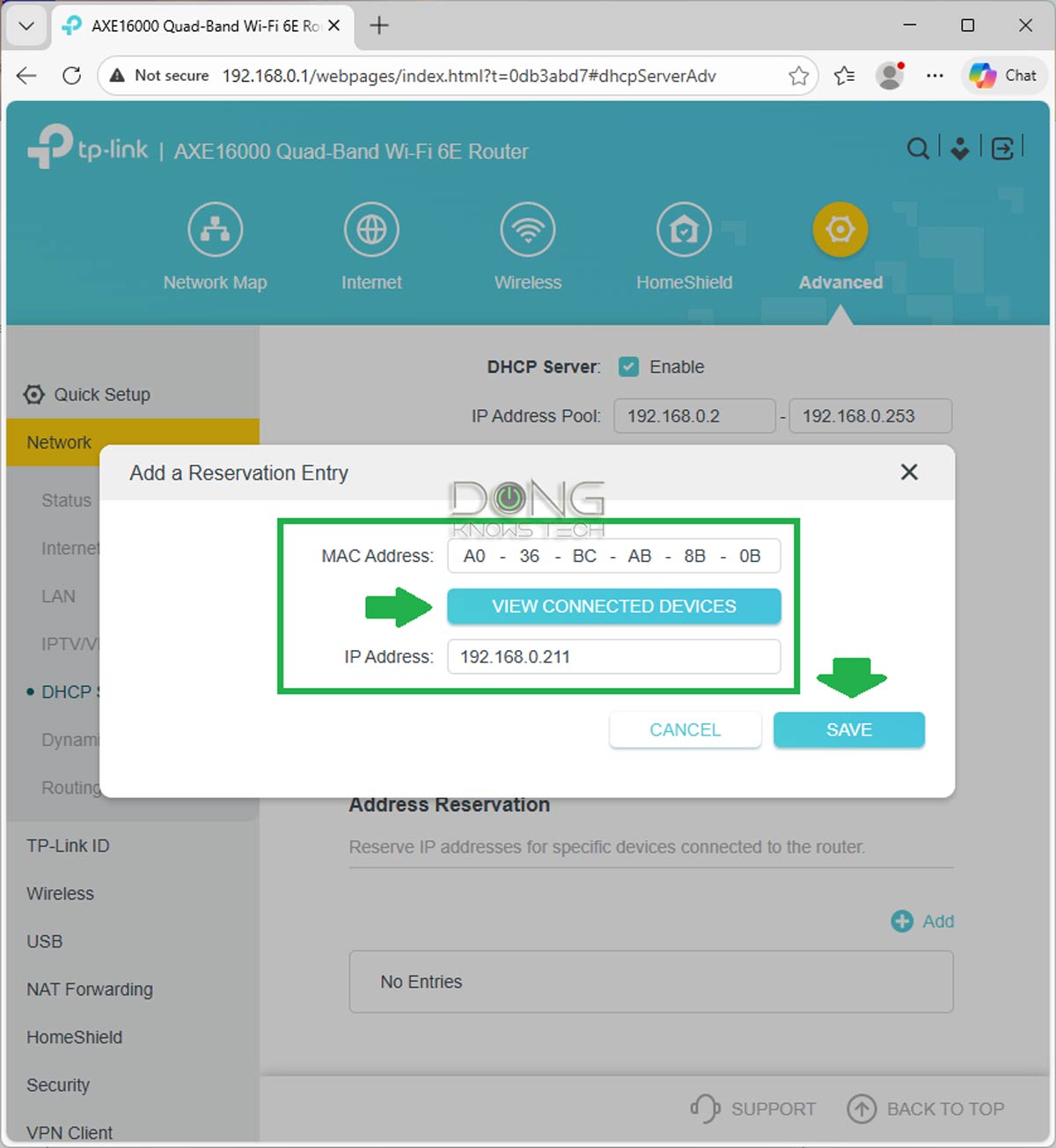
Here are the steps to handle IP reservation on a TP-Link Archer router via the web UI:
- Log in to the web user interface using the router’s default IP address (often 192.168.0.1), then click the Advanced tab.
- On the “Network” menu, click on the “DHCP Server” item.
- Under the Address Reservation section, click “Add” then on “VIEW CONNECTED DEVICES” to display the list of currently connected devices. (Alternatively, you can manually enter the MAC address of a device and the desired IP address, then Save.)
- Select the device whose IP address you want to reserve, then click on Save
That’s it! Repeat from step #3 to add more entries.
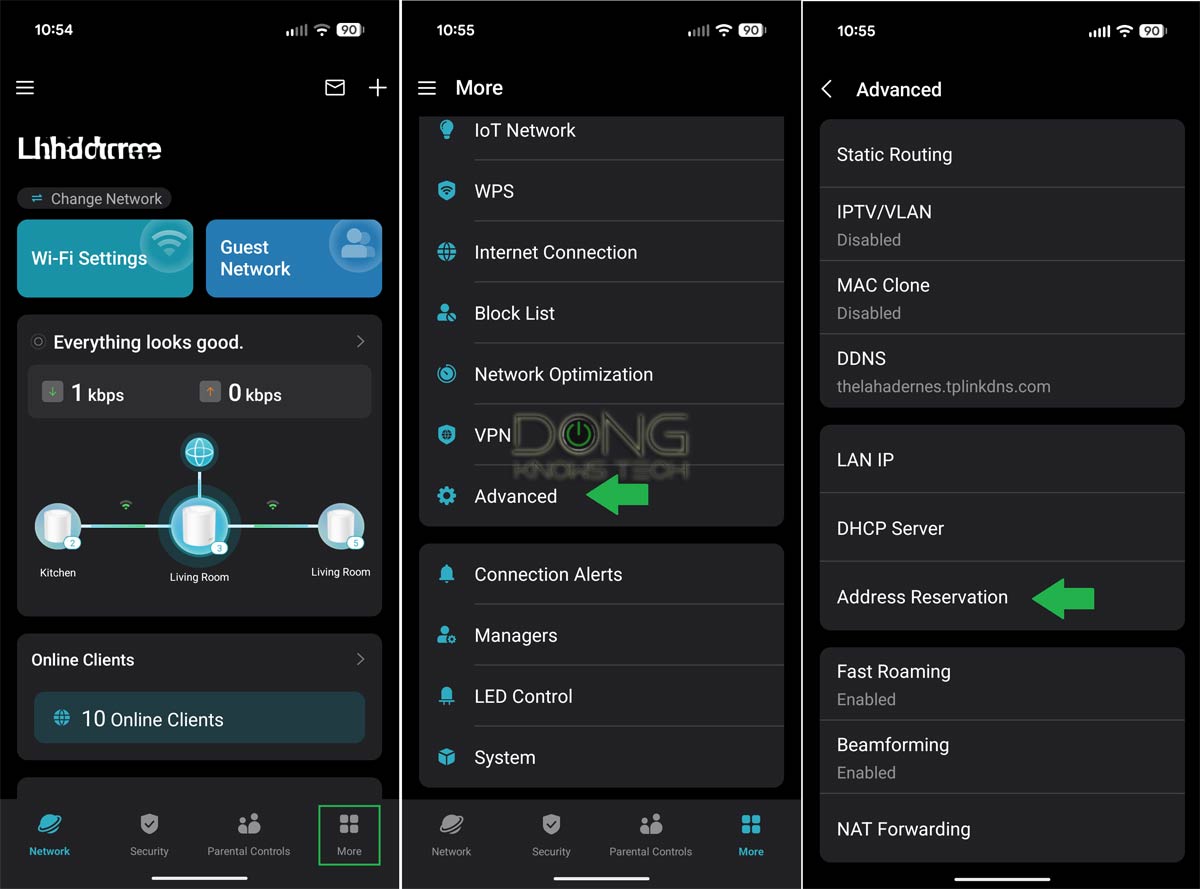
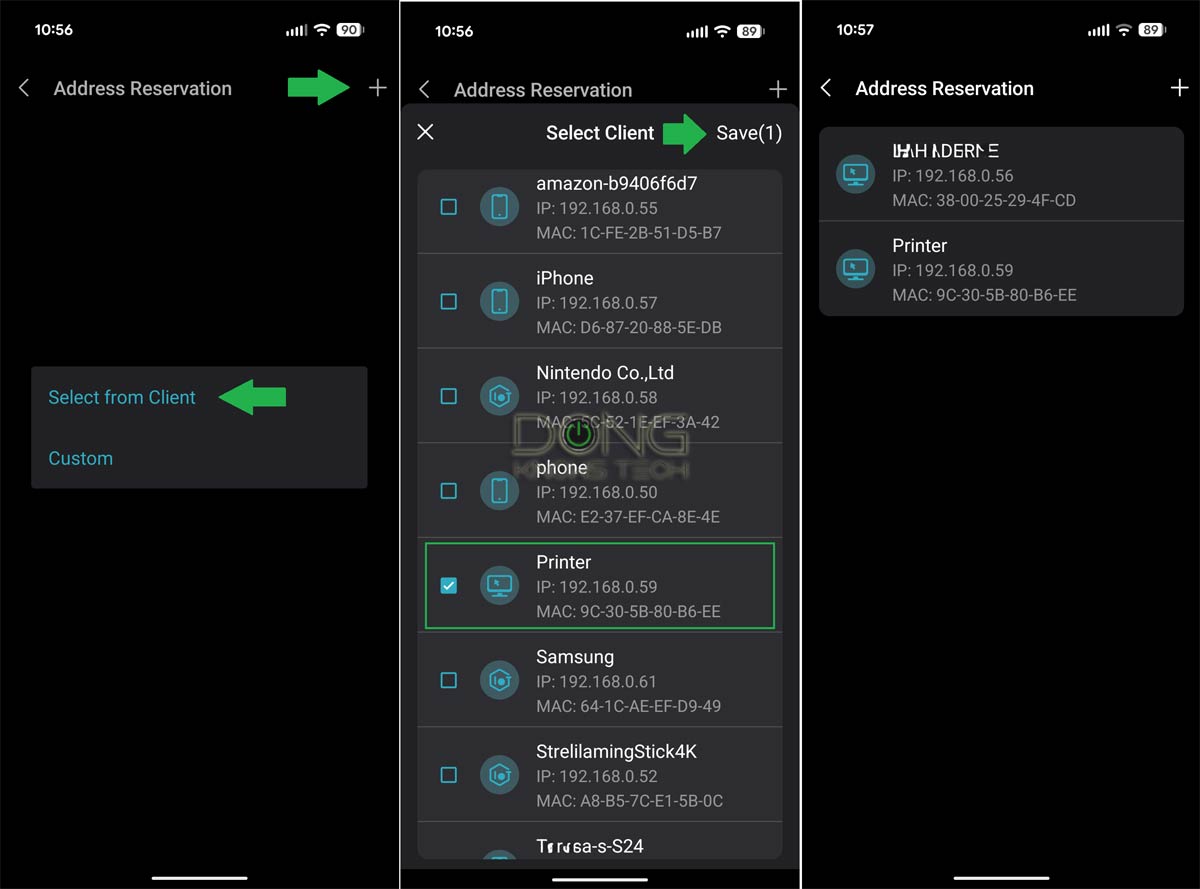
Here are the steps to handle IP reservation on a TP-Link Deco router via the Deco mobile app:
- Open the Deco app, tap the “More” tab, select the “Advanced” menu, and then the “Address Reservation” menu item
- Tap on the + (plus) sign.
- Pick “Select from Client”, then the client(s) whose IP address you want to reserve, and then tap on “Save”.
Mission accomplished. Repeat from step #2 to add more entries.
IP Reservation Ubiquiti UniFi consoles
Like the case of ASUS hardware, you can handle the IP reservation, called “Fixed IP”, on Ubiquiti’s UniFi consoles (routers) via the web-based user interface or the UniFi mobile app.
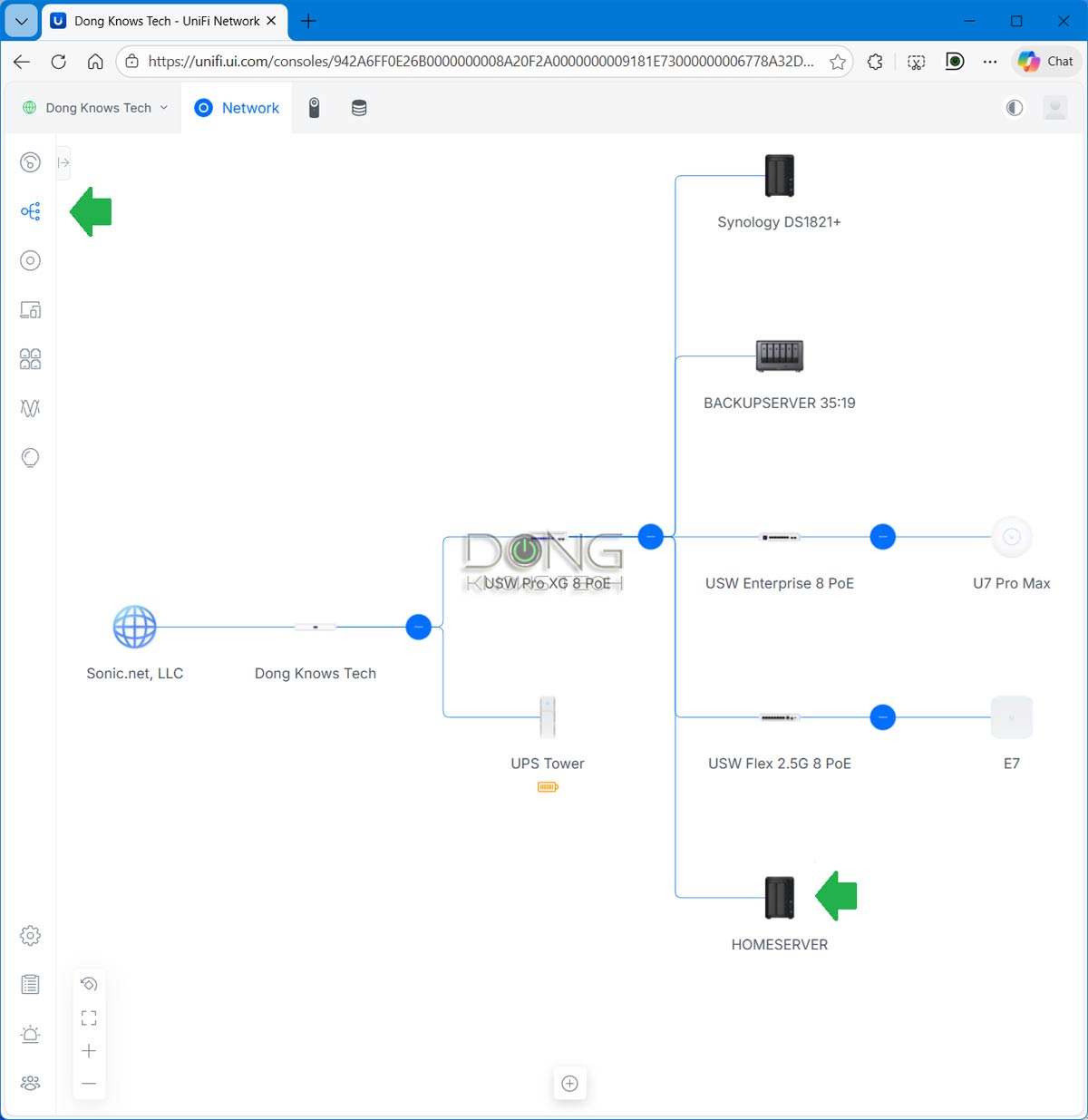
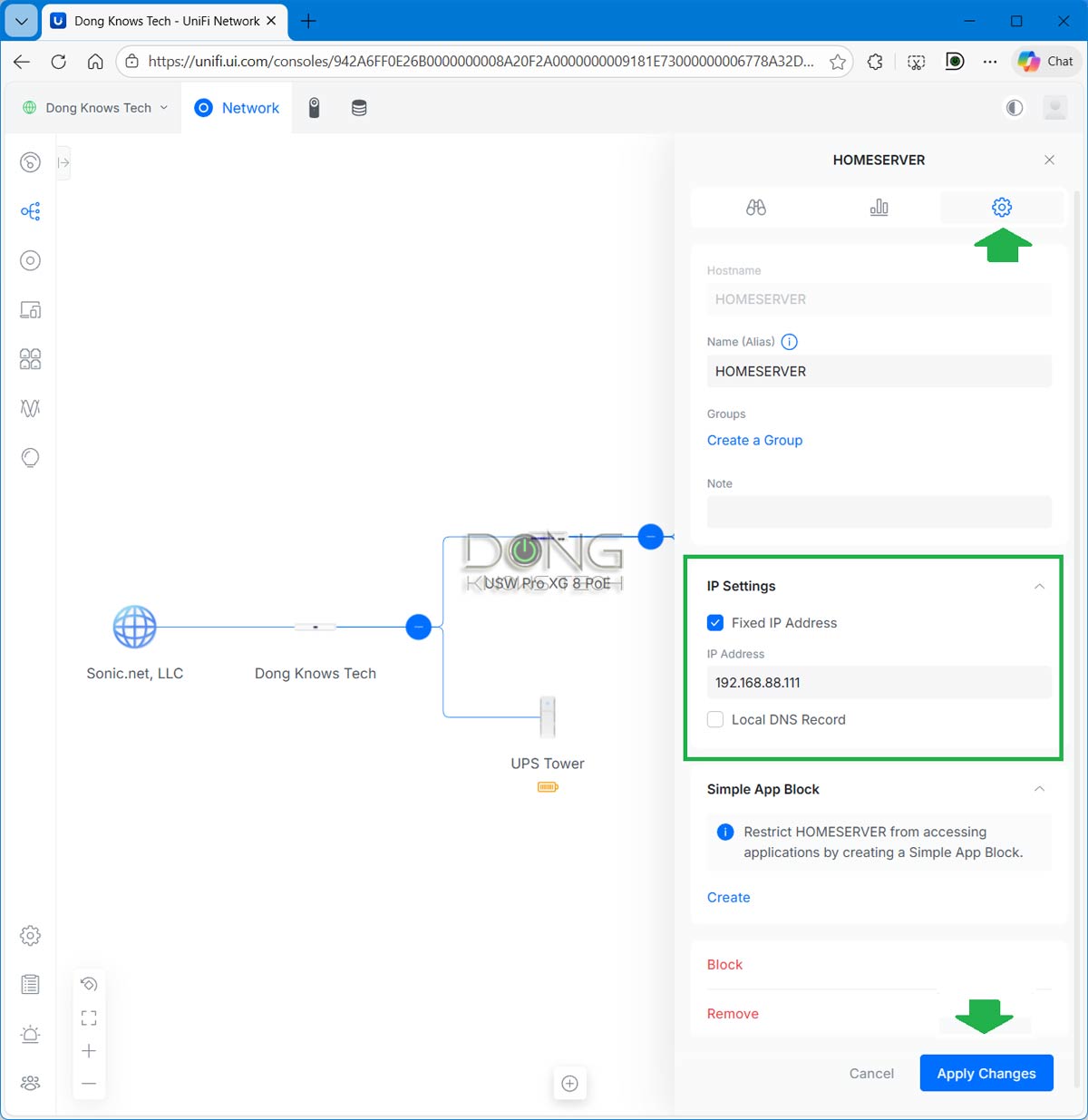
Here are the steps to perform IP reservation on a UniFi router via the web UI:
- Log in to the web user interface using the router’s default IP address (often 192.168.1.1), then select the Topology section to display network maps showing connected clients. Alternatively, you can also pick the Client Devices section to view them as a list.
- Click the device on the list whose IP address you want to reserve, and a dialog will appear on the right.
- In the dialog, pick the settings tab (the cogwheel), then check the “Fixed IP address” box.
- Enter the new IP address or keep the current one, and click on “Apply Changes”.
Mission accomplished. Repeat from step #2 to add more entries.
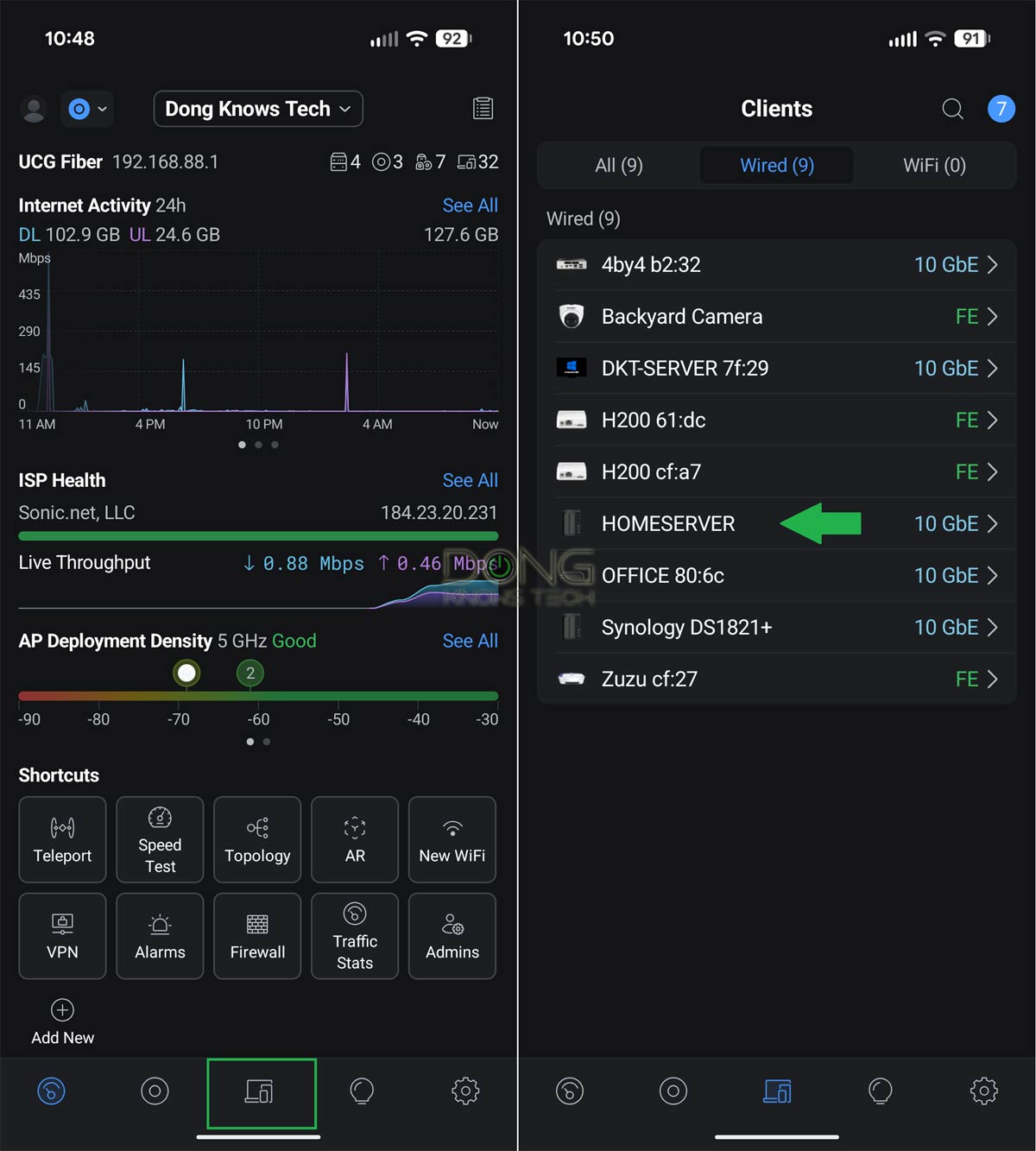
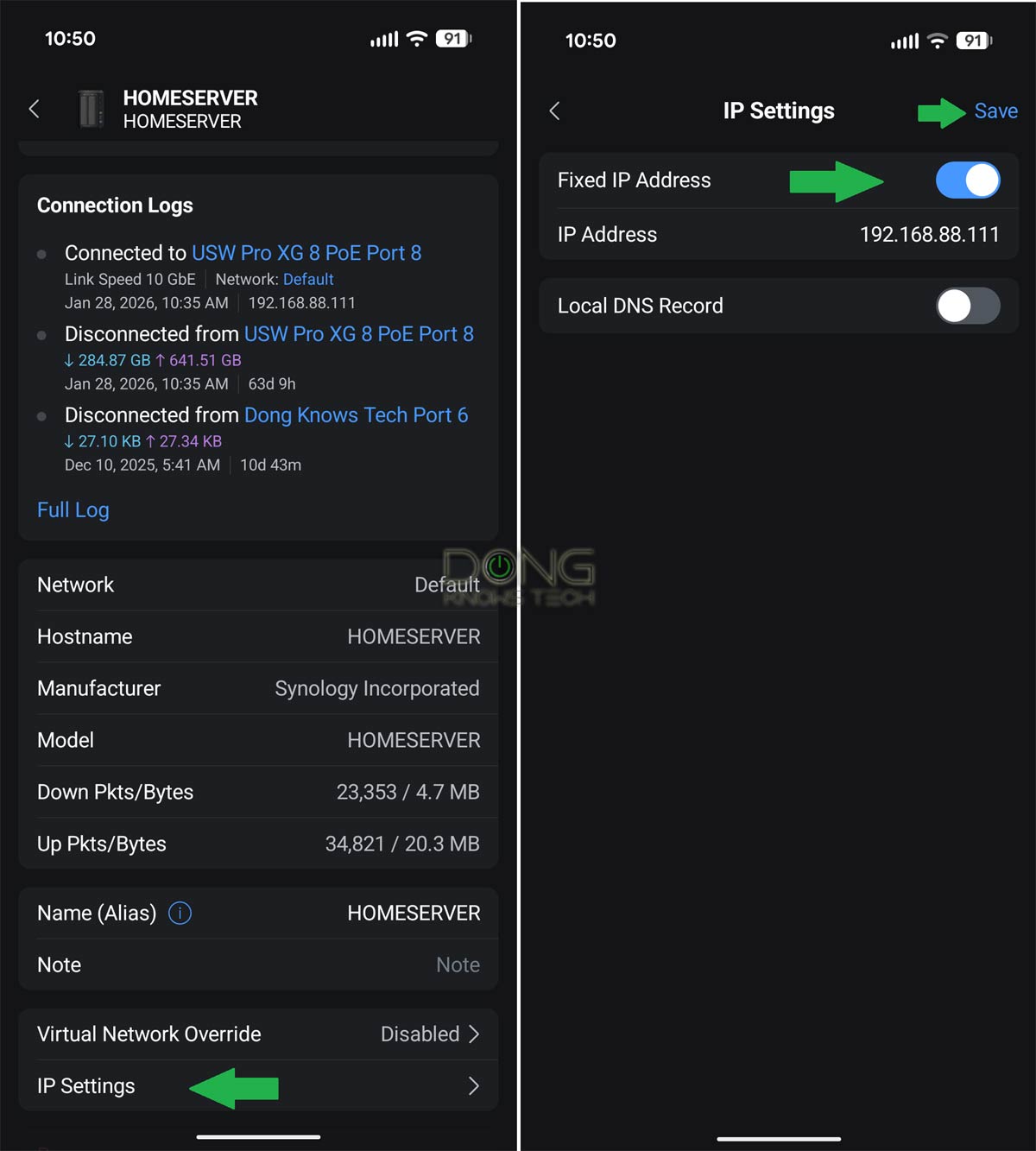
Here are the steps to perform IP reservation on a UniFi router via the UniFi mobile app:
- Run the app and tap on the Client tab (middle) to view the list of currently connected clients.
- Tap the device on the list whose IP address you want to reserve; its settings page will appear. Scroll down to the bottom of this page and tap on “IP settings”.
- Set the “Fixed IP Address” setting to “On”, then tap “Save”.
That’s it. Repeat from step #2 to add more entries.
The final thoughts
While IP preservation is not necessary in many cases, it never hurts to use it. And if you want to use almost any advanced network feature, such as remote access, a server of any type, or port forwarding, IP reservation is a must-have. Additionally, it’s also helpful when using IoT devices, such as network printers, speakers, or IP cameras.
By the way, if you don’t want to reserve an IP address for a device anymore, such as when the device is no longer used, simply delete the entry, and you can use that IP address for another device.


Sir, thanks for running this resource. Very well explained stuff for non-IT boomers like me. I have a question likely related to the IP reservation. I have EPSON printer wirelessly connected to the ASUS routers for years. Printing was flawless on previous ASUS router but once I move to RT-AX59U the issue started. Looks to me printer is not getting connected to the network after some amount of data is transferred. printing one page is ok but more pages usually get stucked and take ages if finished at all. No issue when connected directly via USB cable. I had tried manually assigned IP, removed it, no idea why it get stucked. Any idea? Or just an idea for an article utilising your broad experience?
Try this IP reservation, Michal, it’ll likely help. Good luck!
Very clear instructions! Thanks, Dong.
👍