
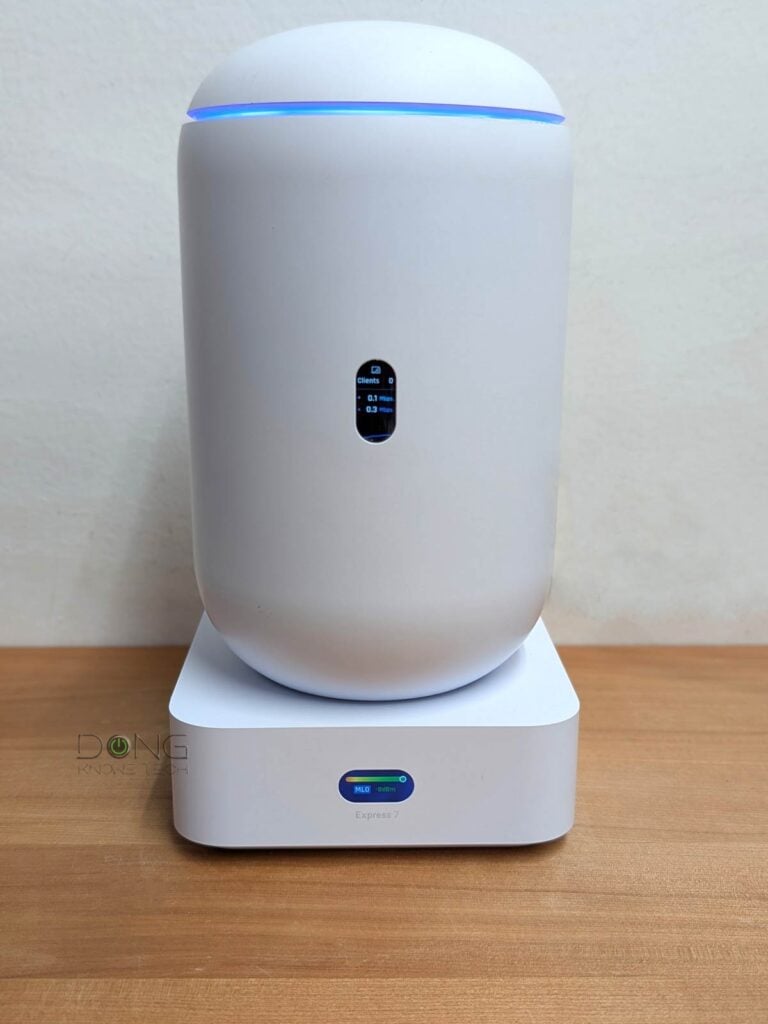
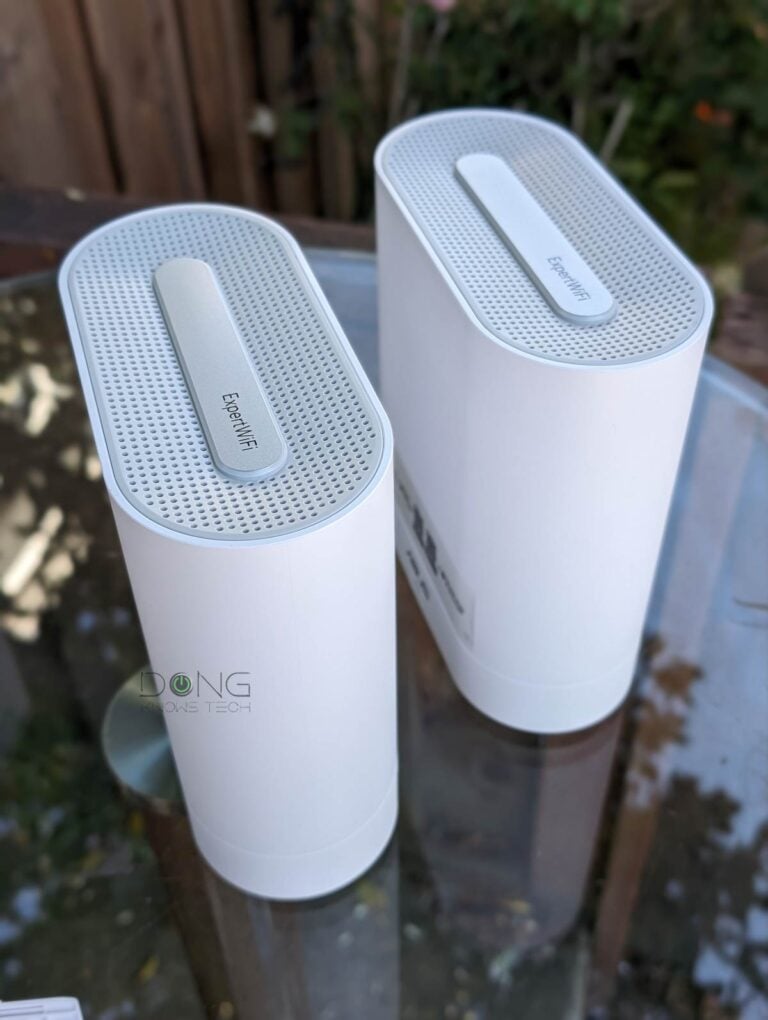
On September 2, 2026, Ubiquiti released the UniFi Whole Home WiFi 7— bundled packs of its UniFi Express 7 (UX7) UniFi Cloud Gateway (a.k.a. “router”)—as the first offering in its new UniFi Whole Home WiFi Mesh category for general consumers.
The key to this development is the availability of its STR MLO on the UX7, which allows this router to use a strong bonded Wi-Fi link as the backhaul (uplink) when operating as a mesh point in a UniFi Wi-Fi 7 network.
In other words, Ubiquiti’s STR MLO is what makes its UniFi Whole Home WiFi Mesh a reality and sets it apart from other home mesh brands.
This post will explain this new mesh approach in detail and help you set expectations when setting up a robust Wi-Fi system in a home or business where running network cables is not an option.
UniFi Whole Home WiFi Mesh's Rating
Pros
Robust enterprise-class UniFi Network application with lots of user-friendly, thoughtfully designed hardware options
Powerful STR MLO backhaul to deliver fast and reliable mesh performance
Fully integrated within the UniFi ecosystem with excellent management via a comprehensive web-based user interface or mobile app
Vendor login account not required for general operation, comparatively affordable
Cons
Hardware units not pre-synced
No AP mode
Some advanced features required a vendor login account
Ubiquiti UniFi Whole Home WiFi Mesh: The power of true MLO backhaul
Let’s start from the beginning.
The idea of a mesh Wi-Fi system has been there for decades and is quite simple:
- First, you have a source access point (standalone or integrated inside a Wi-Fi router) that connects via a network cable to the existing network (and the Internet).
- Then, you use another access point that connects to this source access point wirelessly via a Wi-Fi uplink. Place this unit, called a mesh point, at an appropriate distance to extend the Wi-Fi coverage.
- Finally, use additional mesh points connected to the first or the source access point above to extend coverage even further.
As you can imagine, the more access points you use in the system, the more Wi-Fi coverage you can have. The “mesh” notion—the fact that you can use these access points together without running network cables as the backhaul uplinks—makes the job convenient.
Backhaul vs. fronthaul
In network connectivity, there are always fronthaul and backhaul.
Fronthaul (or downlink) refers to the signal from a host device (such as a router) going toward an end device (such as a computer). Backhaul (or uplink) is the signal from an end device going to the host device.
In most cases, the backhaul and fronthaul are the same—it’s just a matter of perspective.
However, a go-between device that relays the signal, such as a network switch or a Wi-Fi access point, has two distinct backhaul and fronthaul ends: the backhaul (the uplink to a single host) determines the max bandwidth (to the router or the Internet) shared between all of its connected end devices on the fronthaul (such as wired computers, Wi-Fi clients, or more go-between devices).
Additionally, keep the following in mind about the uplink for a wireless go-between device, such as a satellite/extender unit (a mesh point or node) of a Wi-Fi system:
- Generally, one of the Wi-Fi bands (2.4GHz, 5GHz, or 6GHz) is used for the uplink (backhaul), resulting in two scenarios:
- If this Wi-Fi band also handles fronthaul simultaneously, only half of its bandwidth is available to either end (and the half used for the uplink is the maximum bandwidth available to all of its connected end devices).
- If this Wi-Fi band is used solely for backhauling, as is often the case in tri-band hardware, the link is called a dedicated backhaul. In this case, this band is no longer available for the fronthaul.
- Some Wi-Fi 7 hardware can combine multiple bands into a single backhaul link via the MLO feature, allowing these bands to operate simultaneously as both backhaul and fronthaul. In this case, half of their combined bandwidth is available to either side.
For the best performance and reliability, network cables are recommended for uplink (a.k.a. wired backhaul), which is only possible when the go-between device has a network port, preferably a Multi-Gig port.
Now, you can also see that the strength of the wireless uplink (backhaul) is key to a system’s performance, as it determines the bandwidth available to all devices connected to a mesh point, including other mesh point(s) in a daisy-chain setup.
With Wi-Fi 6 and older standards, this mesh uplink uses a single band at a time, limiting the bandwidth.
Wi-Fi 7 introduces a key feature called Multi-Link Operation (MLO), which combines multiple bands into a single bonded link, enabling much higher bandwidth. This Wi-Fi standard also includes the Automated Frequency Coordination (AFC) in select hardware, which allows the 6GHz band to have the same range as the 5GHz band, further underscoring the significance of MLO.
Note: MLO and AFC are slated to remain in future Wi-Fi standards, such as upcoming Wi-Fi 8.
However, MLO has many flavors, and they don’t increase the bandwidth equally.
Tip
- MLSR (Multi-Link Single-Radio) MLO: A multi-link technique that allows clients to dynamically switch among all available bands (2.4 GHz, 5 GHz, and 6 GHz). MLSR is often available in enhanced mode—Enhanced Multi-Link Single Radio (eMLSR)—where clients listen across all available bands to reduce latency in crowded airspace. In either case, this mode does not increase data rates between connected devices but only offers the chance of connecting using the best available band within the bonded link. (e)MLSR requires little energy to operate and is therefore widely implemented in client devices, including popular internal Wi-Fi 7 adapters and their variants. In other words, when you use a laptop or a smartphone, MLO, when available, is often of this type.
- STR (Simultaneous Transmit and Receive) MLO: A multi-link technique that enables clients to use all available bands, though often the 5GHz and 6GHz bands, simultaneously to deliver higher throughput, lower latency, and improved reliability. This mode requires much more power and, when available, is often used to link devices with an external power source, such as an access point, mesh node, or bridge client. It’s also referred to as MLMR (Multi-Link Multi-Radio) MLO and has two sub-modes:
- Asynchronous Multi-Link Multi-Radio (Async MLMR): A client uses multiple bands simultaneously to transmit and receive data, with each operating independently.
- Synchronous Multi-Link Multi-Radio (Sync MLMR): A client uses multiple bands simultaneously to transmit and receive data, with transmissions coordinated and synchronized across the bands.
That brings us to how Ubiquiti implements MLO as the link between its access points in the UniFi Whole Home WiFi Mesh approach.
Ubiquiti’s STR MLO in details
Ubiquiti’s uplink MLO was first available at the beginning of 2026 with the AirWire, which is the first—and for now still the only—bridge client to use this feature as its uplink.
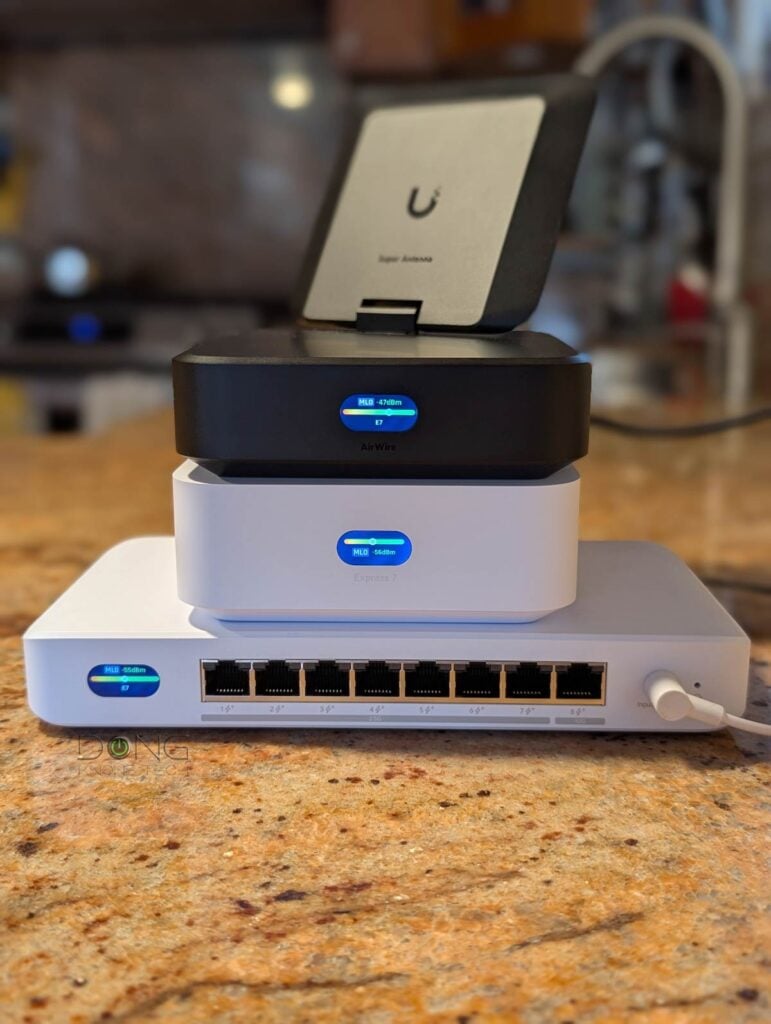
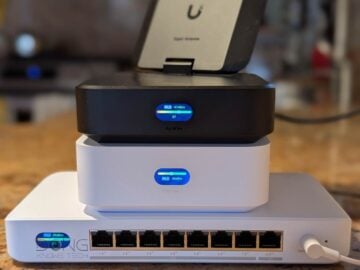
Since then, Ubiquiti has gradually made MLO available on other tri-band Wi-Fi 7 hardware, including the UDB Switch and standalone tri-band UniFi Wi-Fi 7 access points.
As mentioned above, on September 2, 2026, this feature finally arrived on the UniFi Express 7—the only UniFi Wi-Fi 7 “router” that can also work as an access point or a mesh point—via UniFi OS version 5.2. With it, Ubiquiti’s move to true UniFi mesh for the home is complete, and it introduced the UniFi Whole Home WiFi Mesh category.
Here are a few things to know about Ubiquiti’s MLO in its UniFi Whole Home WiFi Mesh:
The first is that Ubiquiti uses STR MLO, which is designed to increase the effective bandwidth of a bonded link, ensuring the link always has the highest available bandwidth.
For this to happen, Ubiquiti’s STR MLO uses only the 5 GHz and 6 GHz bands for the bonded link. This has been confirmed by Ubiquiti and proven in my testing.
Mind the potential confusion: Depending on the firmware version—especially if you use the beta (Early Access) or Alpha versions of UniFi OS or UniFi Network app—a tri-band Wi-Fi 7 UniFi mesh point might show the 2.4GHz band as “meshing” in the interface. In this case, keep in mind that this band is not part of the bonded STR MLO uplink.
Note: Ubiquiti’s STR MLO was first available with the AirWire and UDB Switch, both of which have only 5GHz and 6GHz bands—it’s a different type of “dual-band” compared to the vast majority of dual-band devices that have the 2.4GHz and 5GHz bands.
The second thing to note about Ubiquiti’s STR MLO is that it’s available only in a UniFi system with tri-band Wi-Fi 7 (or later) access points and only as the backhaul (uplink).
Specifically:
- STR MLO is not available for third-party hardware.
- STR MLO is not available in dual-band UniFi 7 access points, such as the U7 Mesh. These will continue to use the 5GHz (or the 2.4GHz) as the backhaul.
- The STR MLO applies only to the link between a mesh point and the source access points, known as the Mesh Child and Mesh Parent in a UniFi system—more below. Like all Wi-Fi 7 access points, Ubiquiti’s access points still use the standard MLSR MLO, which is universally supported by Wi-Fi 7 clients for the fronthaul.
Finally, and most significantly, Ubiquiti’s STR MLO is available throughout the entire mesh system.


Right: In a star topology.
In either case, the STR MLO backhaul applies
Specifically, even in a daisy-chain setup, the STR MLO link is available in all mesh point units, including those that don’t connect directly to the wired source access point.
This is a big advantage compared to the general implementation of MLO in other mesh brands, where it’s available only between the primary (wired) unit and the directly connected mesh points.
With that out of the way, let’s find out more about how UniFi Whole Home WiFi Mesh works.
UniFi Whole Home WiFi Mesh: The details
There are three terms within UniFi Whole Home WiFi Mesh that you should know, including “Mesh Parent”, “Mesh Child”, and “Mesh Connect”:
- Mesh Parent: A source access point’s function that provides a downlink to another access point that wirelessly extends coverage—the “Mesh Child”.
- The Wi-Fi access point integrated inside a UniFi Cloud Gateway (a.k.a. a UniFi Wi-Fi router) has only the “Mesh Parent” function.
- Mesh Child: The satellite access point that connects wirelessly to a Mesh Parent via a function called “Mesh Connect”.
- A standalone UniFi access point generally has both “Mesh Parent” and “Mesh Connect” enabled by default, and admin users can enable or disable either or both.
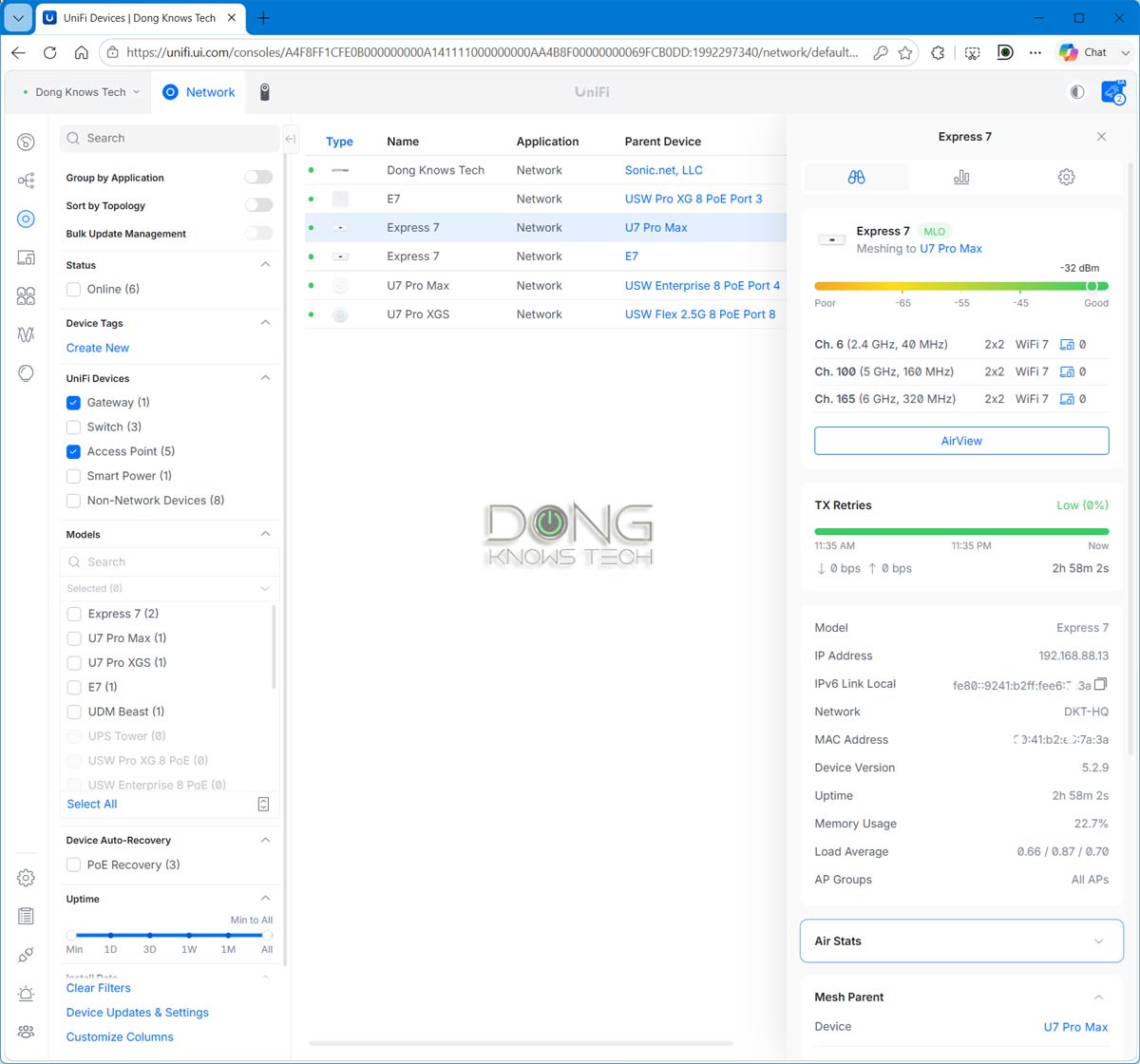
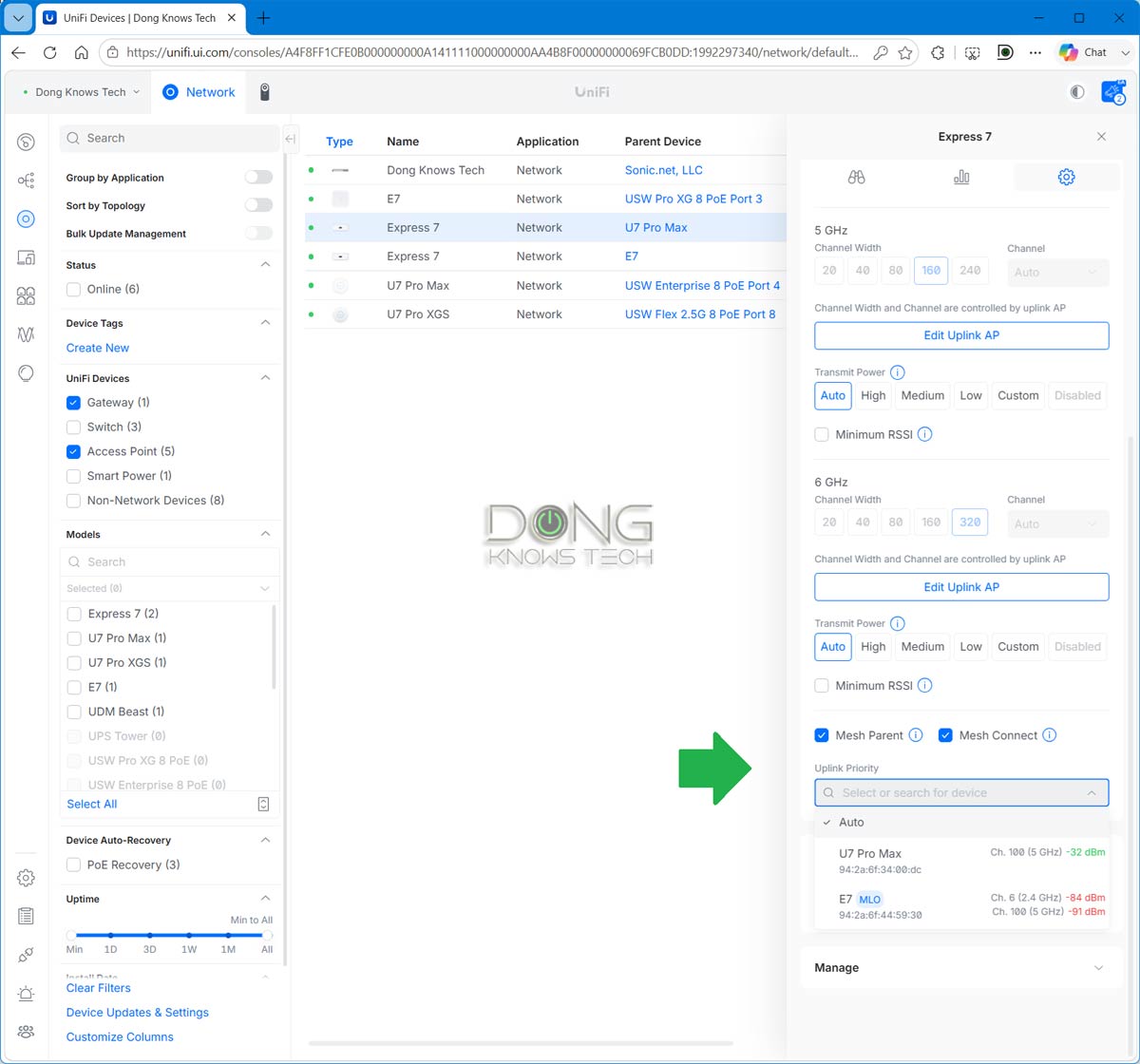
Right: Admin users can enable or disable the “Mesh Parent” or “Mesh Connect” function and select the Uplink Priority among the existing UniFi access points in the system.
In a UniFi mesh network, starting with Wi-Fi 7, the wireless link between tri-band access points is generally a STR MLO connection, as mentioned above.
After that, here’s what you keep in mind about Ubiquiti’s UniFi Whole Home WiFi Mesh and its STR MLO, as confirmed in my experience:
- A UniFi mesh system has no access point mode. Specifically, the system’s router unit must be the only router on the network, or you’ll end up with a double-NAT setup.
- The STR MLO feature can be turned on or off via the interface of the primary UniFi Cloud Gateway (router), including a non-Wi-Fi unit. When turned on, STR MLO backhaul applies automatically when applicable.
- There’s no limit to the number of mesh nodes in a UniFi Whole Home WiFi Mesh system. However, as a rule of thumb, use no more than two hops to the nearest wired access point (Mesh Parent) for best performance. In other words: use the star topology.
- When a dual-band access point is used in a UniFi mesh system, only one of its two bands (2.4GHz or 5GHz) is used as the uplink, as MLO uplink is not available.
- While STR MLO uplink is great, it’s not as great as wired backhaul in all Wi-Fi systems, including UniFi. In this case, use a high-speed-grade port (2.5Gbps, 5Gbps, or 10Gbps) for this link. A mix of wired and wireless backhaul configuration is better than a purely wireless (fully mesh) system.
With that, let’s continue with the hardware options you can use to build a UniFi mesh Wi-Fi system.


Right: UniFi Whole Home WiFi Mesh offers many options for users to manage and tune roaming (handoff), including locking a client to a specific access point (mesh point) within the system.
UniFi Whole Home WiFi Mesh: Hardware options
The first thing to note is that all UniFi access points can function as mesh points—that’s when they use a wireless uplink. However, when you use a UniFi access point with PoE as its only power source, it only makes sense to use that network cable as the backhaul uplink.
That said, you can use a mix of any tri-band UniFi Wi-Fi 7 access points to create a mesh system, and they will have STR MLO. However, currently, the only UniFi access point designed for true mesh purposes is the UniFi Express 7, because:
- It doesn’t feature PoE.
- It includes a power adapter and can be powered by any USB Power Delivery charger.
- It features tri-band Wi-Fi 7 and has STR MLO (starting with UniFi OS ver. 5.2)
- It can function as a router or a mesh point.
Still, you don’t need to use just UX7. Here’s a summary of what hardware options you can consider to build a UniFi Whole Home WiFi Mesh to meet your needs today:
- A UniFi Whole Home WiFi 7 set: a 2-pack or 3-pack of the UniFi Express 7 (UX7) to build a standard system using the same hardware units—pick one as the primary router (Mesh Parent) and the rest as Mesh Child. You can add more UX7 units to scale up coverage.
- A mixed-hardware setup:
- Start with a non-Wi-Fi UniFi Cloud Gateway, such as the UDM-Beast or UCG-Fiber, and add a few UX7 units to add Wi-Fi and expand coverage. In this case, you can also include any tri-band UniFi Wi-Fi 7 access point as the primary Mesh Parent.
- Start with a Wi-Fi 7 UniFi Cloud Gateway, such as the Dream Router 7 (UDR7) or Dream Router 5G Max (UDR 5G Max), as the primary Mesh Parent, then add more UX7 units (Mesh Childs) or any tri-band Wi-Fi 7 access points (via wired uplink) to expand coverage.
Note: STR MLO is added to the UDR7 and the UDR 5G Max via UniFi OS version 6 and Network version 10.6.106. For the UX7, UniFi OS version 5.2 or later is required. Other UniFi Cloud Gateways and tri-band Wi-Fi 7 access points generally support STR MLO starting with Network version 10.3.
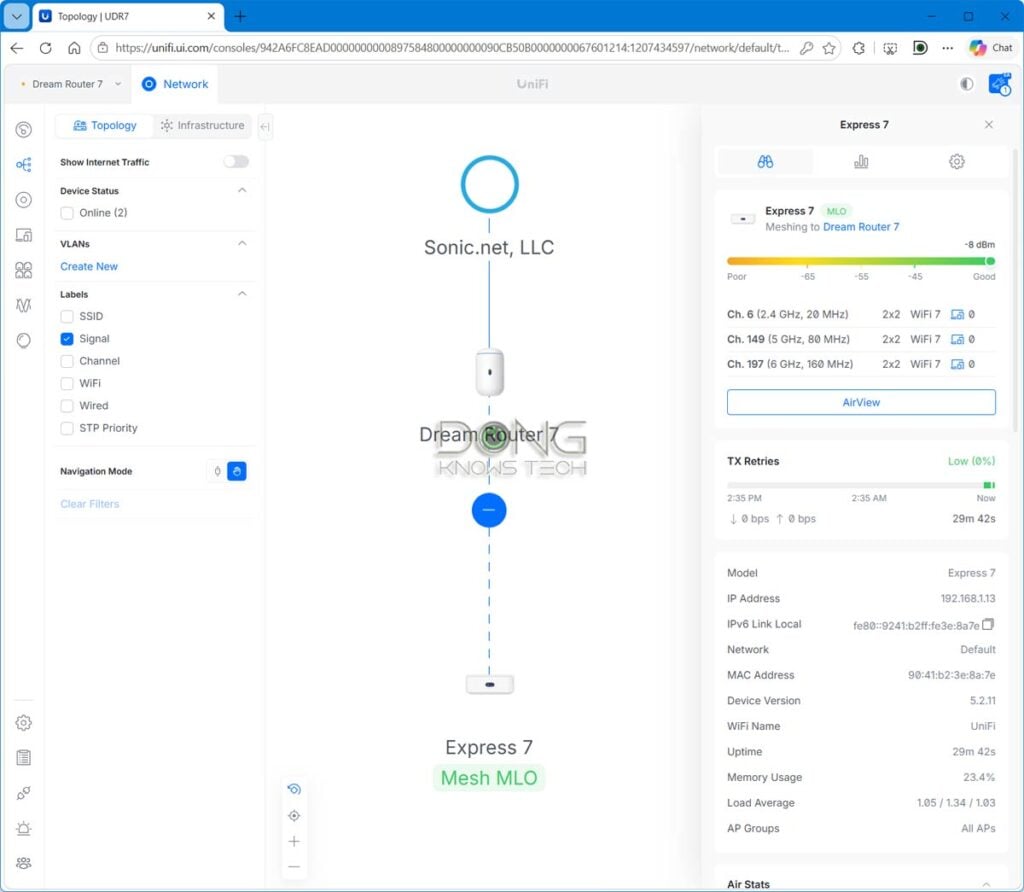
No matter which you pick, you’ll get a robust, reliable system with in-depth customization and a ton of advanced features for the home as well as for a business. Personally, I’d build a system with a non-Wi-Fi UniFi Cloud Gateway, like one in the top-five list below, and a couple of PoE UniFi tri-band Wi-Fi 7 access points.
Top 5 Best non-Wi-Fi UniFi Cloud Gateways (UniFi routers)

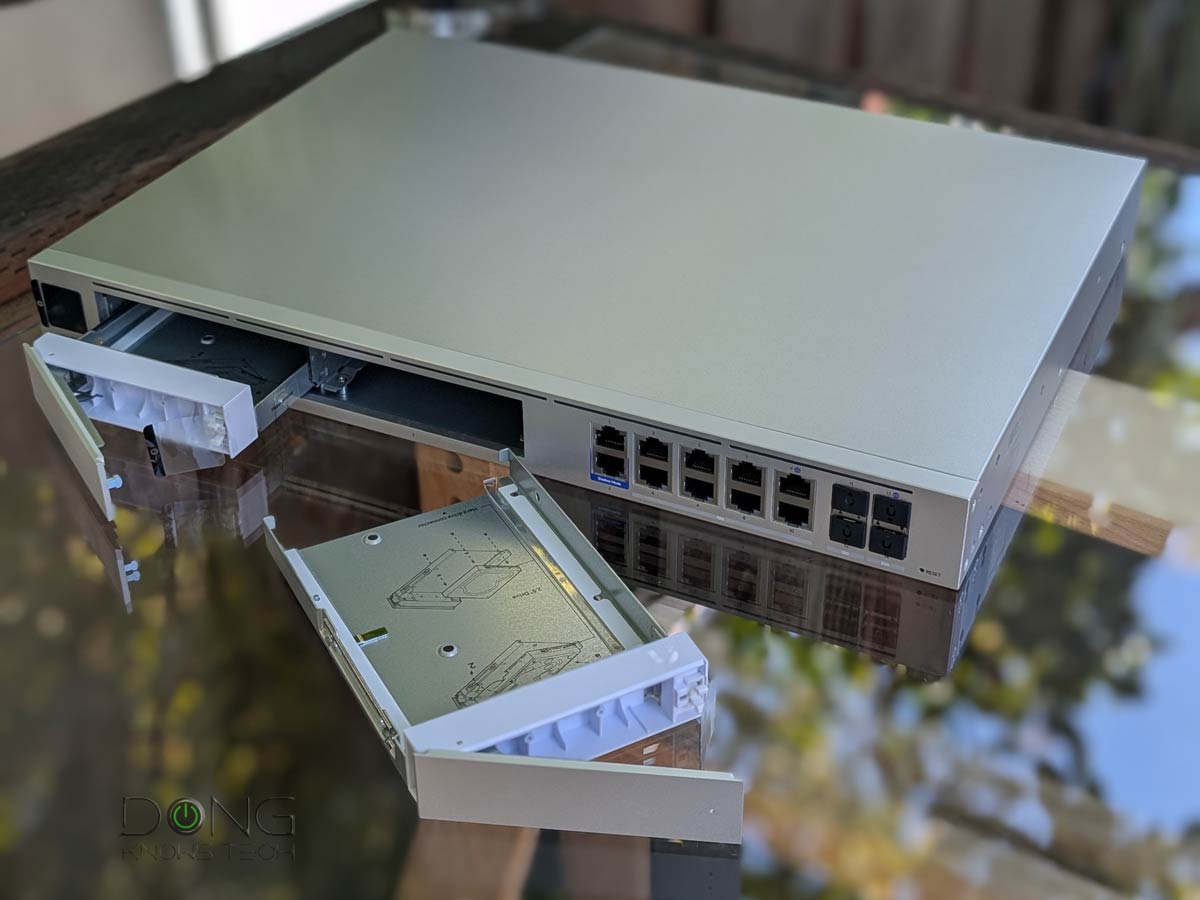


Best non-Wi-Fi UniFi Cloud Gateways at Ubiquiti Store or on Amazon!
After that, the UX7 will come in handy when you need to extend coverage to an area where running a network cable isn’t an option.
The takeaway
Ubiquiti has only recently—since early 2025, to be precise—been known as a home networking brand. However, thanks to the many new hardware options and, most importantly, its robust UniFi OS, it’s become increasingly relevant over a short period of time.
And now, with the release of UniFi Whole Home WiFi Mesh, it’s decidedly one of the best networking brands for general consumers, combining enterprise-class hardware and options with ease of use. Keep these mesh options in mind the next time you shop for a robust Wi-Fi system to blanket your home.



Hi Dong. Now I have UCG Fiber and three switches UniFi in connection with three Deco BE85 (two wired backhaul and one WiFi backhaul) in AP Mode. So my home with three levels has one Deco on every floor. Do you think UniFi mesh will be an upgrade if adopted and Deco dismissed? Excuse me for my English. Mauro from Italy
Your English is perfect, Mauro! Moving to full UniFi is definitely an upgrade in terms of management. In terms of Wi-Fi performance, however, the Deco BE85 outperforms the UX7 thanks to its higher hardware specs. For your case, it’s better to get two U7 Pro XG/S units for the wired locations and one UX7 for the wireless node. Or just keep things as is for now. 🙂
I gave one of these a go in replace of my current ASUS AX-86S and found that the Wi-Fi signal through my house (UK dot dab walls) was a lot weaker, and some rooms that previously had some albeit weak signal were unreached at all.
Maybe I should give it another go with a trio pack to see how a full mesh would fare, but I found it hard to justify when the performance of one alone was a downgrade and each costs a premium.
The ASUS RT-AX86S, like the RT-BE86U, will have a longer range, Brad. That’s normal, as it’s in a higher hardware tier. In any case, it’s extremely hard to determine the correct Wi-Fi range for your type of environment.
I’m looking to swap my Deco to UX7 mesh and using UDR7 as a gateway via wireless backhaul. You mentioned in this article that on Early Access firmware has MTR SLO Wireless Backhaul but reading the release notes it is not clear where Ubiquiti has mentioned this for UDR7. What specific firmware combo is needed?
I mentioned the specific versions in this part, Juan—see the Note. I can confirm that it worked. You might need to manually restart the hardware after the UniFi OS and Network updates for STR MLO to take effect.
I recently bought a Deco 3 unit mesh system. I wasnt aware that mesh systems dont play well with printers. I had my printer connected to the principal Deco unit via Ethernet cable, didn’t work. Spent hours on the phone with Brother support. The only fix was to connect via Wifi. I’ve never seen any warnings on mesh product reviews re this problem.
Mesh systems play well with printers, Darrell. Something else wasn’t right in your case.