
Using network cables is the best way to expand a local network, and in this case, you almost always need a switch—these days, that’s generally means a Multi-Gig switch. This guide will help you pick the correct one and includes the top five to bring home today.
Advanced network users likely won’t need this guide. On the other hand, if you have a home network that’s running out of ways to host wired clients, the tips below will come in handy. Not sure what you’re getting into? Check out this primer post on network switches first.
Dong’s note: I first published this piece on December 3, 2025, and last updated it on June 13, 2026, with the latest information and top picks.
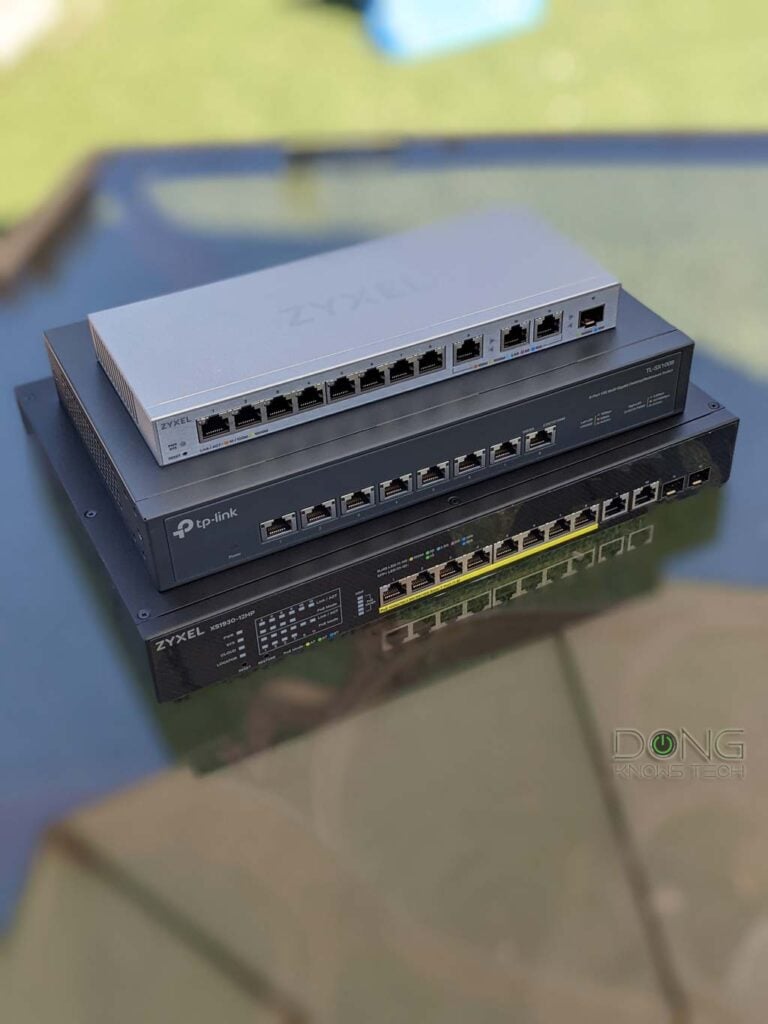
Best network switches: The quick buying guide and the top five
Two things to note before continuing: First, before getting a switch, your network must have a router, which itself is a type of switch. Additionally, we’re talking about Multi-Gig wired networking here—if you’re content with Gigabit, almost any unmanaged Gigabit switch with the right number of ports will do.
Switch vs. Firewall vs. Router
These devices are all “switches” and differ by the networking layers they support, to varying degrees.
A switch always has multiple network ports, one of which is the uplink port for an incoming network connection, shared among the rest of the switch’s ports. A switch is a physical device that connects different network layers.
A firewall is a managed switch that can inspect data packets and regulate network traffic, such as blocking, filtering, or restricting it. The firewall function starts at network layer 2 and extends to the higher layers, depending on its level of sophistication. Nowadays, most firewalls can also serve as routers.
A router is a managed switch whose main job is to provide and guide (or “route”) network traffic. A router’s uplink is the WAN port that connects to the Internet. The routing function starts at network layer 3. Nowadays, all modern routers have built-in firewalls, and an advanced router generally includes a top-tier firewall.
That brings us to the first thing to consider when getting a switch: how many ports do you need to add to the network?
Networking switch buying tip #1: The number of ports
A switch always loses one port for the uplink, so it’s essential to get one with the same number of ports as the wired devices you wish to add to the network, plus one more.
In most cases, you want one with plenty of ports to spare, since you never know when you’ll need an extra port. However, keep the following in mind:
- Switches with 16 or more ports can be quite large. So, for home users, a switch with between five and a dozen ports is generally enough.
- You can cascade switches, and it’s often better to use multiple switches with a few ports than a single switch with many ports.
- If you have an “IT” room with a patch panel, make sure you get a switch with the same number of ports as the panel, plus one more for the uplink.
That said, have a diagram of your network and get switches accordingly. You might need only a few extra ports in one room and many in others.
Networking switch buying tip #2: Port type and grades
In most cases, we use the RJ45 (BASE-T) port type. Virtually all home and SMB switches have this type of port. However, in some cases, it’s also beneficial to get a switch with one or two SFP+ ports, specifically:
- Suppose your router (or existing switch) has an SFP+ port. Now this port on the switch can be used as the uplink.
- If you have a device, such as a NAS server, with this type of port.
Not sure the difference between RJ45 and SFP+? The cabinet below will give you a crash course.
SFP+ vs. RJ45
BASE-T (or BaseT) is the standard port type for data communication and refers to the 8-position, 8-contact (8P8C) wiring method used in copper network cables and their connectors at both ends.
This type is known by the misnomer “Registered Jack 45” (RJ45), which is more commonly used. For decades, RJ45 has been the go-to standard for consumer-grade and office network connectivity.
Generally, copper network cables can support up to 10Gbps connection speeds and feature the following speed grades:
- Standard Ethernet: 10Mbps
- Fast Ethernet: 100Mbps
- Gigabit: 1000Mbps
- Multi-Gig Ethernet: 2.5GbE (2.5Gbps) and/or 5GbE (5Gbps)
- 10GbE: 10000Mbps
RJ45 ports and cables are interchangeable and backward-compatible across speed grades.


On the other hand, the SFP, now with its popular SFP+ (plus) variant, is used for both telecommunications and data communications, primarily in enterprise applications. SFP stands for Small Form Factor Pluggable and is the technical name for what is often referred to as fiber.
The SFP port standard and wiring are strict in configuration and physical attachment, offering better reliability and performance. For data communication, it supports the following speed grades:
- SFP: Gigabit (1000Mbps)
- SFP+: 10GbE (10Gbps), backward compatible with SFP
- SFP28: 25GbE, backward-compatible with SFP+ and SFP
- QSFP+: 40GbE (40Gbps)
- QSF28: 100GbE (100Gbps), backword compatible with QSFP+
BASE-T vs. SFP (a.k.a. copper vs. fiber): While physically different, both are part of the Ethernet family, sharing the same networking principles and Ethernet naming convention as shown above. However, the two only share Gigabit and 10GbE. SFP is the only standard that can go beyond 10GbE.
Generally, you can get an adapter, called a “transceiver”, to connect a BASE-T device to an SFP or SFP+ port. In this case, keep in mind that a particular adapter might only work (well) with the SFP/+ port of certain hardware vendors.
The BASE-T wiring is more popular thanks to its simple design and support for speed, flexibility, and low costs. In recent years, more and more networking hardware (routers and switches) has featured both of these port types.
As for port grades, keep the following in mind:
- The RJ45 port type is the most popular. Very few devices use the SFP port type. When you’re in doubt, get a switch with RJ45 ports.
- A Multi-Gig port can handle all lower grades. So a 5Gbps port can work as 2.5Gbps, Gigabit, or even Fast Ethernet (100Mbps), depending on the device it hosts.
- An SFP port (including SFP, SFP+, SFP28, and QSFP28) generally uses the same connector type but can only support the lowest-speed link.
- It never hurts to get a switch of the highest port grade (currently 10Gbps). However, in most cases, 2.5Gbps is enough.
- On a switch with multiple port grades, it’s best to use the fastest port as the uplink.
Networking switch buying tip #3: Unmanaged vs. managed vs. PoE
Finally, for most networks, adding an unmanaged switch is the easiest option, as it’s literally plug-and-play. However, if a managed switch doesn’t cost significantly more, it’s fine to get one since you can always use it in unmanaged mode, which is generally the factory default setting for most consumer-grade managed switches.
As for PoE (Power over Ethernet), you only need it when you have PoE devices, such as IP cameras, access points, or phones. However, all PoE switches can work as non-PoE ones, but not vice versa. That said, it never hurts to get a PoE switch if cost is not an issue.
Within PoE, it’s best to get a switch with the highest PoE power output (PoE++) to support more devices simultaneously.
Extra tip: Get hardware from the same vendor when applicable
All switches generally work with all existing networks. However, if you already have a network powered by a particular ecosystem, it’s better to get a switch from the same family.
For example, if you have a network hosted by a UniFi router, it’s best to get a UniFi switch, as it will naturally be part of the system, functioning as an integrated component of the router. The same thing can be said about the TP-Link Omada ecosystem.
Best network switches: The top 5
Overall, buying a switch is always a case-by-case decision, but you can keep the above in mind as a reference. Ready to make the move? Below is the list of the top five Multi-Gig switches picked among dozens I’ve reviewed.
Top 5 best Multi-Gig network switches for the home
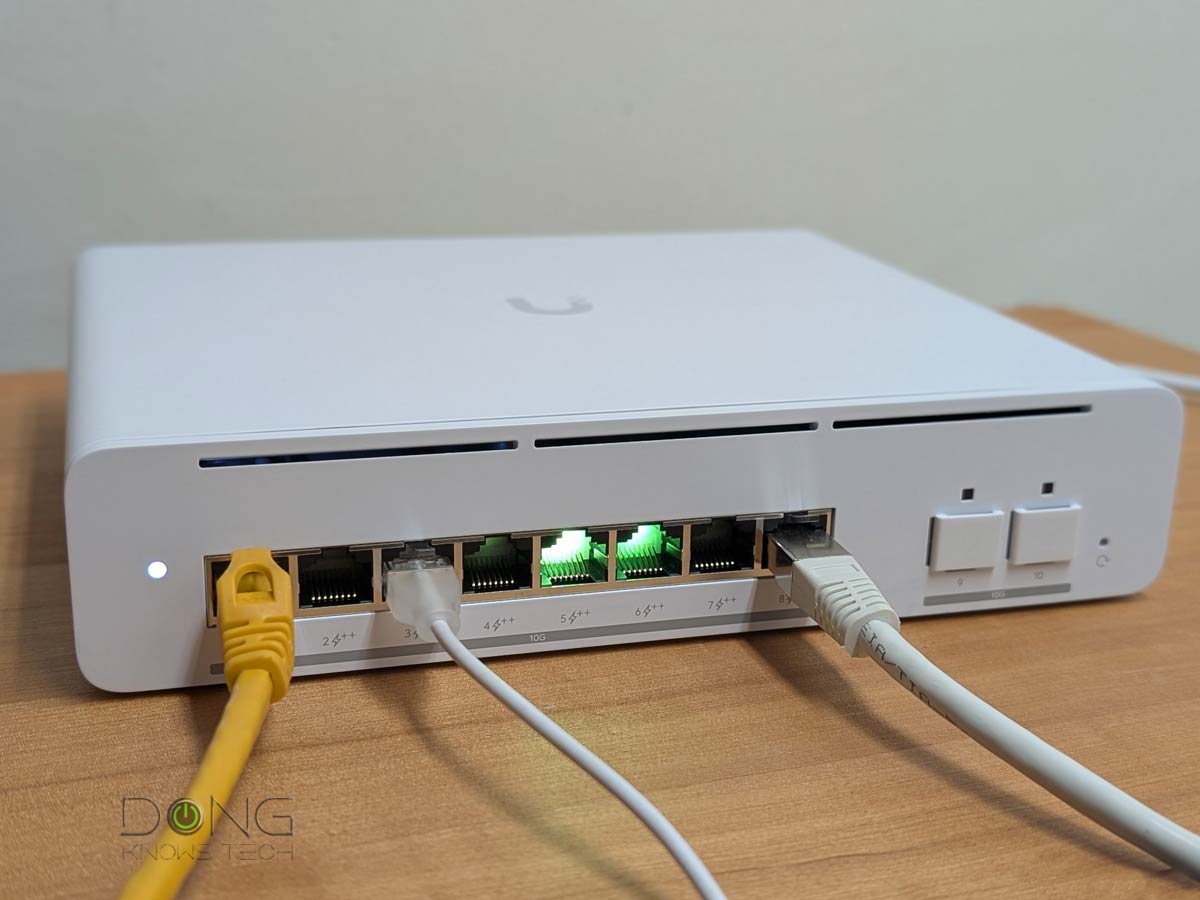 | 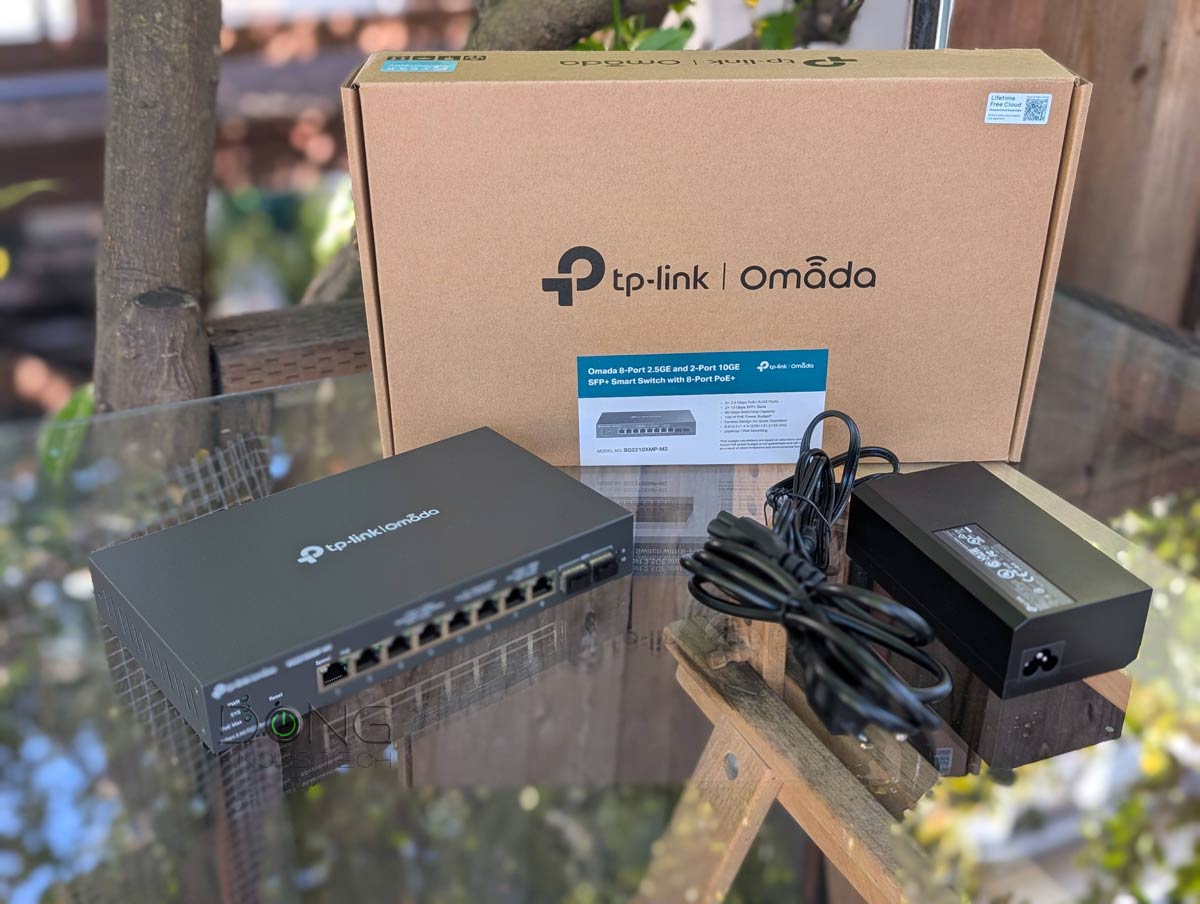 |  |  |  | |
| Name | Ubiquiti Switch Pro XG 8 PoE's Rating | TP-Link Omada SG2210XMP-M2 Smart Switch's Rating | Ubiquiti UDB Switch's Rating | Zyxel XS1930-12HP's Rating | TRENDnet TEG-S750's Rating |
| Price | – | – | – | – | – |
| Rating | |||||
| Description | |||||
| Statistics | |||||
| Buy this product |
Have personally used these switches for extended periods, from a few months to a few years, and they have all proven to be excellent performers. I’ll also add the alternatives when applicable.
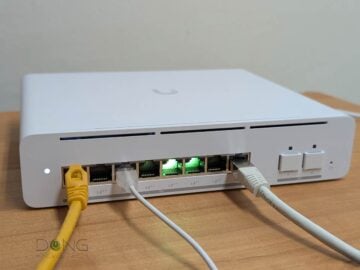
1. Ubiquiti Switch Pro XG 8 PoE
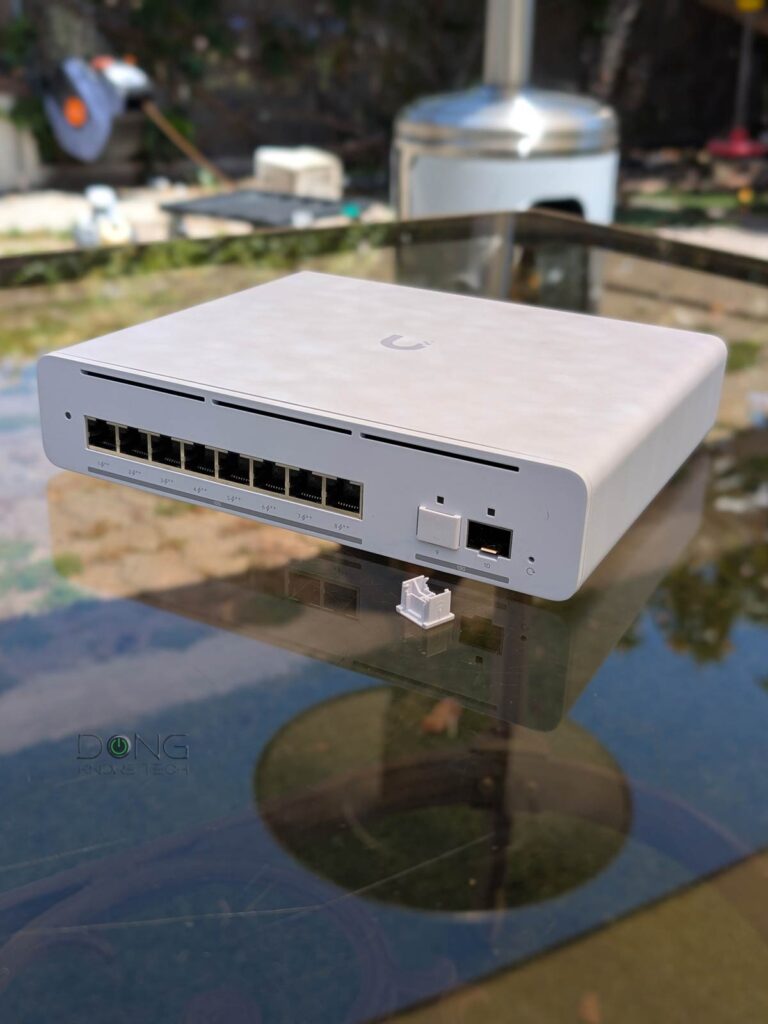
The Pro XG 8 PoE is the top-tier 10Gbps PoE+++ switch. With eight RJ45 and two SFP+ ports, it has enough to power a high-performing network on its own, and it’ll work with any existing router. However, this switch is best used in a UniFi network.
Alternatively, you can also pick the Ubiquiti Enterprise 8 PoE, which supports the 2.5Gbps grade, or any other UniFi switches.
Ubiquiti Switch Pro XG 8 PoE's Rating
Pros
Ten 10Gbps ports with eight being PoE++; reliable and fast performance
Plug-and-play as an unmanaged switch with the option to deliver more when coupled with Ubiquiti's UniFi controller
Helpful Etherlighting feature, runs cool and quiet
Cons
Large power adapter, internal fan, no PoE+++
No built-in local web user interface when working as a standalone switch
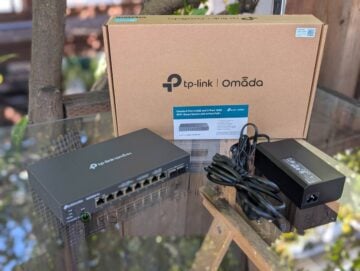
2. TP-Link Omada SG2210XMP-M2
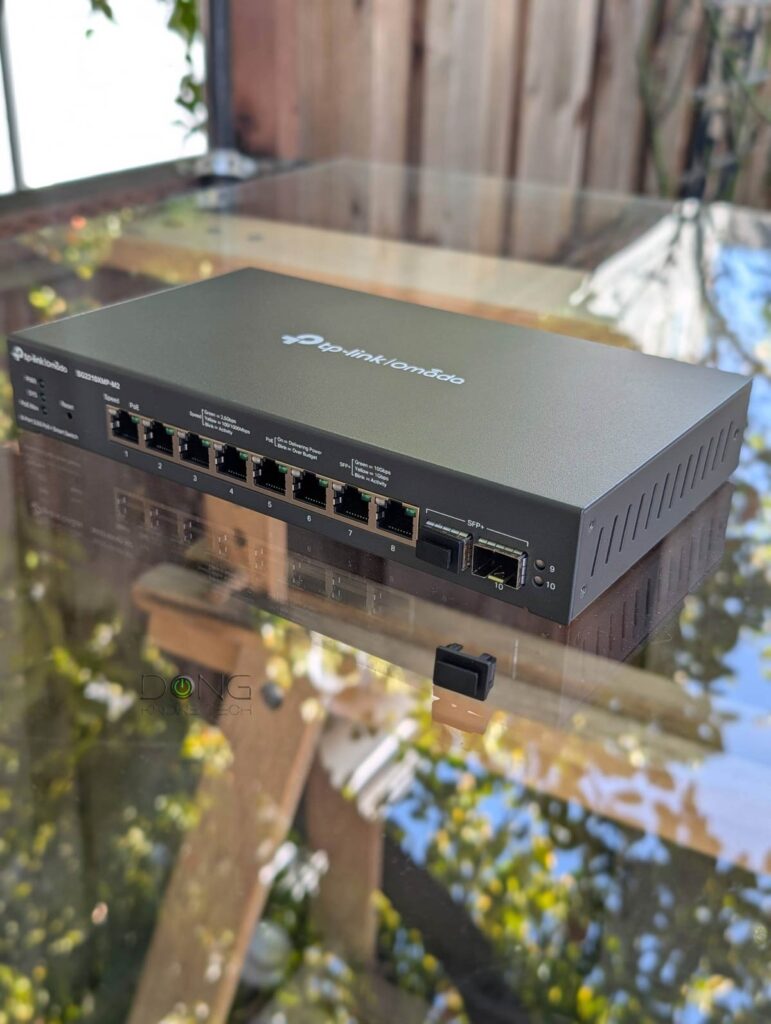
The SG2210XMP-M2 is part of TP-Link’s Omada family and will join the system when operating in a network hosted by an Omada controller. However, it’ll work right out of the box as an unmanaged PoE+ switch for any existing network. That versatility, plus two SFP+ and ten 2.5Gbps (Mult-Gig) ports, means it’s an excellent buy for anyone.
Alternatively, you can also pick the Zyxel XGS1250-12, which was previously on this list. (Compare the pricing of the two.)
TP-Link Omada SG2210XMP-M2 Smart Switch's Rating
Pros
Eight 2.5GbE PoE+ Multi-Gig ports and two 10GbE SFP+ ports
Excellent performance
Plug-n-play for any network with advanced features, Omada integration
Fanless, compact design, runs cool
Cons
No PoE power forwarding
No 10GBASE-T port
3. Ubiquiti UDB Switch
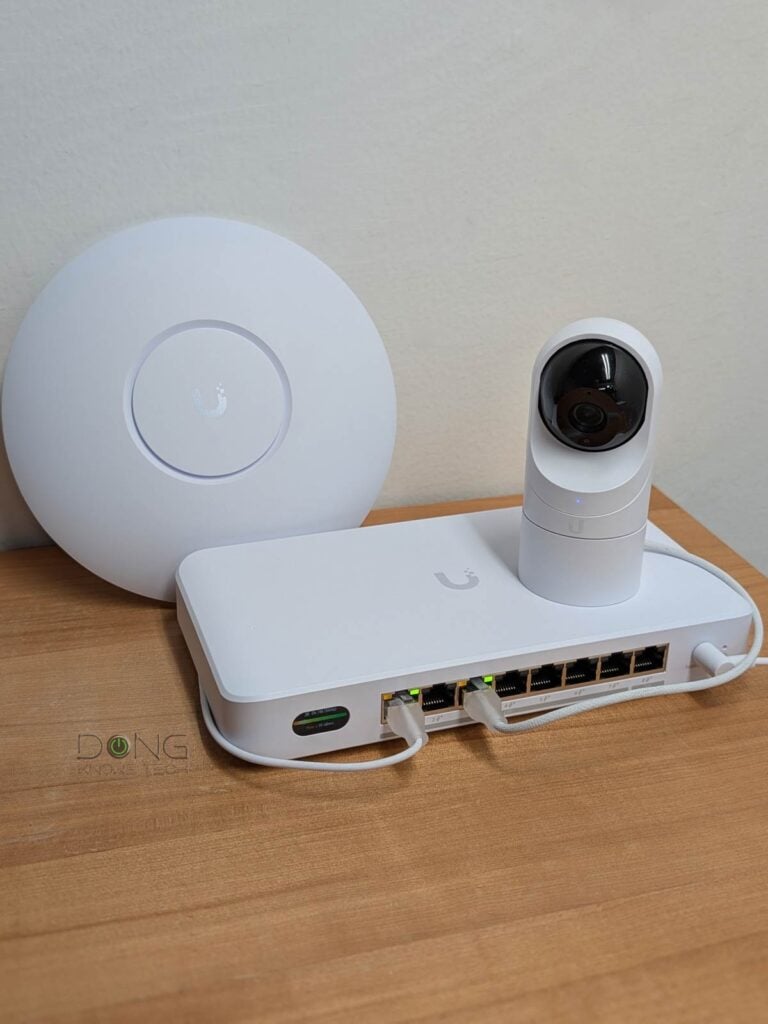
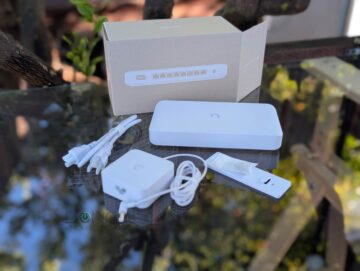
The UDB Switch is more than a standard PoE switch. In addition to being able to work as one, it uniquely has a built-in Wi-Fi 7 media bridge. As a result, it can use Wi-Fi as the uplink, allowing it to power up to 8 PoE devices in locations where you can’t run a network cable.
Ubiquiti UDB Switch's Rating
Pros
Eight Multi-Gig PoE+ ports in a compact design
Plug-and-play as an unmanaged switch with the option to use Wi-Fi 7 as the uplink and advanced port options when coupled with a UniFi cloud gateway
Runs cool and quiet
Cons
Wi-Fi (mesh) uplink requires UniFi Network, can't work as an access point, no local web user interface
High-wattage power adapter not included
Single 10Gbps port, no Etherlighting
4. Zyxel XS1930-12HP
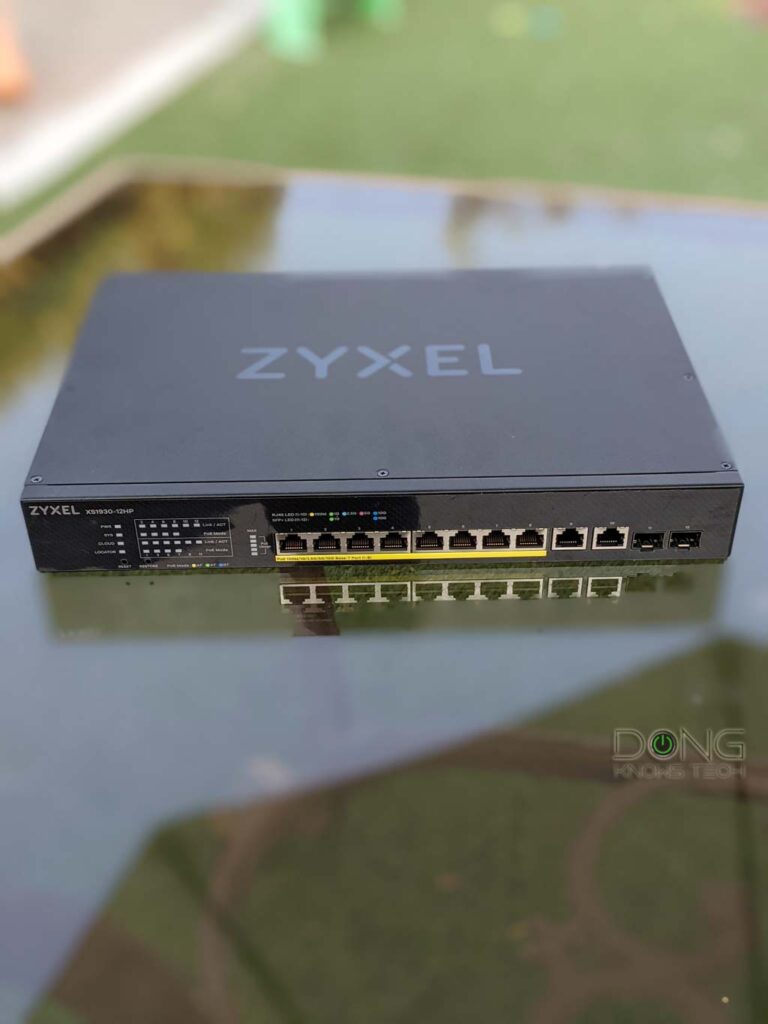
The Zyxel XS1930-12HP is a top-tier 12-port managed PoE++ switch. It delivers uncompromised performance and is a workhorse for any demanding network. Even though it’s a managed switch, it defaults to unmanaged operation, making it an easy option for any home or small office.
Zyxel XS1930-12HP's Rating

Pros
Lots of 10Gbps ports of Multi-Gig and SFP+ standards
Eight Multi-Gig PoE++ ports
Plug and play—unmanaged mode—out of the box
Excellent performance
Runs cool and is relatively quiet
Cons
Mobile app and web interface could use some improvement
Still expensive, for now
Two internal fans
5. TRENDnet TEG-S750

The TRENDnet TEG-S750 is an excellent five-port 10Gbps Multi-Gig unmanaged switch for those needing to add a handful of fast wired devices to the network. Alternatively, you can also pick the TEG-S762 (2x 10Gbps, 4x 2.5Gbps) or the TPE-TG350 (5x 2.5Gbps PoE+). (Compare the street prices of the three.)
TRENDnet TEG-S750's Rating

Pros
Five 10Gbps Multi-Gig ports
Fast performance, plug-and-play design
Helpful port indicator, fanless, sturdy design
Cons
No SFP+ port, only 5 BASE-T ports
Not wall-mount-ready
Extra: Ubiquiti Flex 2.5G PoE
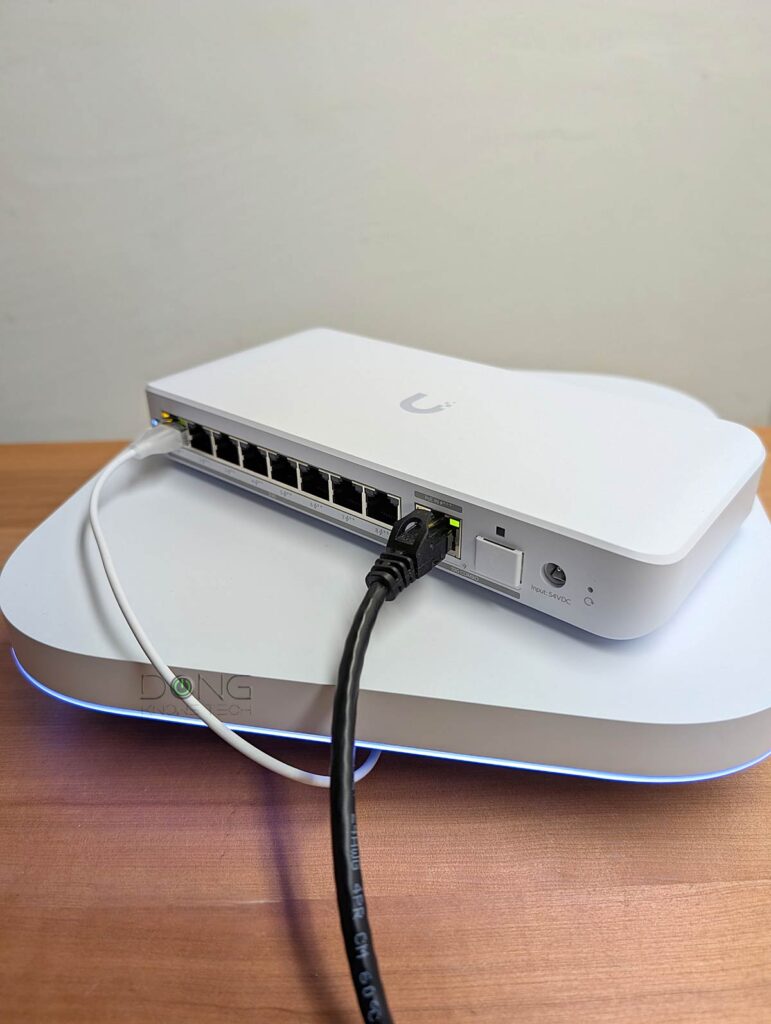
The Flex 2.5G PoE is a special 8-Port PoE switch. Apart from being able to work as a typical PoE++ device, it has a PoE Forwarding function that allows it to host multiple wired (PoE) devices locally without a power socket.
Ubiquiti Flex 2.5G PoE's Rating

Pros
Eight Multi-Gig PoE++ ports with a 10G Uplink PoE+++/SFP+ combo port; reliable and fast performance
PoE Power Forwarding support; plug-n-play by default, with the option to deliver more when coupled with Ubiquiti's UniFi controller
Compact design, runs cool and quiet
Cons
No power adapter or PoE injector is included, limited PoE power budget; only one 10Gbps port
No built-in local web user interface
The final thoughts
When it comes to switches, more ports and faster port grades are always better. Unfortunately, that also means the hardware is more expensive.
In most cases, a Gigabit switch with a half-dozen or so ports is a viable option for quickly adding more wired devices to a network. However, if you already have a Multi-Gig router, it’s a good idea to consider switching to the same port grade, at least for the uplink. Nowadays, the 2.5Gbps port grade is popular among wired devices.
The same applies to getting a PoE switch. The higher the PoE output (per port) and the faster the port grade, the more expensive the switch becomes. Generally, it never hurts to have the highest PoE power budget/output and fastest port-grade in switches, but if your PoE device does not require high speed, such as an IP camera, a slow PoE switch will do. For example, a Gigabit PoE switch can easily handle multiple PoE IP cameras or phones.
Other than that, the noise and heat levels are also worth considering. Faster (and higher-PoE-grade) switches tend to have an internal fan and can therefore be noisy. They also tend to produce more heat. On the other hand, Gigabit switches with a dozen or fewer ports tend to be silent.
Last but not least, avoid using a PoE switch with a cheap uninterruptible power supply (UPS) unit, as the built-in battery or outlet may not have enough juice to sustain the switch’s power requirements. (If you have a UniFi network, the UPS-Tower is the best option.)



I 100% agree with “it’s often better to use multiple switches with a few ports than a single switch with many ports”. I run IT for a company and often have to get small switches for a random workstation. Great tips!
👍
I have a different opinion on your “extra tip.” I believe in keeping each layer with a separate vendor, to ensure that bugs in firmware don’t take down everything. Layers 1/2/3 – WiFi/Switch/Router – all different.
If the router is down, everything is down, Sanjay. Your approach is often the case anyway in a network with multiple (unmanaged) switches.
Using hardware of the same ecosystem has many benefits, including easy firmware management. In fact, if you have a well-designed ecosystem, such as UniFi or Omada, it’s highly recommended. Try it!